

Low rankings usually come from a scattered plan, not one missing plugin. If you are a DIY WordPress site owner who has read a dozen SEO checklists and still does not know what to do first, the problem is not your effort. It is that most advice treats WordPress SEO as a list of disconnected tactics instead of connected layers that build on each other.
WordPress SEO works when you fix crawlability and indexing, tighten page targeting, strengthen internal links, improve speed, and earn trust through content and links. Each layer depends on the one beneath it. A great title tag cannot save a page Google cannot crawl. A fast site cannot rescue weak content. A green light in an SEO plugin does not mean the page deserves to rank.
At WordPress SEO Expert, we see the same compounding patterns every week, and most of them are fixable without a full rewrite. This pillar guide walks through each layer in the order a working practitioner would actually approach them, with specific plugin settings, real config examples, and honest trade-offs along the way.
Why WordPress SEO Is Different (And What Actually Matters)
WordPress is not harder to optimize than other platforms, but it is easier to misconfigure. The flexibility that makes WordPress powerful also lets you accidentally generate thin archives, duplicate URLs, conflicting canonicals, and overlapping plugin output without realizing it.
Here is what actually matters on WordPress, in order of impact: whether Google can crawl and index your key pages, whether those pages clearly match search intent, whether your site structure and internal links reinforce that intent, whether your pages load fast enough to not frustrate users, and whether your content earns trust through quality and links. Everything else, from schema to social previews, sits on top of that foundation.
If you are new to WordPress SEO and want a structured starting point, our guide for new WordPress websites covers the initial setup before you touch any plugin settings.
The layered model: why tactics do not work in isolation
Think of WordPress SEO as a stack. Technical foundations sit at the bottom. If crawlability or indexing is broken, nothing above it performs. On-page optimization sits on top of that: titles, headings, content, and internal links. Content strategy sits above on-page because it determines which pages should exist in the first place and what each one targets. Off-page SEO, including links and brand signals, sits at the top because it amplifies everything beneath it.
When rankings stall, most DIY site owners try to fix the top layer first. They publish more content, build more links, or install another plugin. But if the bottom layer is broken, those efforts compound the problem instead of fixing it. More content on a site with duplicate URLs creates more duplicates. More links to a page with mismatched intent sends stronger but wrong signals. Fix the issues that block visibility before the issues that polish visibility.
What WordPress adds to the SEO equation
WordPress gives you a head start with clean permalink structures, built-in RSS feeds, and a content management system that makes it easy to publish and organize pages. But it also auto-generates archive pages (author, date, tag, category), creates attachment pages for every uploaded image, and lets plugins add their own URL parameters. Each of these can create crawl waste or duplicate content if left unmanaged.
The sites that perform best are not the ones with the most plugins or the most content. They are the ones with one clean SEO setup, a simple structure, and pages that clearly match what people are searching for. For a broader walkthrough, our WordPress SEO best practices guide covers the full baseline.
On-Page SEO: Titles, Meta, Headings, and Internal Links
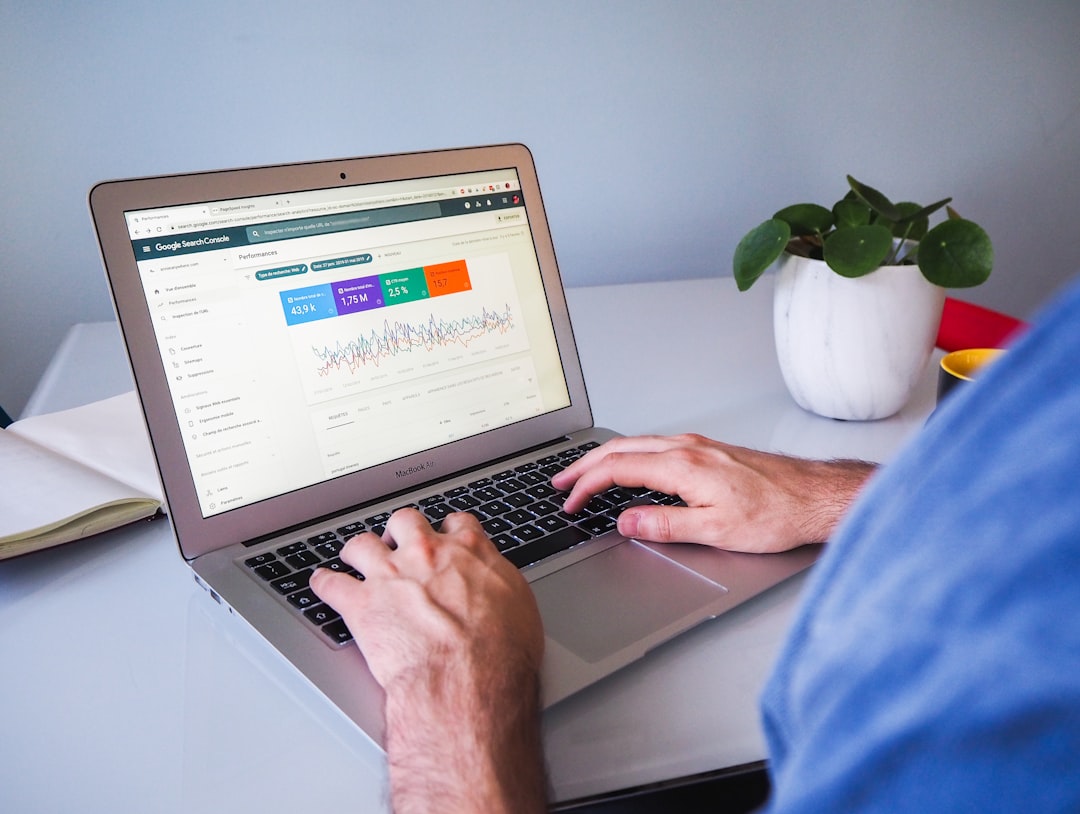
On-page SEO is where you control what each page tells search engines and users about itself. The four elements that move the needle most are title tags, meta descriptions, heading structure, and internal links. Get these right on your core pages before touching anything else.
Title tags: the single highest-impact on-page element
Your title tag is still one of the strongest on-page signals you control. Google uses it to understand what the page is about and often displays it as the clickable link in search results. Google advises writing descriptive, concise titles and warns against keyword stuffing and repetitive boilerplate.
In your SEO plugin, set up title templates so each page type gets a consistent structure, but do not let the template create generic, repetitive output. A good template for a blog post might be %%title%% %%page%% %%sitename%%, which outputs the post title, a page number if paginated, and the site name. Avoid templates that prepend your site name to every single page, which wastes space and dilutes relevance.
| Weak title | Stronger title |
|---|---|
| SEO Services | SEO Company | SEO Expert | WordPress SEO Services for Small Businesses |
| Blog | WordPress SEO Tips for Service Businesses |
| Blue Widgets, Best Blue Widgets, Buy Blue Widgets | Blue Widgets for Commercial Kitchens |
| Home | Plumbing Repairs in Austin, TX | Same-Day Service |
The stronger titles are specific, human-readable, and aligned with what the page actually covers. They target one clear intent instead of stuffing every keyword into the tag.
Meta descriptions: click support, not a ranking lever
Meta descriptions are not a direct ranking factor, but they influence click-through rate, which affects traffic. Google may use your meta description in the snippet, or it may pull text from the page if the description does not summarize the content well. Write a unique, concise description for each important page that includes a benefit or specific detail to earn the click.
Most DIY site owners make one of two mistakes here: they leave meta descriptions blank (letting Google guess), or they write one generic description and reuse it across the whole site. Neither helps. Spend two minutes per important page writing a description that reads like a ad for that specific page.
Heading structure: one H1, then a logical hierarchy
Every important page should have exactly one H1 that describes what the page is about. Then use H2s for major sections, H3s for subsections within those, and so on. Do not skip levels (jumping from H2 to H4) and do not use headings purely for styling. If you need larger text, use CSS, not a heading tag.
In WordPress, your theme typically outputs the post or page title as the H1. Most SEO plugins let you set a separate title tag (what appears in search results) from the H1 (what appears on the page). These can be slightly different: the H1 can be more natural and descriptive, while the title tag can be tighter and keyword-focused.
Internal links: the most underused on-page lever
Internal linking helps search engines discover pages, understand topic relationships, and judge which pages matter most on your site. It also helps users find the next logical step instead of hitting a dead end. Google recommends anchor text that is descriptive, concise, and natural instead of over-optimized.
On most WordPress sites, internal linking is weak. Core service pages are isolated, blog posts do not link to each other, and the only links to important pages come from the main navigation. Here is a practical approach:
- Link from broad informational blog posts to specific service or product pages.
- Connect related blog posts to each other with descriptive anchor text, not “click here.”
- Make sure every important page is linked from at least two other crawlable pages, not just the menu.
- Find and fix orphan pages (pages that only exist in the sitemap with no internal links pointing to them).
If you want a systematic walkthrough of linking and on-page elements in sequence, our step-by-step WordPress SEO improvement guide goes deeper.
Technical Foundations: Crawlability, Speed, and Schema
Technical SEO is the layer most DIY site owners skip or outsource, but the basics are straightforward. If Google cannot crawl the right pages, index them correctly, and render them quickly, everything above this layer underperforms. Fix the issues that block visibility before the issues that polish visibility.
Crawlability and indexing: can Google see your pages?
Start by checking Google Search Console. Go to Pages (or Coverage in older versions) and look for excluded URLs, crawl errors, and indexing problems. The most common WordPress issues are accidental noindex settings, pages blocked by robots.txt, and URLs that return soft 404s.
In your SEO plugin, verify these settings:
- XML sitemap is enabled and submitted to Google Search Console.
- robots.txt is not blocking /wp-content/uploads/ (this blocks images from indexing).
- Archive pages (author, date) are set to noindex if you run a single-author blog.
- Tag archives are set to noindex if you have thin or overlapping tags.
- Search result pages, paginated comment pages, and attachment pages are noindexed.
Most SEO plugins let you control these under Settings > Reading or in the plugin’s own indexing controls. The goal is to make sure Google crawls and indexes your real content pages (services, products, blog posts, and meaningful category pages) without wasting crawl budget on thin archives.
Speed: good enough, not perfect
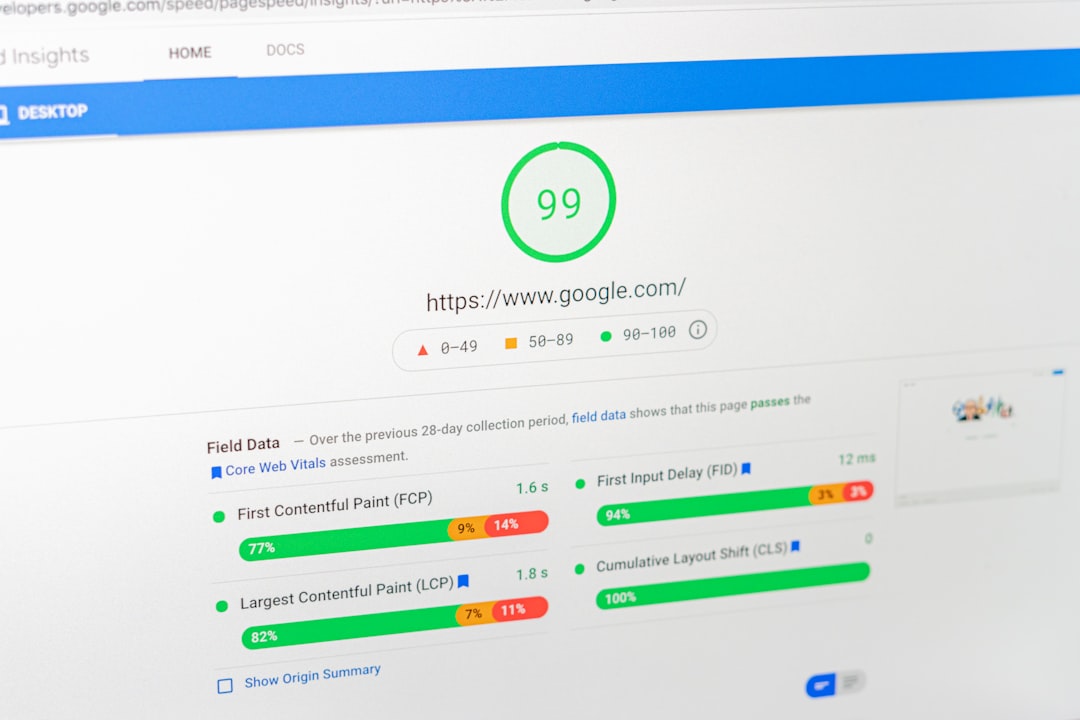
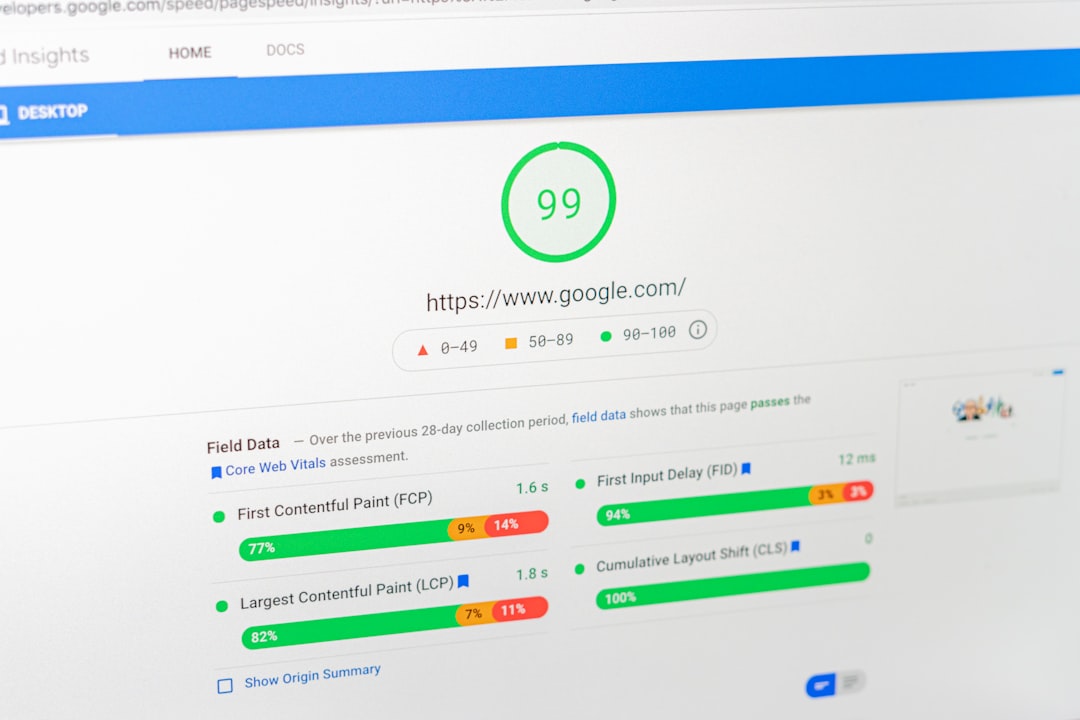
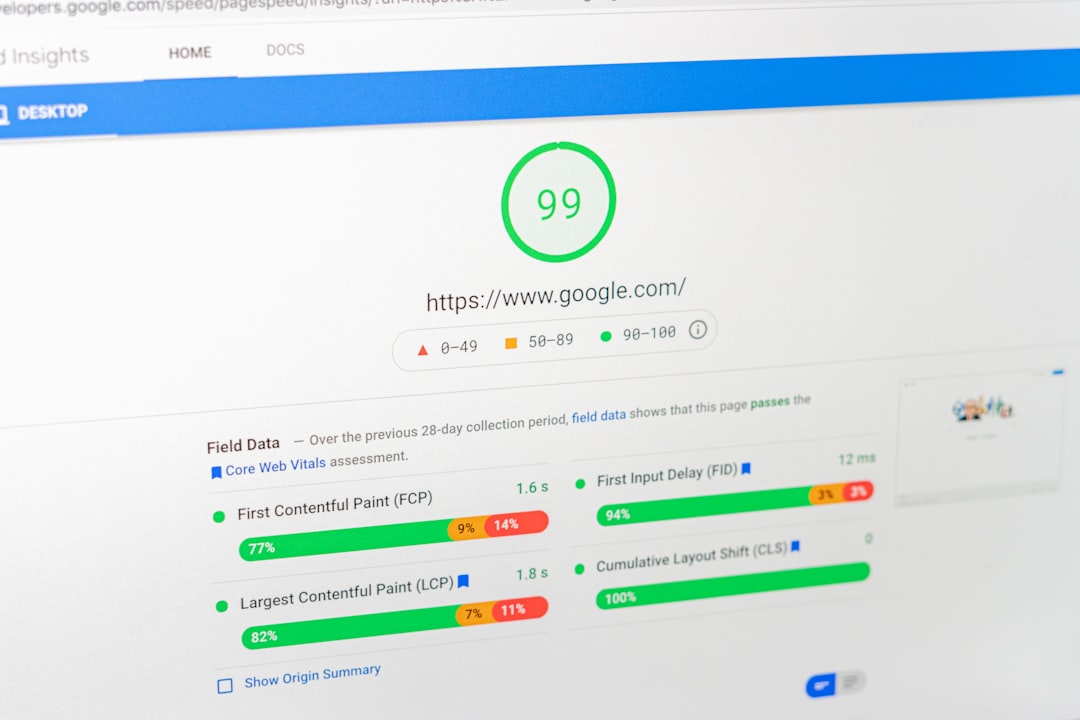
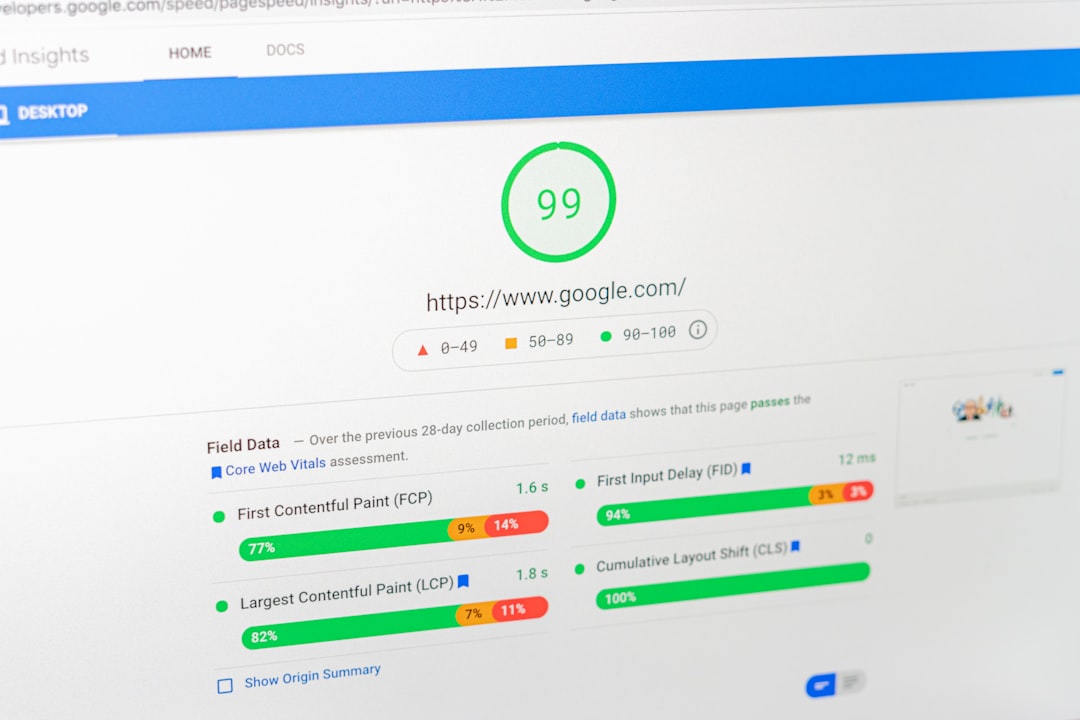
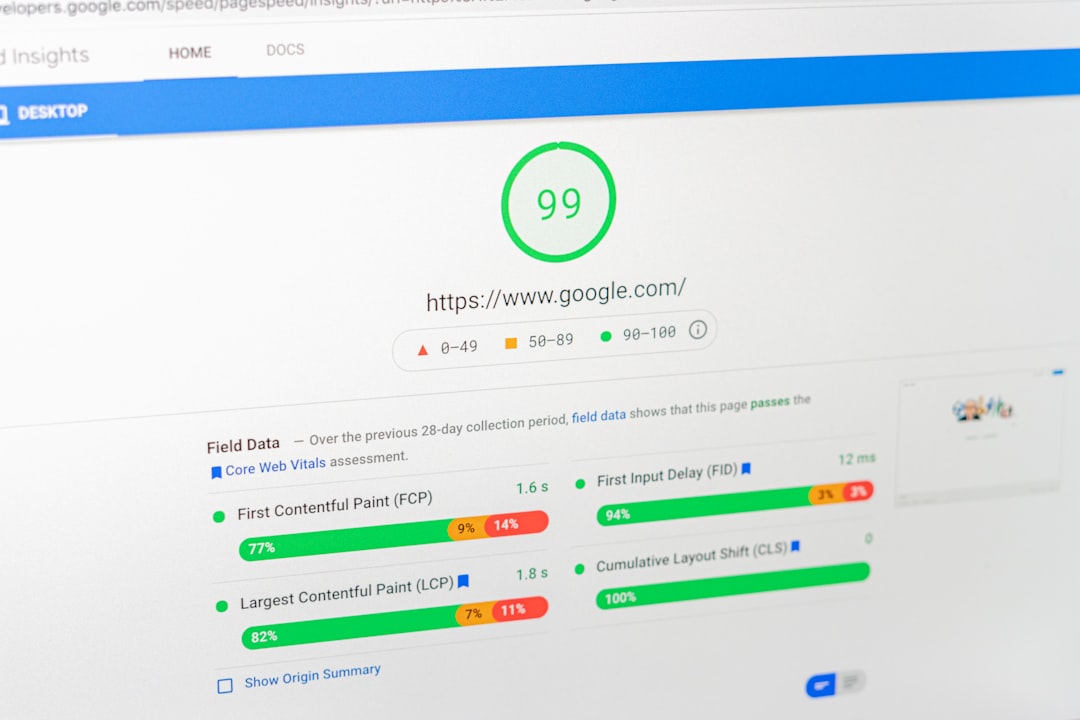
Site speed matters when slow pages frustrate users or make a site harder to use. The goal is a fast, stable experience on key templates, not a perfect lab score that looks good in screenshots. You do not need a perfect score. The goal is a site that loads cleanly and is easy to use.
Start with the highest-impact fixes on WordPress:
- Compress images and convert to WebP. A 4MB hero image drops to 600 to 900KB as WebP, a 75 to 85% reduction. Use Smush, ShortPixel, or Imagify.
- Enable page caching. WP Rocket, LiteSpeed Cache, or W3 Total Cache. One caching plugin is enough.
- Remove unused plugins. Every active plugin adds PHP execution time and database queries on every page load.
- Minify CSS and JavaScript. Most caching plugins handle this, but test after enabling to avoid breaking layouts.
- Use a CDN. Cloudflare’s free tier handles static asset delivery and basic optimization.
- Audit your page builder. Elementor, Divi, and WPBakery add significant DOM size and script weight. Test your key templates in PageSpeed Insights after any builder change.
Test your homepage, a key service or product page, and a blog post separately. These templates perform differently, and a fix that helps the homepage may not fix a slow product page. For a deeper dive into practical tuning, our team at WordPress SEO Expert recommends reviewing our WordPress speed and performance guidance.
Schema markup: use it carefully, do not overdo it
Structured data helps search engines understand a page more clearly, but it is not a shortcut around weak content or weak technical SEO. Add only the markup that matches what users can actually see on the page. Google’s structured data policies state that markup should reflect visible page content and should not be misleading.
In practice, most WordPress sites need three schema types:
- Organization or LocalBusiness on the homepage.
- Article on blog posts.
- BreadcrumbList on all pages with breadcrumbs.
Both Yoast and Rank Math generate these automatically when configured. Do not enable every schema type your plugin offers. Adding Review schema to a page with no reviews, or FAQ schema to a page with no visible FAQs, risks a manual action. Review Google’s structured data guidelines before enabling broad schema features in your plugin.
Technical SEO checklist at a glance
| Area | What to check | Plugin setting location |
|---|---|---|
| XML sitemap | Enabled, submitted to GSC, excludes thin archives | Yoast: SEO > General > Features. Rank Math: Sitemap Settings. |
| robots.txt | Not blocking /uploads/, clean and minimal | Site root or SEO plugin robots.txt editor |
| Archive indexing | Author, date, tag archives noindexed if thin | Yoast: SEO > Settings > Content Types. Rank Math: Titles & Meta. |
| Canonical tags | Self-referencing on all indexable pages, correct on paginated pages | Plugin canonical output (usually automatic) |
| Schema | Organization/LocalBusiness, Article, Breadcrumb only | Yoast: Schema settings. Rank Math: Schema Generator. |
| Page speed | Image compression, caching, CDN, plugin audit | Caching plugin + image optimizer |
| Broken links | No 404s on internal links, redirects in place | Redirection plugin or Rank Math redirect manager |
Content Strategy and Keyword Research for WordPress

Content strategy is the layer that determines which pages should exist, what each one targets, and how they connect. Most DIY site owners skip this and jump straight to publishing, which is why they end up with overlapping pages that cannibalize each other.
Start with search intent, not keyword volume
Before you write or update any page, answer one question: what is the searcher trying to do? There are four core intent types: informational (learn something), navigational (find a specific site or page), commercial (compare options before buying), and transactional (take an action, buy, contact).
Map one primary intent to each page. Your homepage targets your broadest core offering. Service pages target transactional or commercial queries. Blog posts target informational queries and link to your service pages. If two pages chase the same intent, consolidate them. One strong page outperforms three thin pages competing with each other.
A practical keyword research process for DIY sites
You do not need a $100/month tool to do keyword research for a small site. Here is a process that works with free tools:
- Open Google Search Console. Go to Performance > Search results. Sort by impressions. These are the queries Google already associates with your site.
- Look for queries where you rank positions 4 through 15 with decent impressions. These are your fastest wins. Improve the title, content, and internal links on those pages.
- Type your core topic into Google. Look at “People also ask” and related searches at the bottom. These are real questions people ask that you can answer in blog posts or FAQ sections.
- Check Google Trends to see if a topic is growing or declining. Prioritize stable or growing topics.
- Use the free tier of any keyword tool (Ubersuggest, Keyword Surfer, or Google Keyword Planner) to check relative volume and difficulty. Do not obsess over exact numbers. Prioritize relevance and intent fit.
Content mapping: how to connect pages into a cluster
Instead of publishing random blog posts, build content clusters around your core topics. A cluster has one pillar page (a broad, comprehensive page) and several supporting pages that cover subtopics in depth, all linking back to the pillar and to each other.
For example, if your core topic is “WordPress SEO,” your pillar page is this guide. Supporting pages cover subtopics like plugin comparisons, speed optimization, keyword research, and schema setup. Each supporting page links to the pillar, and the pillar links to each supporting page. This structure signals topical authority to Google and helps users find related content naturally.
Do not split one topic into several thin posts just to target slight keyword variations. A stronger content map comes from consolidating overlapping pages, improving internal links, and making sure each page answers a distinct need. For a deeper look at structuring your content and strategy, review our guide on building a WordPress SEO strategy that ranks.
How often should you publish?
There is no magic publishing frequency. What matters is that each page you publish has a clear purpose, targets a distinct intent, and links to related pages. Publishing one well-researched, comprehensive post per month beats publishing four thin posts per month. Quality and consistency outperform volume every time.
Off-Page: Link Building Without Spammy Tactics

Off-page SEO is about earning signals from other sites that tell Google your content is trustworthy. Links remain the most important off-page signal, but the landscape has shifted. Low-quality directory links, link exchanges, and paid links are easier for Google to detect than ever, and they carry real risk.
What actually works for link building in 2026
The links that move rankings are earned, not built through automation. Here is what a working practitioner actually does:
- Create content worth linking to. Original data, case studies, tools, and comprehensive guides earn links because they provide value that other sites want to reference.
- Reach out to relevant sites with a genuine reason for the link. Not “I saw your blog post and thought my article would be a great addition.” Instead, show how your resource adds something their page is missing.
- Get listed in legitimate industry directories and local business listings. These are low-risk, consistent citations that help with local SEO.
- Pursue digital PR. Getting mentioned in news articles, industry publications, and podcasts earns links that are hard to replicate.
- Fix broken links on other sites and offer your content as a replacement. Tools like Ahrefs’ broken link checker or a free Chrome extension can find these opportunities.
What to avoid
- PBN (private blog network) links. These networks are designed to manipulate rankings and Google penalizes them when detected.
- Automated link building tools. Any service that promises hundreds of links for a flat fee is selling low-quality links that can hurt your site.
- Link exchanges at scale. Trading links with a few relevant partners is fine. Automating link swaps across hundreds of sites is spam.
- Buying links. Google’s guidelines are clear: buying or selling links that pass PageRank violates their policies. If you pay for a link, it should be marked with rel=”sponsored” or rel=”nofollow”.
Brand signals and entity building
Links are not the only off-page signal. Brand mentions, social engagement, and consistent NAP (name, address, phone) information across the web all contribute to how Google understands your entity. Set up and verify your Google Business Profile, ensure your business information is consistent across directories, and build a presence where your audience already spends time.
For most DIY site owners, the best off-page strategy is to focus on creating genuinely useful content, earning a few high-quality links from relevant sites, and maintaining consistent business information across the web. That combination outperforms aggressive link building every time.
Common WordPress SEO Mistakes I See Every Week
Most site owners do not have one catastrophic problem. They have a stack of smaller issues that compound over time. Here are the mistakes that show up most consistently across the sites we review.
Mistake 1: Stacking multiple SEO plugins
One well-configured SEO plugin is enough. Running overlapping plugins often creates duplicate metadata, conflicting canonicals, and competing sitemap outputs. If you have Yoast and Rank Math both active, or an SEO plugin plus a separate schema plugin plus a separate Open Graph plugin, you are creating conflicts that are hard to troubleshoot. Pick one plugin, configure it properly, and remove the rest.
For a detailed comparison to help you choose, see our Yoast SEO vs Rank Math comparison. The gap between them is not one works and one does not. The gap is in which features are free, how the interface works, and how much each one costs at scale.
Mistake 2: Chasing plugin green lights instead of real optimization
A green light in an SEO plugin does not mean the page deserves to rank. The readability and SEO checks in Yoast and Rank Math catch basic issues, but they do not measure search intent, content quality, or whether the page is actually useful. Do not write awkward sentences just to get a green keyword density check. Write for the reader first, then make sure the technical settings are correct.
Mistake 3: Ignoring archive pages
Tag, author, and date archives are the most common source of duplicate content on WordPress. If you have a single-author blog, your author archive duplicates your blog index. If you have dozens of tags with one post each, those tag pages are thin and compete with your real content. Set thin archives to noindex in your SEO plugin, and delete tags that only have one or two posts assigned.
Mistake 4: Publishing thin content for volume
Publishing 20 thin posts to cover slight keyword variations is worse than publishing 5 comprehensive posts that each cover a topic thoroughly. Google emphasizes helpful, people-first content that is created to benefit users rather than manipulate rankings. Consolidate overlapping pages into stronger, comprehensive pages instead of fragmenting topics.
Mistake 5: Not checking Google Search Console
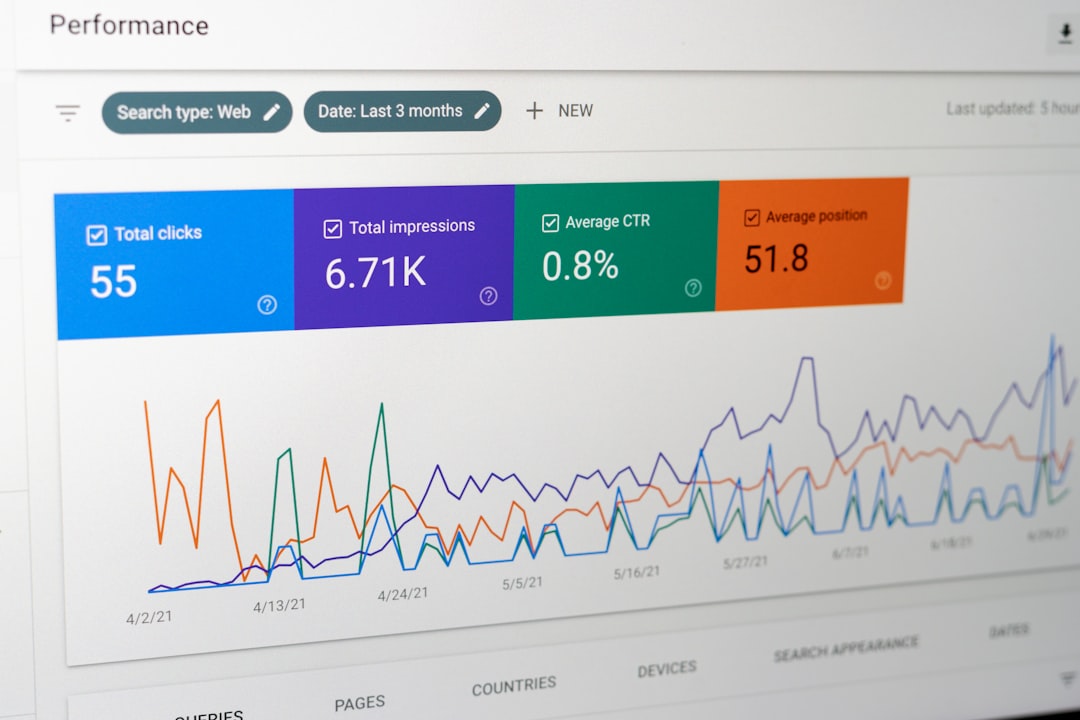
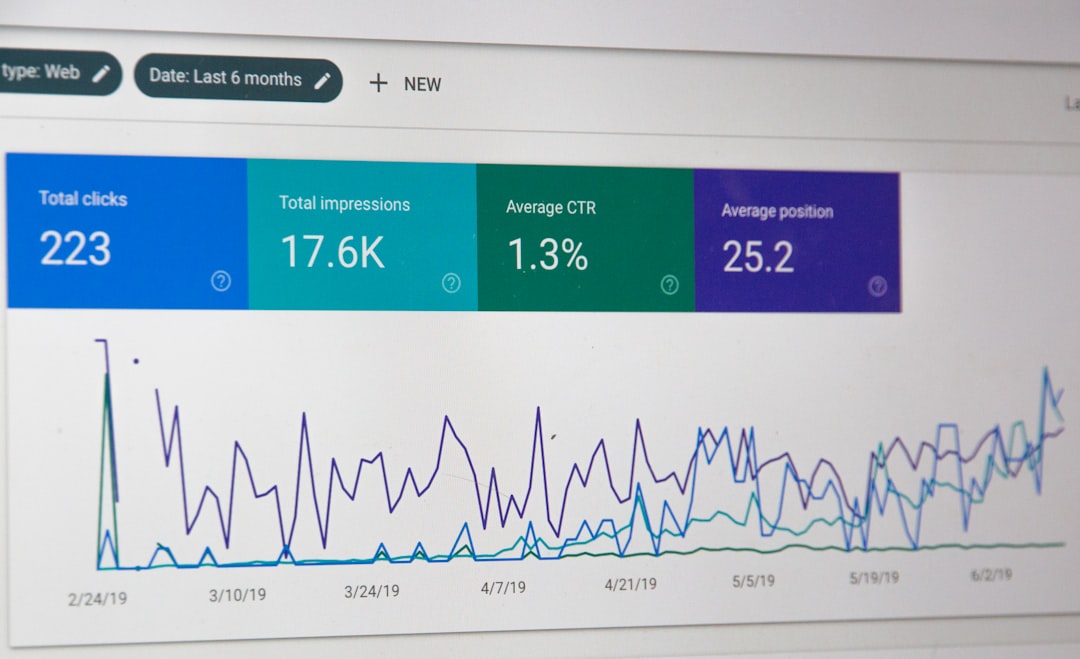
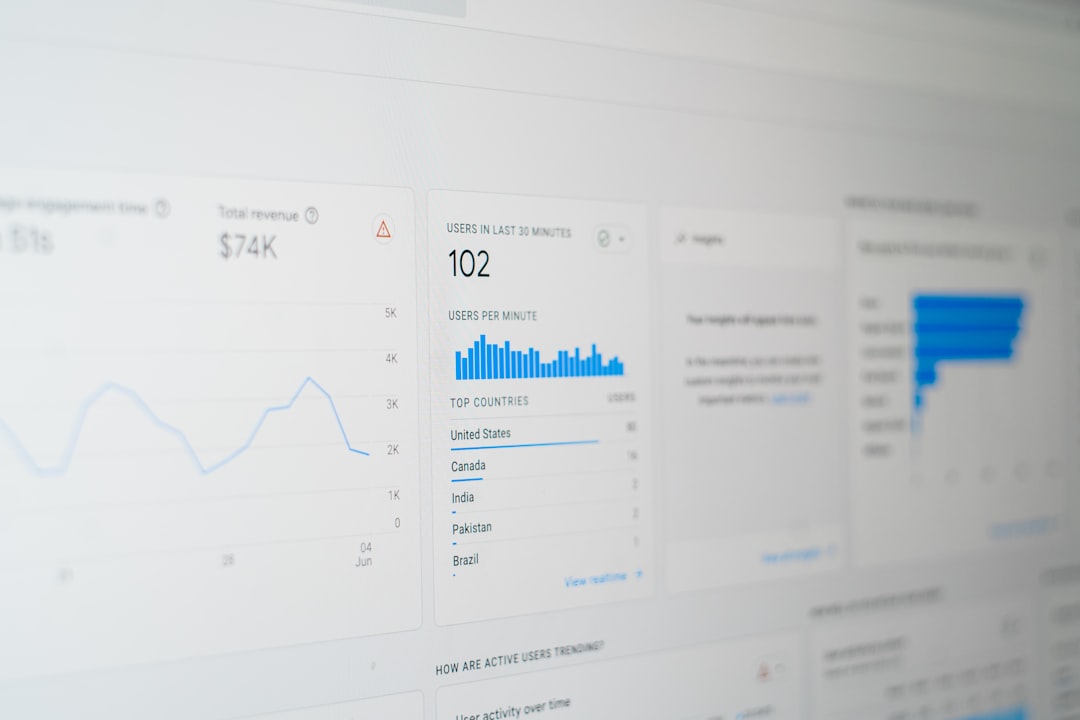
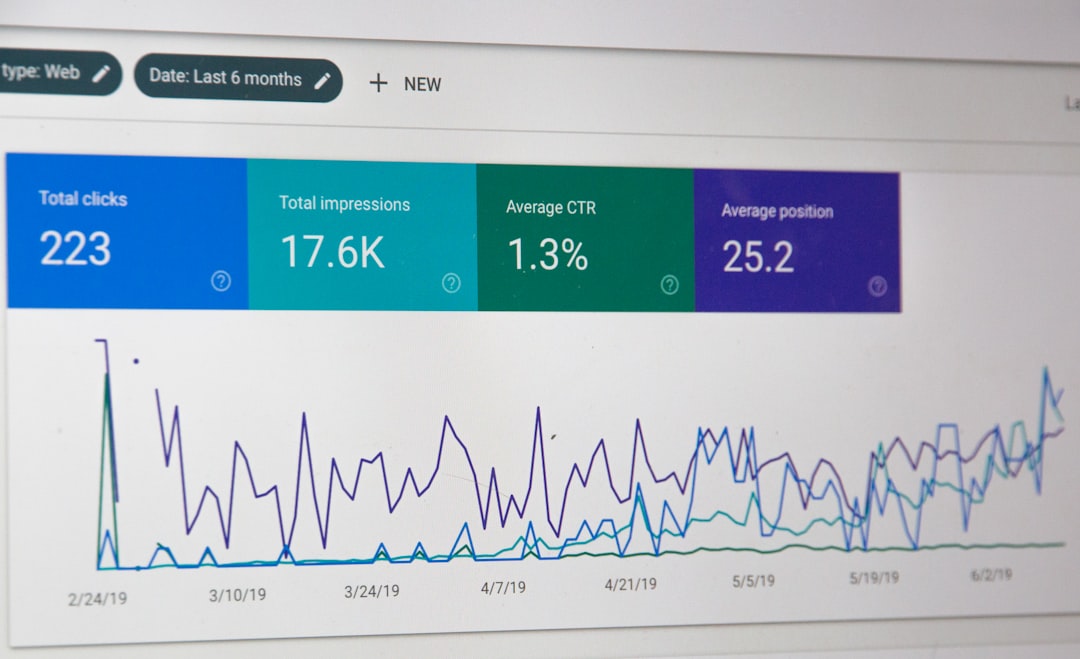
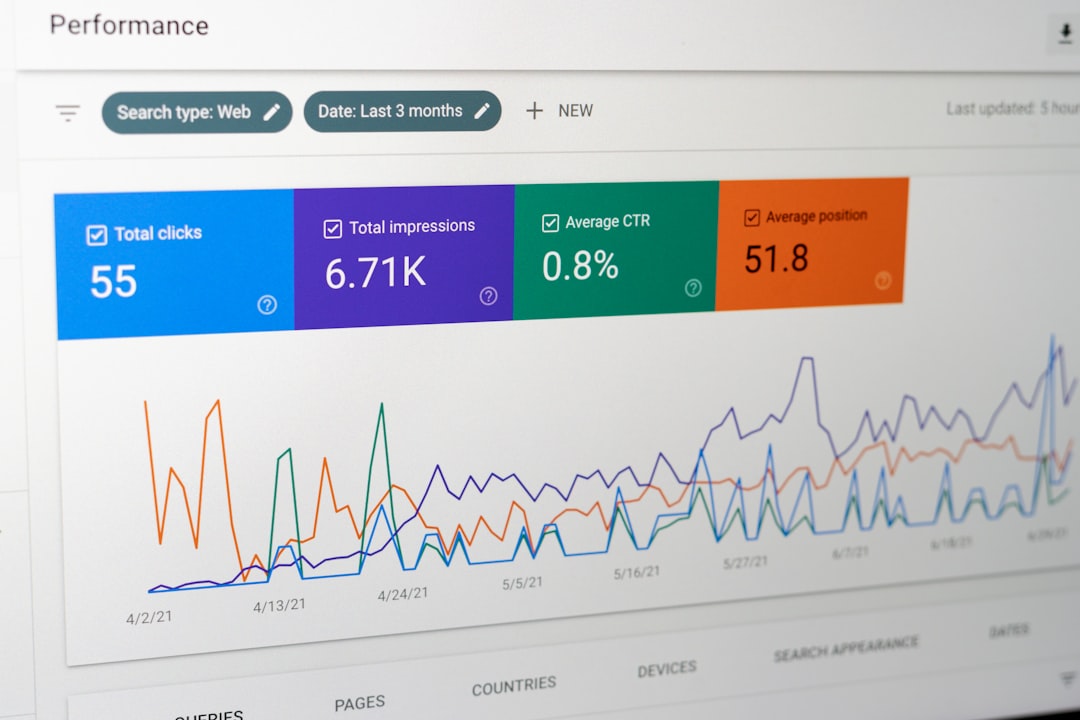
If you are not checking Search Console, you are missing the clearest SEO feedback Google gives you for free. The Performance report shows clicks, impressions, average CTR, and average position. The Pages report shows indexing status and errors. A monthly review of both reports takes 15 minutes and catches problems before they compound. For a structured approach to using GSC, our guide on tracking WordPress SEO results walks through the setup.
Mistake 6: Ignoring traffic drops after migrations or redesigns
Redesigns, migrations, and template changes are the most common cause of sudden traffic drops on WordPress. The underlying issue is usually technical: missing redirects, changed URL structures, lost canonical tags, or content that was removed or reorganized. If traffic drops after a launch, check redirects first, then indexing status in GSC, then compare old vs new page content. Do not wait to address this. The longer the issues sit, the more link equity and ranking history you lose.
Frequently Asked Questions
Need Help With Your WordPress SEO?
If you have worked through this guide and your rankings are still stuck, or if you are not sure whether your current plugin configuration is helping or quietly hurting you, WordPress SEO Expert can help. Most sites do not need a full rewrite or a new plugin stack. They need a clear diagnosis of what is actually blocking visibility and a prioritized plan to fix it.
Have questions? Our team at WordPress SEO Expert is here to help you sort the technical problems from the content problems before you change anything major. Book a free SEO consultation. No pitch, no pressure. Just an honest look at what your site actually needs and whether your current setup is part of the solution or part of the problem.
Frequently Asked Questions
How many SEO plugins should I install on WordPress?
You need one SEO plugin. Running multiple SEO plugins creates duplicate meta tags, conflicting sitemaps, and overlapping schema output. Pick one, configure it properly, and remove the rest.
Do I need a green light in Yoast or Rank Math to rank?
No. Green lights indicate basic checklist items like meta description presence and keyword usage. They do not measure search intent, content quality, or whether the page deserves to rank. Write for the reader first, then verify the technical settings.
What is crawl budget and do I need to worry about it?
If your site is under 500 pages and you do not have complex faceted navigation or filter URLs, you probably do not need to worry about crawl budget. Focus on indexing the right pages and noindexing thin archives instead.
What is the fastest way to improve WordPress site speed?
Compress images to WebP, enable page caching, remove unused plugins, use a CDN, and audit your page builder. Test your homepage, a key service page, and a blog post separately since they perform differently.
What kind of link building is safe in 2026?
High-quality links from relevant sites, earned through genuinely useful content and targeted outreach. Avoid PBNs, automated link tools, and paid links that pass PageRank, which Google can detect and penalize.




Pingback: WordPress SEO Setup Guide
Pingback: How to Troubleshoot WordPress SEO Setup
Pingback: WordPress SEO Fundamentals That Drive Growth
Pingback: WordPress SEO Services by Skill Level
Pingback: How to Track WordPress SEO Results
Pingback: WordPress SEO Services Checklist
Pingback: WordPress SEO Optimization Guide
Pingback: How to Troubleshoot WordPress SEO
Pingback: WordPress SEO Optimization for Google
Pingback: How to Measure WordPress SEO Performance
Pingback: WordPress SEO Tools and Techniques
Pingback: How to Fix WordPress SEO Problems
Pingback: How to Measure WordPress SEO Performance
Pingback: WordPress SEO for Beginners: 7 Steps
Pingback: WordPress SEO Tutorial That Makes Sense
Pingback: How Experts Approach WordPress SEO
Pingback: How to Troubleshoot WordPress SEO
Pingback: WordPress SEO Setup Guide
Pingback: WordPress SEO Tutorial Checklist
Pingback: How to Measure WordPress SEO Performance
Pingback: WordPress SEO Tutorial for Higher Rankings
Pingback: How to Improve WordPress SEO
Pingback: WordPress SEO Fundamentals
Pingback: WordPress SEO Fundamentals
Pingback: 12 WordPress SEO Mistakes to Avoid
Pingback: How to Improve WordPress SEO Basics
Pingback: WordPress SEO Setup Checklist