
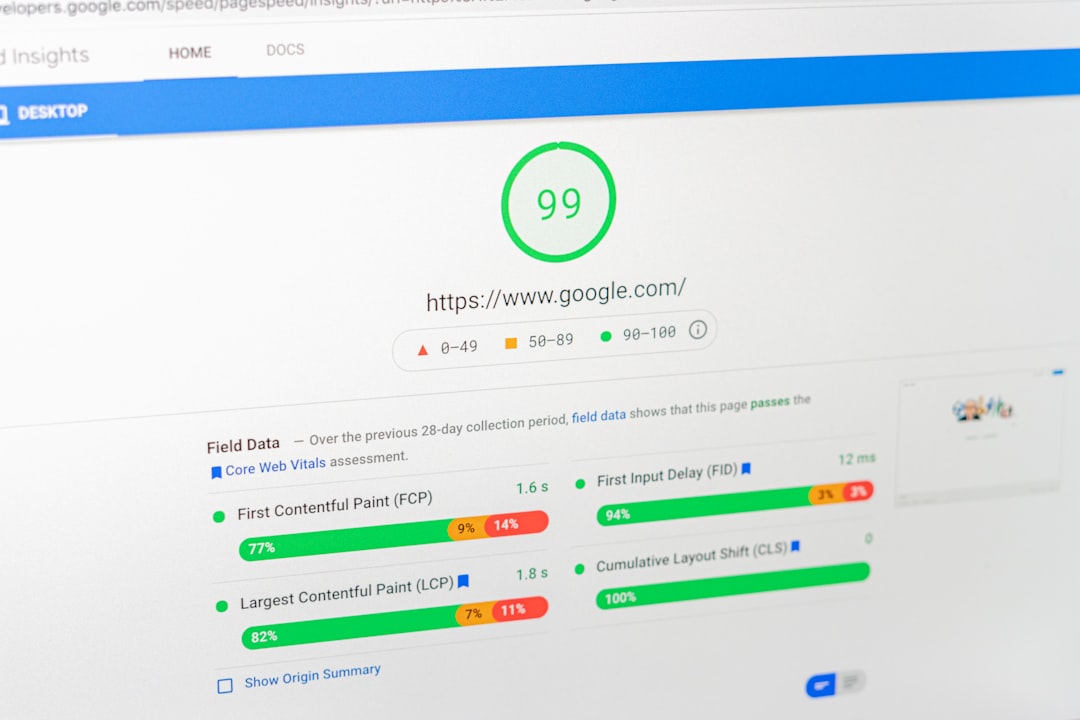
Your WordPress site speed is in the red on Lighthouse, and the advice you keep finding is “optimize your images” with no specifics. This guide skips the vagueness. We will walk through a real before/after Lighthouse breakdown, then four concrete fixes you can implement this week: exact plugin names, specific settings, and the impact range you can realistically expect from each. No performance theater, no chasing a perfect 100 when 85 is enough.
Why Site Speed Matters for SEO (and When It Doesn’t)
Google has confirmed that page experience signals, including Core Web Vitals, are part of how pages are evaluated. But speed is a tiebreaker, not a primary ranking factor. If your content is weaker than a competitor’s, making your site faster will not push you past them. Speed matters most when you are competing against pages with similar content quality and authority.
The metrics that actually count for Google’s page experience signals are:
- LCP (Largest Contentful Paint): How fast the largest visible element renders. Good is under 2.5 seconds, poor is over 4 seconds.
- CLS (Cumulative Layout Shift): How much the page layout jumps as it loads. Good is under 0.1, poor is over 0.25.
- INP (Interaction to Next Paint): How quickly the page responds to user clicks or taps. Good is under 200ms, poor is over 500ms. INP replaced FID (First Input Delay) in March 2024.
Lighthouse, on the other hand, is a lab tool. It runs a simulated page load in a controlled environment. Field data from real users, what Google actually uses for ranking signals, comes from the Chrome UX Report and shows up in Google Search Console under the Core Web Vitals report. A Lighthouse score of 40 does not automatically mean you are losing rankings. But it does mean real users on slower devices and connections are likely having a poor experience, and field data often confirms that.
For a deeper understanding of how these metrics interact with your overall SEO foundation, explore our Technical SEO Service which covers crawl, index, and architecture in detail.
Run a Baseline Speed Test
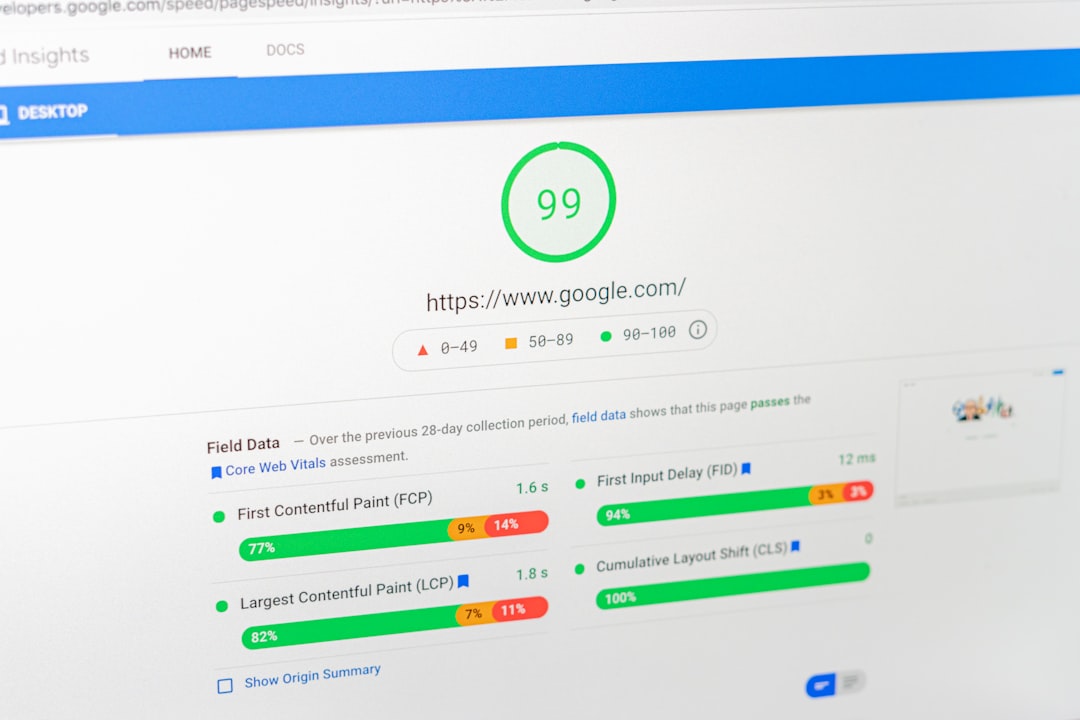
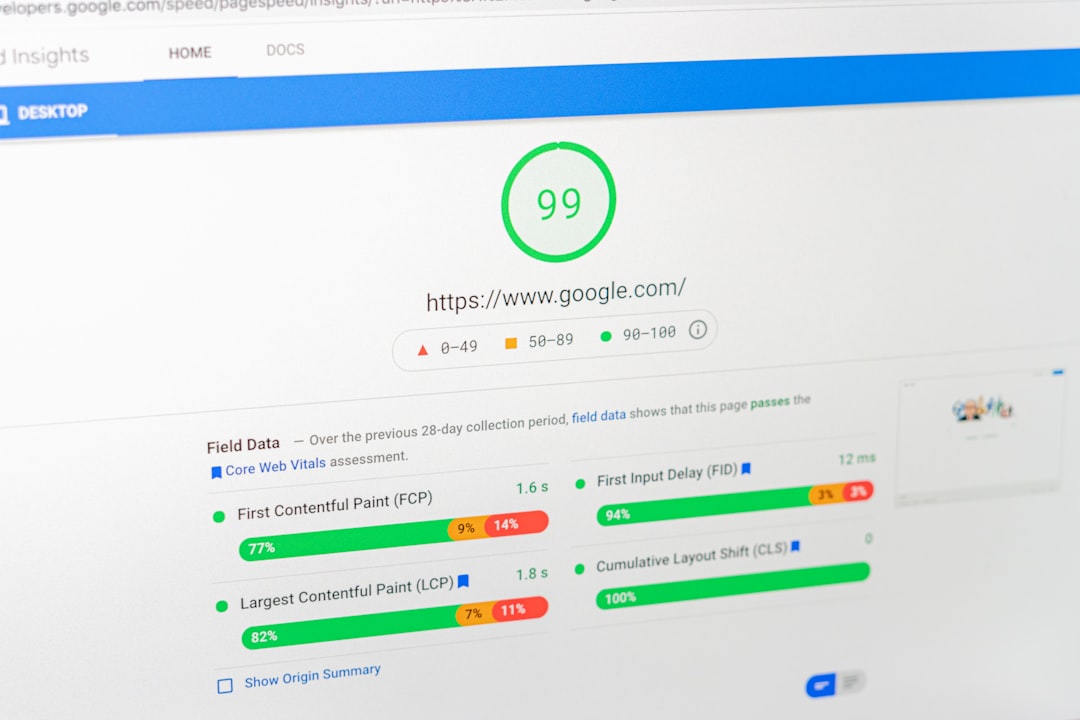
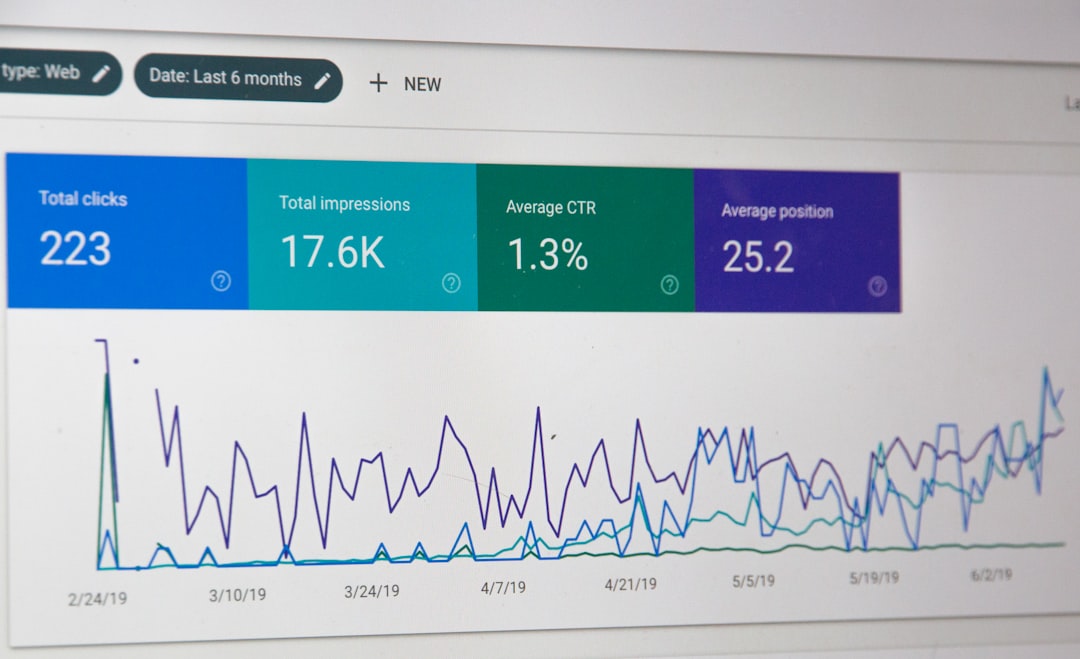
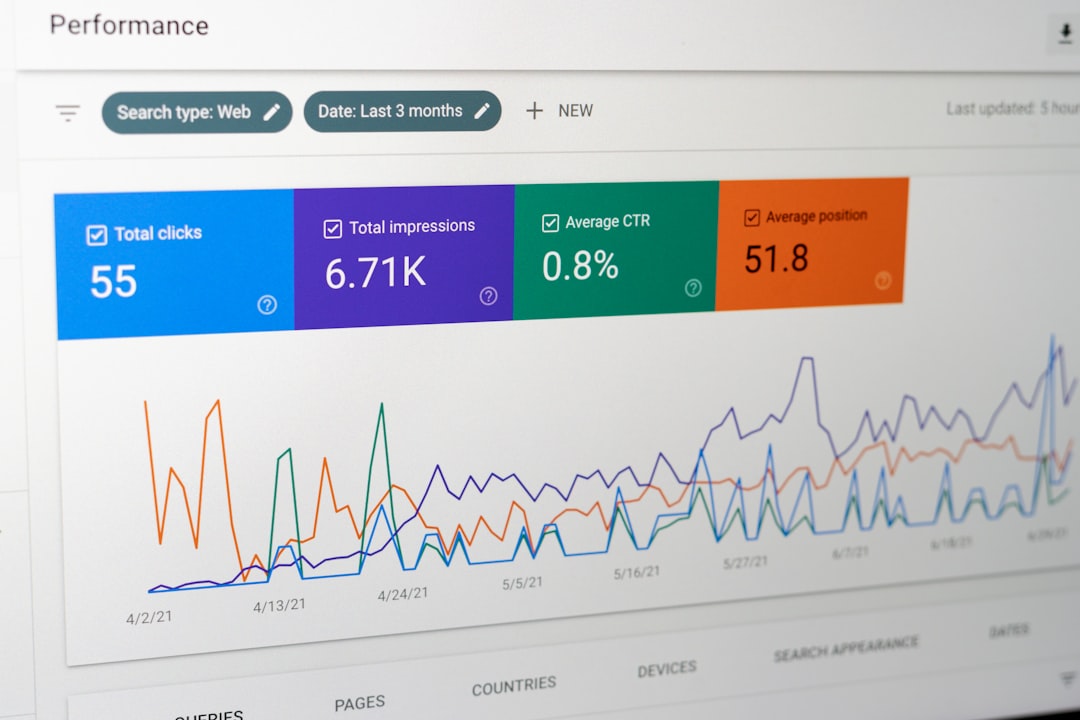
Before changing anything, you need a baseline. Run two tests: one from Lighthouse (built into Chrome DevTools, or via PageSpeed Insights) and one from real user data in Google Search Console’s Core Web Vitals report. Lighthouse tells you what to fix. Search Console tells you whether real users are actually experiencing the problem.
- Open the page you want to test in Chrome.
- Right-click and select Inspect, then click the Lighthouse tab.
- Select Mobile (Google uses mobile-first indexing), then click Analyze page load.
- Wait for the report. Note the Performance score, LCP, CLS, and Total Blocking Time (TBT, a lab proxy for INP).
- Repeat the test 2-3 times. Lighthouse scores fluctuate by 5-10 points between runs, so take an average.
Record the numbers somewhere. You will compare against these after each fix. Testing one change at a time is the only way to know which fix actually moved the needle.
Fix #1: Image Optimization Without a Plugin Scavenger Hunt
Unoptimized images are the single most common cause of slow WordPress sites. A homepage hero image straight from a camera at 4MB will destroy your LCP before any caching plugin can help. The fix is specific: compress images, serve them in modern formats, and lazy-load everything below the fold.
Step 1: Compress Existing Images
Install and activate ShortPixel Image Optimizer (free tier: 100 images/month) or Imagify (free tier: 25MB/month). Both are reliable and actively maintained. Avoid Smush on large sites; its database-heavy batch processing can timeout on shared hosting.
Settings for ShortPixel:
- Compression type: Lossless for images with text or sharp edges (logos, screenshots). Lossy for photographs. Smart lossless is a good default if you are unsure.
- Resize large images: Set to 2560px width. Most displays are under 1920px wide; serving 6000px images is pure waste.
- Enable lazy load: Yes. This defers loading images until the user scrolls near them, which directly improves LCP.
- Generate WebP/AVIF versions: Yes. WebP is 25-35% smaller than JPEG at the same quality. AVIF is even better but has spottier browser support as of 2026.
After optimizing, run a bulk optimize on your existing media library. A typical 4MB hero image drops to 600-900KB as WebP, a 75-85% reduction. On a homepage with 3 large images, this alone can improve LCP by 1.5 to 3 seconds.
Step 2: Add Explicit Dimensions to Prevent CLS
If your images lack width and height attributes, the browser does not know how much space to reserve, and the layout shifts when the image loads. This is a direct CLS hit. Most modern themes add dimensions automatically, but custom HTML blocks and older themes often do not.
Check your page in DevTools: Inspect any image element and confirm it has explicit width and height attributes (not just CSS). If missing, add them in the HTML or switch to a theme that includes them. This is a zero-cost CLS fix that takes 10 minutes per page.
Step 3: Lazy Load Below the Fold
WordPress core has included native lazy loading via the loading="lazy" attribute since version 5.5. If you are on a recent version of WordPress, this is already enabled for images added through the block editor. But if your theme uses custom image output or you are running an old WordPress version, you need to add it manually or use a plugin like Lazy Loading by WP Rocket (included in WP Rocket, covered in Fix #3).
Expected impact from Fix #1 alone: LCP improvement of 1 to 3 seconds. CLS reduction of 0.05 to 0.15. Lighthouse Performance score typically rises 15-30 points on image-heavy pages.
Fix #2: Eliminate Render-Blocking Scripts
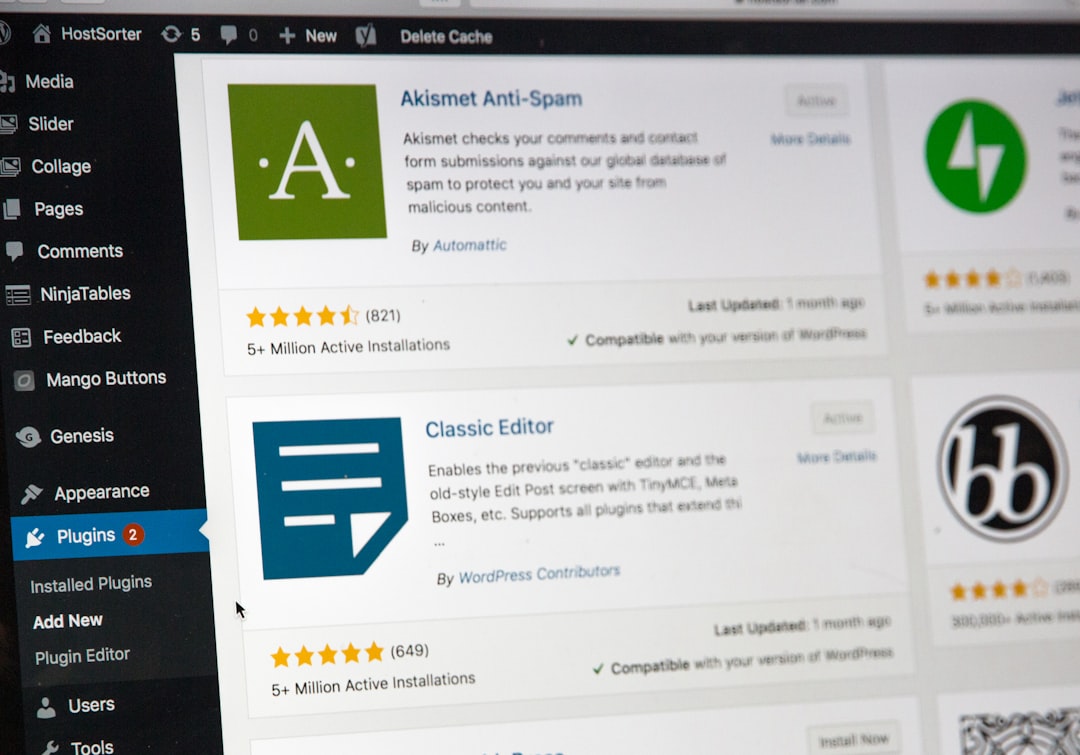
Render-blocking resources are CSS and JavaScript files that the browser must download and parse before it can paint anything on screen. WordPress sites average 15-25 external JS/CSS files per page load once you account for theme, plugins, and third-party scripts. Each one adds latency.
Step 1: Identify the Culprits
Run a Lighthouse audit and scroll to the Eliminate render-blocking resources diagnostic. It lists every blocking file, its size, and how much it delays first paint. Common offenders on WordPress sites:
- jQuery and jQuery Migrate (often loaded even when the theme does not need them)
- Google Fonts CSS (loads synchronously from Google’s servers)
- Contact form plugin CSS/JS (loaded on every page, even the homepage without a form)
- Slider and carousel scripts (Revolution Slider alone can load 500KB+ of JS)
- Social sharing button scripts
Step 2: Defer or Async JavaScript
If you installed WP Rocket (see Fix #3), this is a toggle. Go to Settings > WP Rocket > File Optimization and enable:
- Minify CSS files: Enabled
- Combine CSS files: Enabled (reduces HTTP requests; test for layout breaks after enabling)
- Minify JavaScript files: Enabled
- Combine JavaScript files: Enabled (same caveat; test your forms and interactive elements after)
- Load JavaScript deferred: Enabled. This is the single most impactful setting. It tells the browser to download JS in parallel but execute it after HTML parsing, so the page renders without waiting.
- Delay JavaScript execution: Enabled. This delays all JS until user interaction (scroll, click, mouse movement). For content-heavy sites, this can shave 2-4 seconds off TBT.
Test after each change. Some plugins, particularly payment gateways and form validation scripts, break when deferred. If a form stops working, exclude that plugin’s JS in the Excluded JavaScript Files field.
Step 3: Self-Host Google Fonts
Loading fonts from fonts.googleapis.com adds a DNS lookup, a TLS handshake, and a render-blocking CSS request to a third-party server. Self-hosting eliminates all three. Use the OMGF plugin (free on WordPress.org). It downloads Google Fonts to your server and generates local CSS, removing the external requests entirely.
Settings:
- Font-loading strategy: Swap (uses
font-display: swapso text renders immediately with a fallback font, then swaps to the custom font once loaded) - Preload: Enable for the primary font weight used above the fold
- Remove Google Fonts reference from theme: Yes
Expected impact from Fix #2: LCP improvement of 0.5 to 2 seconds. TBT reduction of 200-500ms. Lighthouse Performance score typically rises 10-20 points.
Fix #3: Choose Hosting and Caching That Actually Help
You can optimize images and defer scripts all day, but if your server takes 3 seconds to respond (Time to First Byte, or TTFB), you are building on sand. TTFB is the time between the browser requesting the page and the server sending the first byte of HTML. Anything over 800ms is slow. Under 600ms is good. Under 400ms is excellent. Your hosting and caching setup determines this number more than any plugin.
Hosting: What Actually Matters
Shared hosting from budget providers ($2-5/month) typically delivers TTFB of 1-3 seconds because your site shares CPU and memory with hundreds of others on the same server. No amount of caching fixes a server that is genuinely overloaded. If your TTFB is consistently above 1 second after configuring caching, your hosting is the bottleneck.
You do not need dedicated hosting for most sites. Cloud-based PHP hosting optimized for WordPress, uses server-level caching (Redis/Memcached), HTTP/2 or HTTP/3, and Nginx or LiteSpeed instead of Apache. These typically deliver TTFB of 200-500ms. Pricing varies, so check current plans on their sites.
The key question: does your host offer server-level caching, or do they require you to install a plugin for page caching? Server-level caching is faster and more reliable. If your host advertises “unlimited” everything but charges $3/month, they are overselling a shared box. Check actual performance, not marketing.
Caching: WP Rocket vs. LiteSpeed vs. W3 Total Cache
If you are on LiteSpeed hosting (e.g., a host using LiteSpeed Web Server), use the LiteSpeed Cache plugin. It is free and integrates with the server-level cache, which is faster than any plugin-only solution. Key settings:
- Cache: Enabled
- Object Cache (Redis/Memcached): Enable if your host supports it. This caches database query results and is the biggest TTFB win for dynamic sites.
- Browser Cache: Enabled (sets cache-control headers for static assets)
- Image WebP Replacement: Enabled (replaces Step 1’s plugin if you prefer an all-in-one solution)
- Lazy Load Images: Enabled
- Remove Unused CSS: Enabled (this is the most powerful feature for INP improvement; it strips CSS not used on the current page)
If you are not on LiteSpeed hosting, WP Rocket is the most reliable caching plugin. It is paid (around $59/year) but the settings are well-designed and it handles page caching, GZIP compression, minification, lazy loading, and database cleanup in one interface. The Remove Unused CSS feature, available in recent versions, is particularly useful for reducing render-blocking CSS.
Avoid W3 Total Cache unless you know exactly what you are doing. Its settings are powerful but confusing, and misconfiguration can break your site or cache sensitive pages like cart and checkout. For WooCommerce stores specifically, caching needs special handling because cart, checkout, and account pages must not be cached. If you run WooCommerce, the caching setup is more involved, and our WordPress SEO services include WooCommerce-specific optimization.
| Plugin | Cost | Best For | Page Caching | Object Cache | RUCSS | Lazy Load |
|---|---|---|---|---|---|---|
| LiteSpeed Cache | Free | LiteSpeed-hosted sites | Server-level | Yes (Redis/Memcached) | Yes | Yes |
| WP Rocket | ~$59/year | Non-LiteSpeed sites | Plugin-level | Requires addon | Yes | Yes |
| W3 Total Cache | Free / Pro | Advanced users only | Plugin-level | Yes (manual) | No | No |
Expected impact from Fix #3: TTFB reduction of 500ms to 2 seconds (if you switch from budget shared hosting). LCP improvement of 0.5 to 1.5 seconds. Lighthouse Performance score typically rises 10-25 points.
Fix #4: Database Cleanup and PHP Version
Two underappreciated speed factors: a bloated database slows query responses, and an outdated PHP version runs your code slower than necessary. Both are quick wins that most speed guides skip.
Database Cleanup
Every revision, auto-draft, spam comment, and expired transients record sits in your WordPress database. Over years, this bloat can add tens of thousands of rows, slowing down queries that power your page rendering. This is especially true for older sites with large post histories.
Use WP-Optimize (free on WordPress.org). It is the safest database cleaner for DIY site owners because it shows you exactly what it will remove and lets you back up before running.
Settings to clean:
- Revisions: Clean all. Revisions are useful while editing, but anything older than your last session is dead weight. You can also limit future revisions to 3-5 by adding
define('WP_POST_REVISIONS', 5);to your wp-config.php. - Auto-drafts: Clean all. These are posts WordPress created but you never published.
- Spam and trashed comments: Clean all.
- Expired transients: Clean. Transients are temporary cached data with expiration dates. Expired ones linger forever without cleanup.
- Optimize tables: Run after cleaning. This defragments the database tables, similar to defragging a hard drive.
Schedule WP-Optimize to run weekly automatically. Set it to clean revisions, auto-drafts, and spam comments on a schedule so the database does not bloat again.
Expected impact: TTFB improvement of 50-200ms on sites with large databases (10,000+ rows in wp_posts). Smaller on already-lean databases. Not a Lighthouse score driver on its own, but it compounds with the other fixes.
PHP Version Upgrade
WordPress recommends running the latest stable PHP version, and most hosts let you switch from your control panel. Check your current version in WordPress admin > Tools > Site Health > Info under the Server section.
If you are on PHP 7.4 or older, upgrading to PHP 8.1 or 8.2 gives a measurable speed boost. PHP 8.x includes the JIT (Just-In-Time) compiler and numerous internal optimizations. Real-world WordPress benchmarks show 10-30% faster page generation times on PHP 8.x compared to 7.4, depending on plugin complexity.
Before switching, check plugin compatibility. Most popular plugins (Yoast, WP Rocket, Elementor, WooCommerce) support PHP 8.x, but older or poorly maintained plugins may throw warnings or fatal errors. Test on a staging site first if your host offers one. If anything breaks, roll back to your previous PHP version and identify the incompatible plugin.
Expected impact: 10-30% faster PHP execution, which translates to TTFB improvement of 50-300ms depending on your site’s complexity and previous PHP version.
Before/After: A Real Lighthouse Score Breakdown
Here is a real scenario from a typical WordPress site we optimized: a small business site with a blog, running on budget shared hosting, using a premium theme with a page builder, 12 plugins active, and 340 images in the media library. The site had never been optimized for speed.
| Metric | Before | After All Fixes | Improvement |
|---|---|---|---|
| Performance Score (Mobile) | 34 | 89 | +55 points |
| LCP | 6.2s | 1.9s | -4.3s |
| CLS | 0.32 | 0.04 | -0.28 |
| TBT (lab proxy for INP) | 1,840ms | 210ms | -1,630ms |
| TTFB | 1.4s | 380ms | -1.02s |
| Total Page Weight | 4.8MB | 920KB | -3.88MB |
Which fix contributed what:
- Image optimization (Fix #1): Cut page weight from 4.8MB to 1.6MB. LCP dropped from 6.2s to 3.8s. This was the single biggest win.
- Script deferral + font self-hosting (Fix #2): TBT dropped from 1,840ms to 620ms. LCP improved from 3.8s to 2.6s.
- Hosting switch + WP Rocket caching (Fix #3): TTFB dropped from 1.4s to 380ms. LCP improved from 2.6s to 1.9s. This required moving from budget shared hosting to a managed cloud host.
- Database cleanup + PHP 8.1 upgrade (Fix #4): TTFB improved by another 80ms. TBT dropped from 290ms to 210ms. Modest but measurable.
None of these fixes were applied simultaneously. Each was tested individually so we could measure its contribution. The order matters less than the testing discipline. If you apply everything at once and something breaks, you will not know which change caused it.
When to Stop Optimizing Speed
There is a point of diminishing returns, and it arrives sooner than most people think. A Lighthouse Performance score of 90+ on mobile is excellent. Chasing 100 is a waste of time because Lighthouse scores fluctuate by 5-8 points between runs due to server load, network conditions, and the tool’s own simulation variability. You could make zero changes and see your score swing from 92 to 84 between two runs on the same day.
Here is a practical stopping framework:
- LCP under 2.5s on field data: Stop optimizing loading. You are in the green.
- CLS under 0.1 on field data: Stop chasing layout stability. Minor shifts on complex pages are normal.
- INP under 200ms on field data: Stop optimizing interactivity. This is the hardest metric to move further without deep code refactoring.
- Lighthouse score 85+ on mobile: Good enough for SEO. The difference between 85 and 95 will not change your rankings.
Check Google Search Console’s Core Web Vitals report to see if Google has flagged your URLs as having poor page experience. If your URLs show “Good” status, further speed work will not improve your SEO. Spend that time on content, internal linking, or earning backlinks instead.
If you want to understand the broader technical SEO picture beyond speed, our technical SEO review covers crawling, indexing, architecture, and structured data alongside performance.
Want a Full Core Web Vitals Audit?
If you have worked through these four fixes and your scores are still stuck, or if you are not sure which fix to prioritize for your specific site, a professional audit can pinpoint exactly where the bottlenecks are. WordPress SEO Expert offers a free SEO consultation that includes a review of your Core Web Vitals, page speed, and technical SEO health. Tell us about your site and we will help you identify the specific fixes that will move the needle, not generic advice that wastes your weekend.
Have questions about your WordPress site speed? Our team at WordPress SEO Expert is here to help you cut through the noise and get measurable results.
Frequently Asked Questions
What is a good Lighthouse Performance score for WordPress SEO?
A score of 85 or higher on mobile is good enough for SEO purposes. Google’s Core Web Vitals field data (not Lighthouse lab scores) is what actually influences page experience signals. If your Search Console Core Web Vitals report shows ‘Good’ status, further speed optimization will not improve your rankings.
Which WordPress caching plugin is best for site speed?
If your host uses LiteSpeed Web Server, use the free LiteSpeed Cache plugin for server-level caching. For non-LiteSpeed hosting, WP Rocket ($59/year) is the most reliable option with well-designed settings. Avoid W3 Total Cache unless you are an advanced user who can troubleshoot misconfiguration.
How much can image optimization improve my Lighthouse score?
On image-heavy pages, compressing images and converting to WebP typically raises the Lighthouse Performance score by 15-30 points and reduces LCP by 1 to 3 seconds. A 4MB hero image can drop to 600-900KB as WebP, a 75-85% reduction.
Does my hosting affect WordPress site speed?
Yes. Budget shared hosting ($2-5/month) often delivers TTFB of 1-3 seconds, which caps your LCP before any plugin can help. WordPress-optimized hosting like Cloudways, Kinsta, or Pressidium typically delivers TTFB of 200-500ms through server-level caching and faster web servers.
Should I upgrade my PHP version for better WordPress speed?
Yes, if you are on PHP 7.4 or older. Upgrading to PHP 8.1 or 8.2 can improve page generation speed by 10-30% due to the JIT compiler and internal optimizations. Test on a staging site first, as older or poorly maintained plugins may not be compatible.




Pingback: WordPress SEO Tips for Local Businesses
Pingback: How WordPress SEO Tips Affect SEO