
WordPress SEO problems usually are not caused by one missing plugin or one bad setting. Most stalled rankings come from a stack of smaller issues: pages Google cannot index, weak title targeting, internal links that do not support key pages, duplicate archive pages, and slow templates. Troubleshooting works best when you check the highest-impact issues first instead of changing everything at once.
This guide gives you a practical order of operations. If your rankings dropped after a redesign, never improved after launch, or feel stuck despite publishing content, use these checks to figure out what is actually wrong. For a broader process, review how to audit WordPress SEO and compare your findings as you go.
Start With the Symptoms, Not the Plugin
The fastest way to troubleshoot WordPress SEO is to match the symptom to the likely cause. If pages are not indexed, that is a crawl or indexation problem. If pages are indexed but not ranking, that is more often a targeting, content, or internal linking problem. If traffic dropped suddenly, check for technical changes first.
| Symptom | Most Likely Cause | What to Check First |
|---|---|---|
| Pages not appearing in Google | Noindex, robots blocking, weak crawl paths | Search visibility, robots.txt, sitemap, page source |
| Pages indexed but not ranking | Poor keyword targeting, thin content, weak links | Title tag, H1, search intent, internal links |
| Traffic dropped after redesign | Redirect errors, changed URLs, template issues | 301 redirects, canonicals, sitemap, page speed |
| Homepage ranks but service pages do not | Weak page focus or poor site structure | Page titles, content depth, anchor text, nav links |
| SEO plugin scores look good but rankings are flat | Plugin metrics do not match search reality | Intent match, competition, links, crawlability |
Check Whether Google Can Index the Site
If Google cannot crawl or index your pages, nothing else matters yet. This is the first layer to troubleshoot because title tags, content updates, and schema will not help if the page is blocked from search engines.
1. Search Engine Visibility in WordPress
Open Settings, then Reading, and confirm that “Discourage search engines from indexing this site” is unchecked. This setting is one of the most common causes of invisible WordPress pages, especially after migrations, redesigns, or staging-to-live pushes.
2. Robots.txt and Noindex Tags
Check your robots.txt file and inspect page source for noindex directives. A plugin, theme function, or leftover staging rule can block important sections of the site without making it obvious in the dashboard.
Look for these problems:
Disallow rules blocking the whole site or key folders. A noindex meta tag on pages that should rank. Canonical tags pointing to the wrong URL. If you recently launched or rebuilt the site, compare these checks with our WordPress SEO checklist for new websites because many troubleshooting problems start with launch settings that were never cleaned up.
3. XML Sitemap Health
Your sitemap should load correctly and include only the pages you want indexed. If it is missing service pages, showing thin tag archives, or conflicting with another sitemap, Google receives mixed signals about what matters on the site.
Use one SEO plugin only. A clean setup is better than stacking multiple plugins that output duplicate metadata, schema, or sitemap files.
Review Page-Level SEO Targets
If pages are indexed but still underperforming, the problem is often page targeting. Many WordPress sites have pages that are technically optimized but unclear about what query they are supposed to rank for.
4. Title Tags and H1s
Start by checking whether the title tag and H1 clearly describe one primary topic. Weak pages often try to target several services or keyword variations at once, which leaves the page too broad to compete well.
Weak title: SEO Services | SEO Company | SEO Expert
Stronger title: WordPress SEO Services for Small Businesses
Your title does not need to repeat every variation. It needs to match the intent of the page and the language a searcher would actually use.
5. One Page, One Intent
Many ranking problems happen because a single page tries to serve multiple intents. A service page tries to rank for a service, a city, a pricing query, and a how-to question at the same time. That usually weakens the page instead of broadening it.
Check whether each important URL has a clear job. If not, split topics into separate pages or tighten the copy so the page focuses on one problem and one searcher need.
6. Thin or Generic Content
Content does not need to be long to rank, but it does need to be specific. If your page reads like it could belong to any business in any city, it is unlikely to outrank pages with clearer examples, stronger proof, and better structure.
Troubleshoot by asking three questions. Does the page answer the exact query? Does it explain what makes the offer or page useful? Does it provide enough context for a visitor to take the next step? If not, the page may need rewriting more than technical adjustment.
Inspect Internal Linking and Site Structure

Internal links often explain why one page ranks and another does not. WordPress sites commonly publish posts and pages in isolation, with little support from navigation, related posts, or contextual anchor text.
7. Important Pages Need Internal Links
If a service or category page matters to the business, it should receive links from relevant posts, menus, and nearby pages. A page buried three clicks deep with no descriptive anchors sends a weak priority signal.
Review older posts and add contextual links where they genuinely help the reader. For example, a troubleshooting page should naturally connect to how to optimize WordPress SEO or to a strategy resource like WordPress SEO strategy for small business when the reader needs the next step after diagnosis.
8. Archive Pages and Taxonomies
Tag archives, author archives, and date archives can quietly create low-value pages that compete with stronger URLs. Troubleshoot whether these archives add real value. If they do not, noindex them and keep crawl attention on the pages that matter most.
This is especially useful on smaller business sites where category pages are limited and archive pages often exist only because WordPress created them by default.
Test Performance Problems That Affect SEO

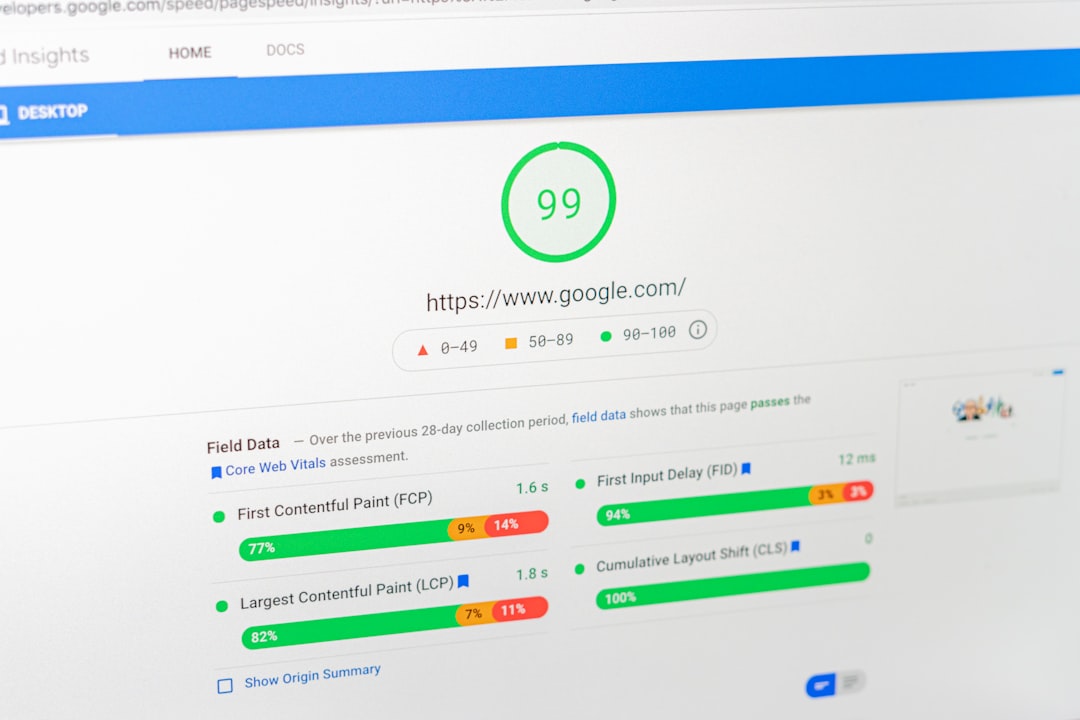
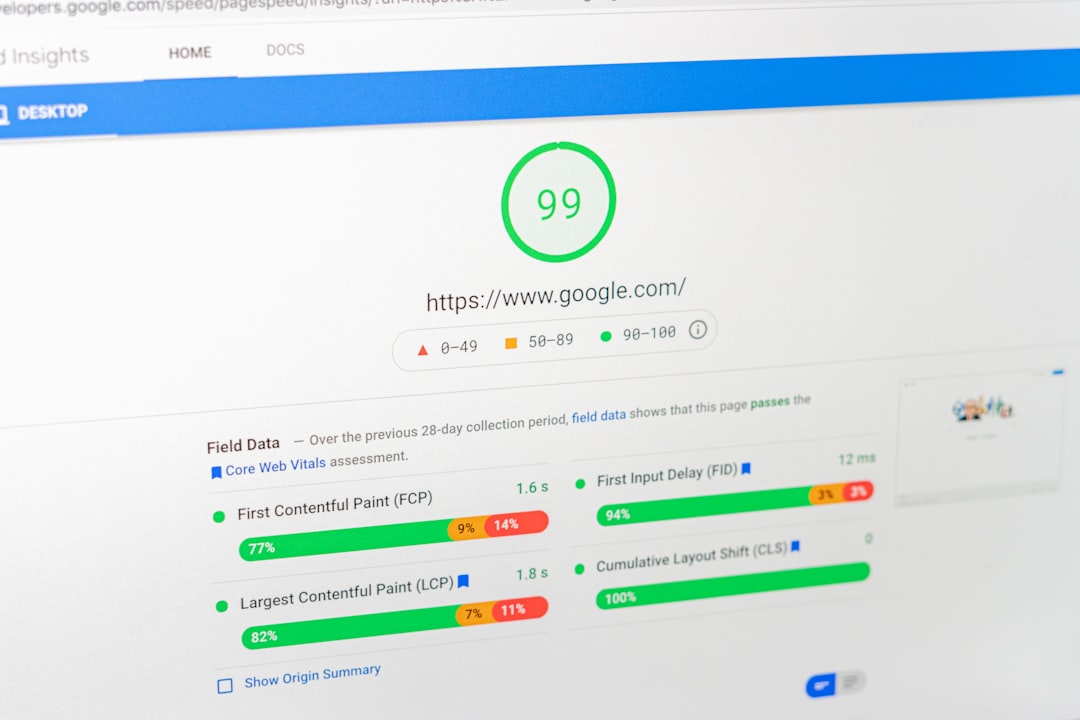
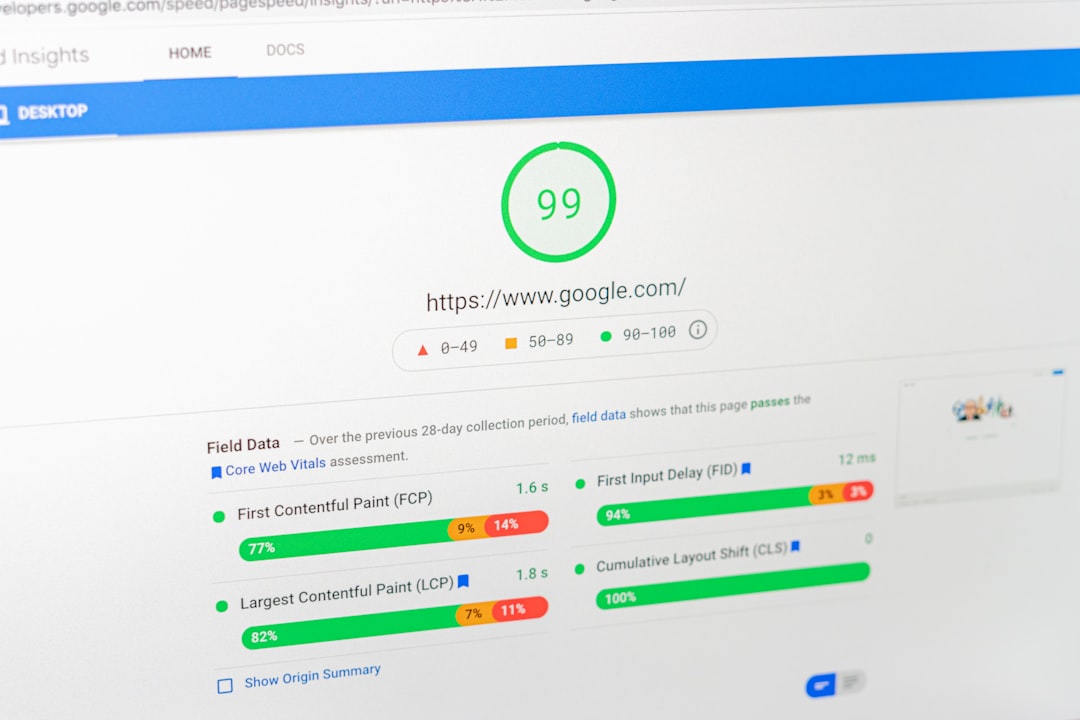
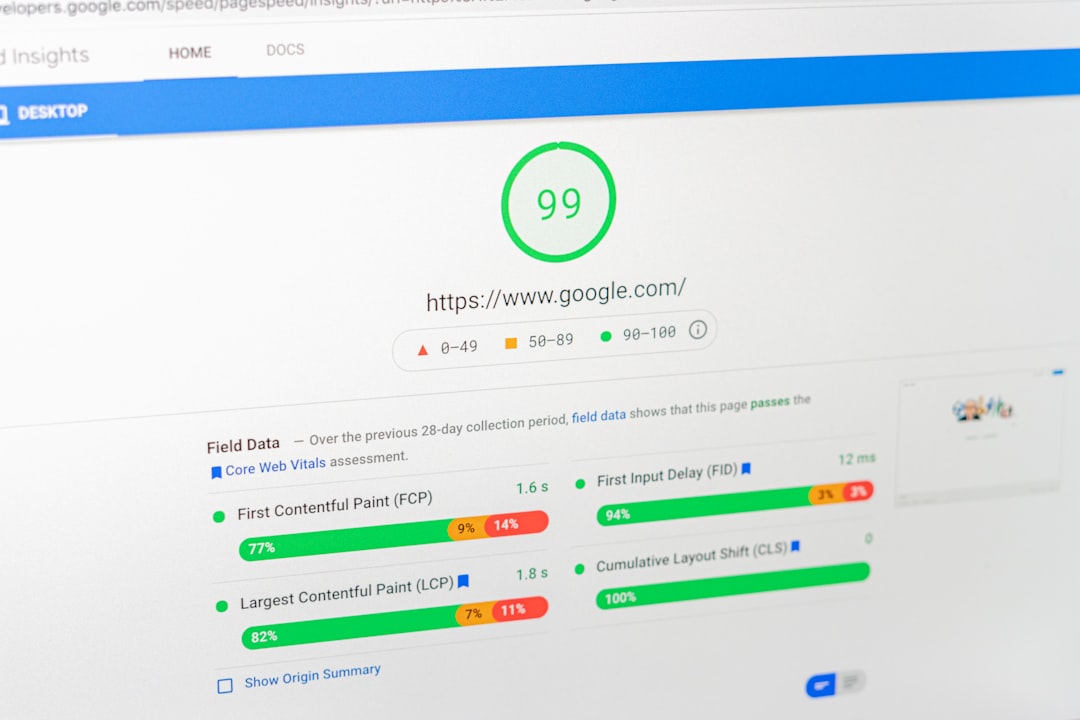
Site speed rarely explains all ranking issues, but it often compounds them. A slow page with weak targeting and poor internal linking has no margin for error. Troubleshooting speed should focus on obvious bottlenecks, not chasing a perfect score.
9. Check the Biggest Speed Bottlenecks First
Most WordPress speed problems come from oversized images, bloated themes, too many scripts, or weak hosting. Start with page-level issues you can measure before touching advanced settings.
| Area | What to Check | Why It Matters |
|---|---|---|
| Images | Oversized hero images and uncompressed media | Large files slow initial rendering |
| Plugins | Too many active plugins or overlapping functions | Extra scripts and database load add friction |
| Theme | Heavy builders and template bloat | Can delay rendering and weaken mobile UX |
| Hosting | Slow server response or inconsistent uptime | Technical improvements are limited by poor infrastructure |
If performance is clearly part of the problem, work through a more detailed process in how to improve WordPress site speed for SEO. That is where plugin choices, caching setup, and image compression settings start to matter.
10. Do Not Treat Plugin Scores as SEO Diagnosis
An SEO plugin score can help catch missing basics, but it cannot tell you whether the page deserves to rank. Green lights do not measure search intent, topical depth, competitive strength, or whether users actually find the page helpful.
If a page has perfect plugin scores and still does not rank, stop adjusting keyword density or adding repeated phrases. Review the page against the current search results and ask whether it is the best answer for that query.
Look for Recent Changes Before You Rewrite Everything
Sudden SEO problems usually follow a change. Before rewriting pages, look at what changed in the last few weeks: permalink edits, plugin swaps, theme updates, redirects, canonical settings, or a new caching layer.
This matters because many site owners assume they need more content when the real issue is technical drift. A redesign can remove internal links. A migration can break redirects. A plugin change can alter title templates or noindex settings across the site.
If you are seeing a broad drop instead of a page-level issue, compare your current setup to your last stable version before making new SEO changes.
A Practical Troubleshooting Order
When SEO feels messy, use a fixed order so you do not waste time. Start with indexation, then page targeting, then internal linking, then performance. This sequence prevents you from polishing pages that search engines cannot properly access or understand.
| Priority | Area | Action |
|---|---|---|
| 1 | Indexation | Check search visibility, robots, noindex, sitemap, canonicals |
| 2 | Page targeting | Review title tags, H1s, keyword focus, search intent |
| 3 | Internal links | Add contextual links to important pages and fix buried URLs |
| 4 | Content quality | Strengthen weak pages with clearer specificity and structure |
| 5 | Performance | Fix images, scripts, theme bloat, and hosting bottlenecks |
If you are experiencing these symptoms, our team at WordPress SEO Expert can help. We look for the specific bottleneck first so you are not wasting time on generic fixes that do not change rankings.
When to Get a Second Set of Eyes
Some WordPress SEO issues are easy to spot. Others are buried in templates, crawl paths, redirect logic, or mixed signals between plugins and theme output. If you have already checked the basics and rankings still are not moving, a structured audit is usually faster than more trial and error.
WordPress SEO Expert can help you separate technical problems from content problems and prioritize the fixes that will actually move the needle. Contact WordPress SEO Expert today to schedule a consultation or request a free WordPress SEO audit.