
SEO problems on a WordPress website can have many causes. A page may suddenly lose visibility, important URLs may stop appearing in search, traffic may decline, or a website may become slower after a theme or plugin update.
Instead of making random changes, troubleshooting should follow a structured process. A WordPress SEO company can help diagnose the underlying issue and determine which fixes should be prioritized.
Start by Identifying the Problem
First, define exactly what changed.
For example:
- Did organic traffic decrease?
- Did rankings change?
- Did a specific page disappear from Google?
- Did the entire website lose visibility?
- Did the website become slower?
- Did the problem start after a redesign?
Knowing when and where the problem started can narrow down possible causes.
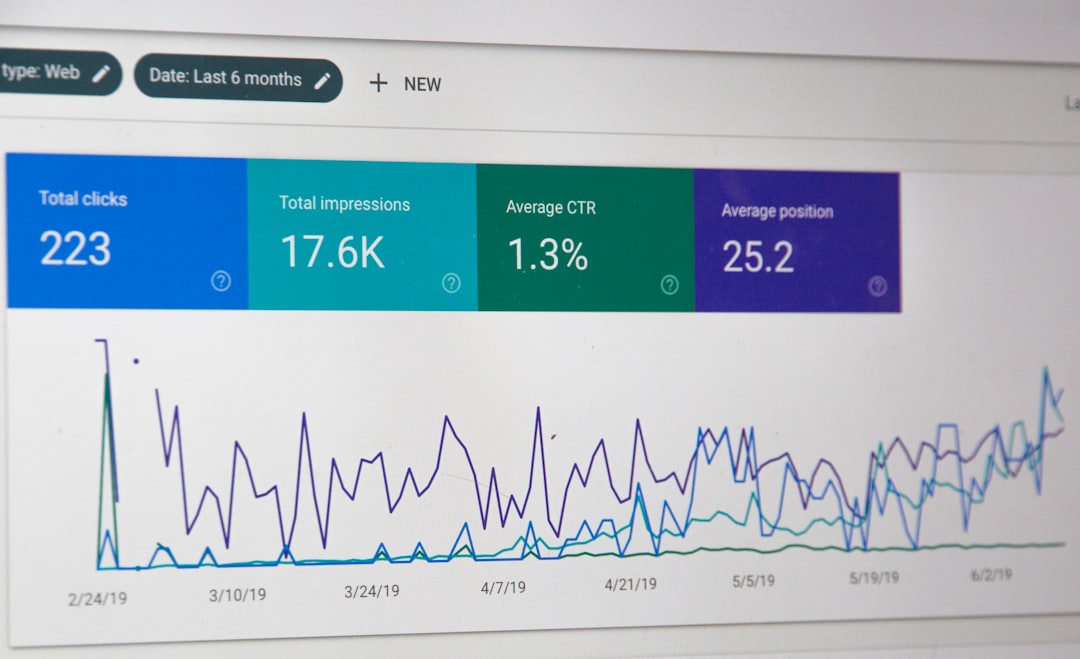
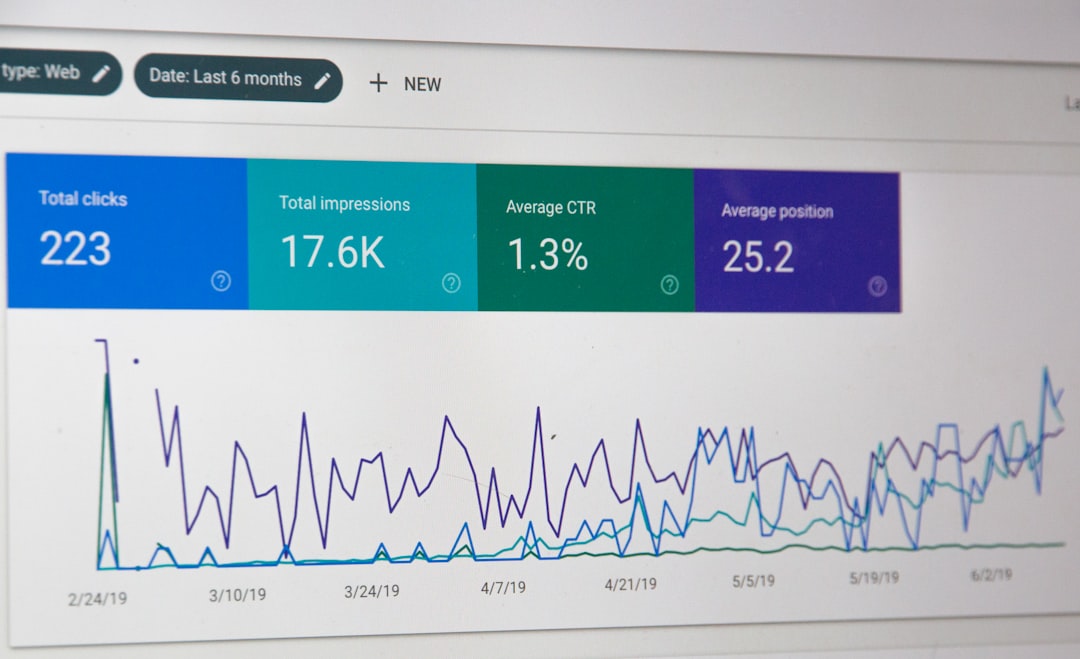
Check Google Search Console

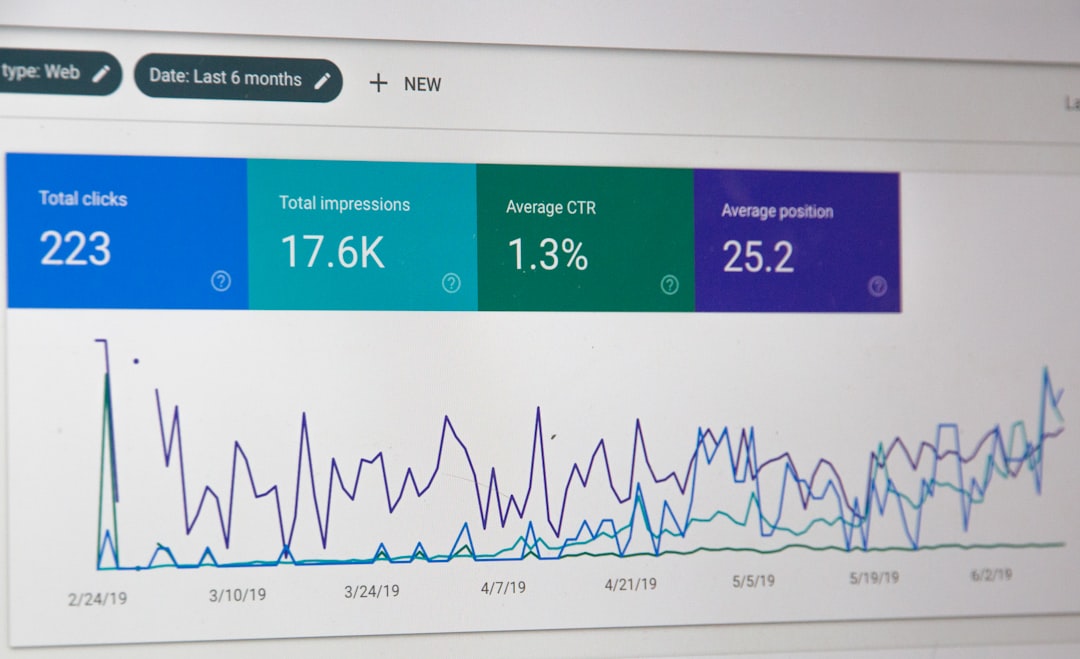
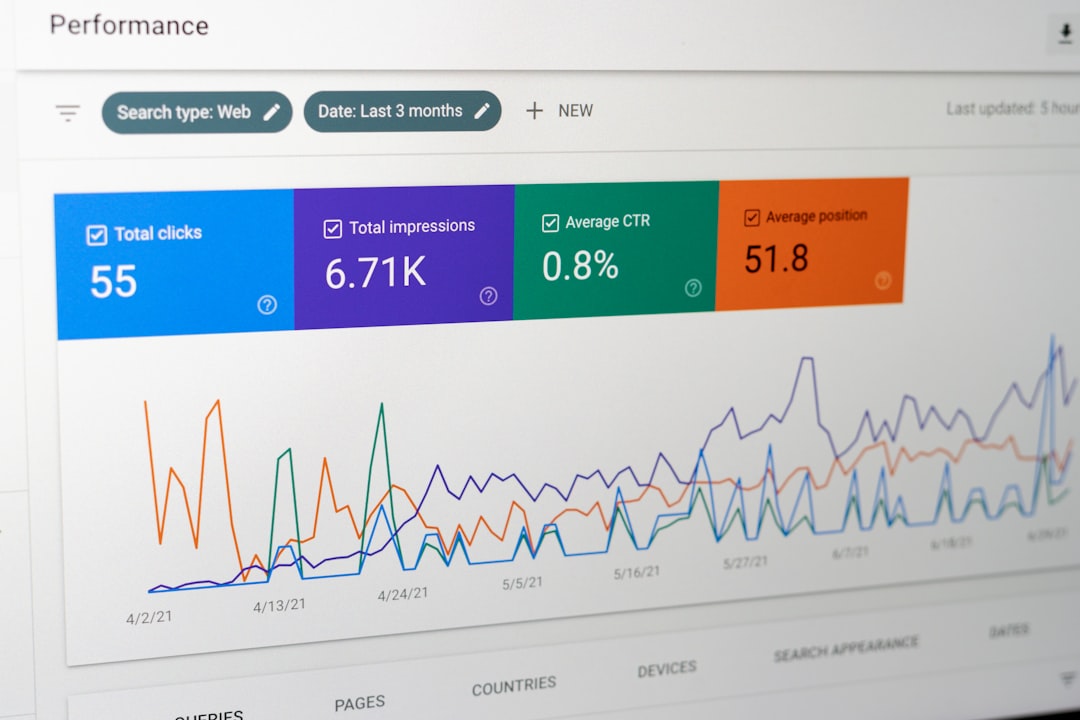
Google Search Console is one of the most useful places to investigate search-related issues.
Review:
- Performance
- Indexing
- Sitemaps
- Page indexing
- Search queries
- Manual actions, if any
- Security-related notifications, if any
If a page is not indexed, determine why before changing its content repeatedly.
Check Whether the Page Is Indexable
A common WordPress SEO problem is accidentally preventing a page from being indexed.
Review:
- Meta robots settings
- Robots.txt
- Canonical tags
- Noindex directives
- HTTP status codes
- Sitemap inclusion
For example, if an important service page has accidentally been marked noindex, improving its content will not solve the visibility problem until the indexing directive is corrected.
Look for Website-Wide Changes
If many pages lose traffic at approximately the same time, investigate recent changes.
Possible causes include:
- Website redesign
- Theme update
- SEO plugin configuration change
- URL restructuring
- Migration
- Hosting problem
- Accidental indexing settings
- Major content changes
Keep records of major website changes so that SEO problems can be connected to specific events.
Check Technical Errors
Technical issues can prevent users and search engines from accessing pages properly.
Review:
| Problem | What to Check |
|---|---|
| 404 errors | Broken or removed URLs |
| 301 redirects | Old URLs pointing correctly |
| 5xx errors | Server problems |
| HTTPS | Security and URL consistency |
| Canonicals | Correct preferred URLs |
| Sitemap | Important pages included |
| Robots.txt | Important resources not blocked |
Not every reported error requires immediate action. Prioritize problems affecting important pages.
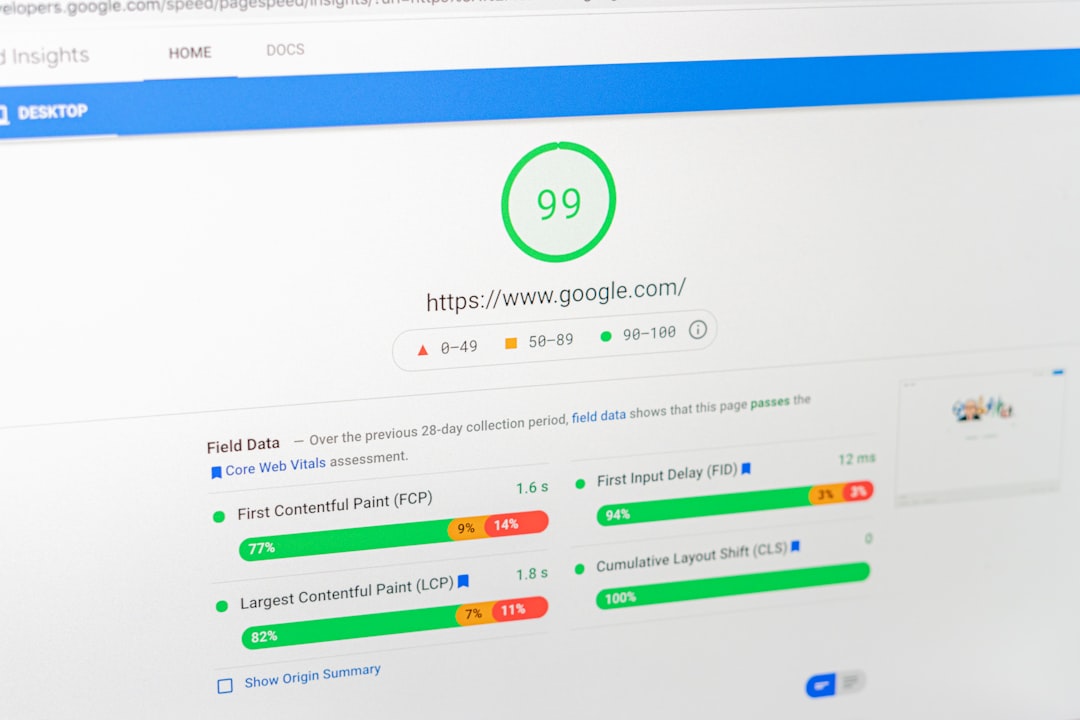
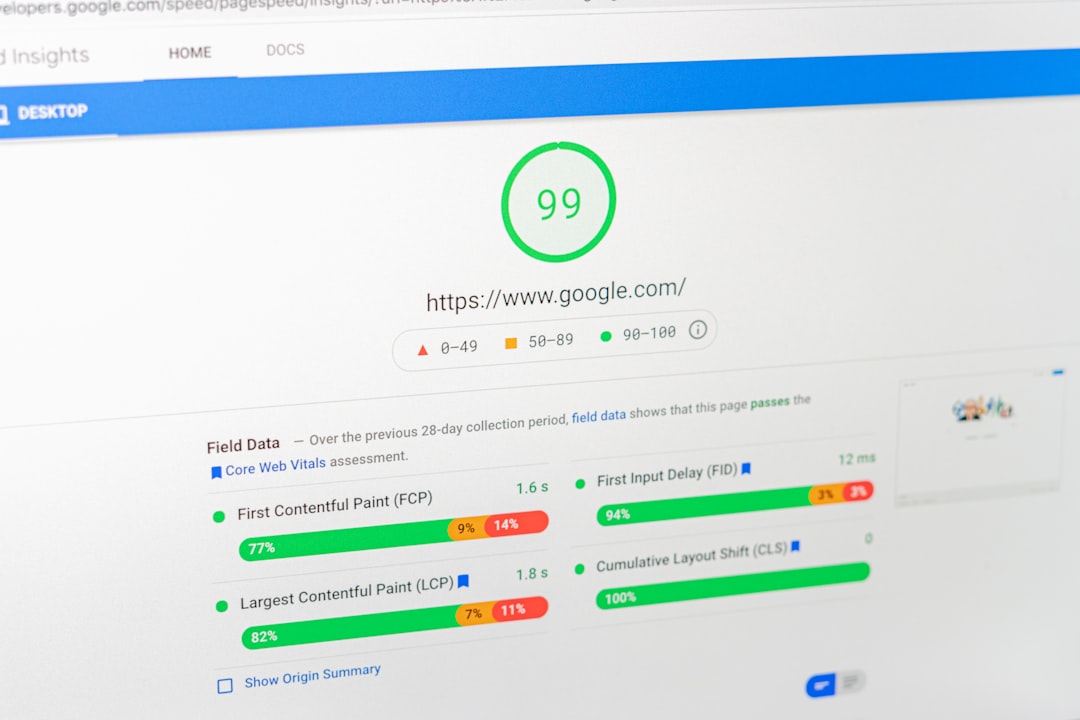
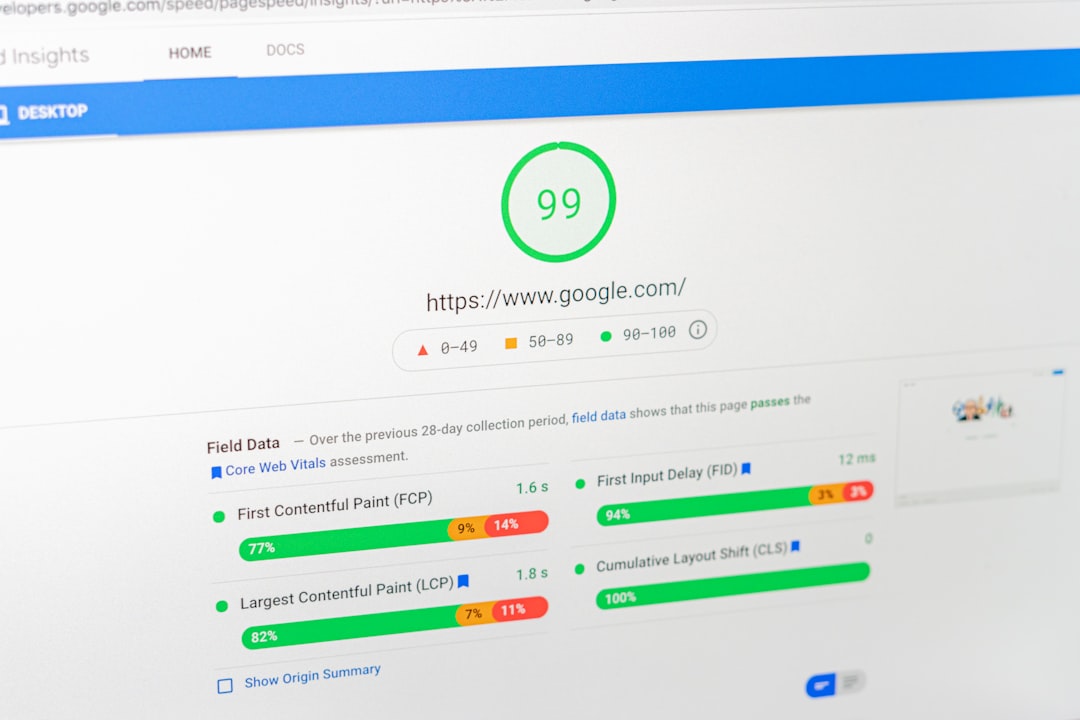
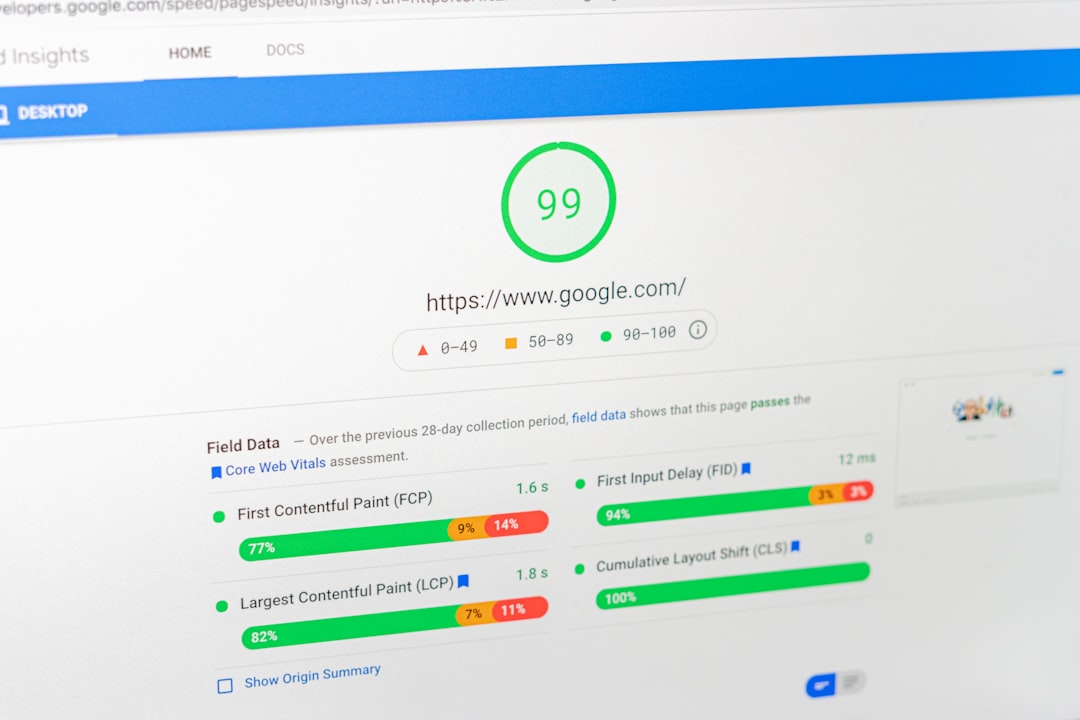
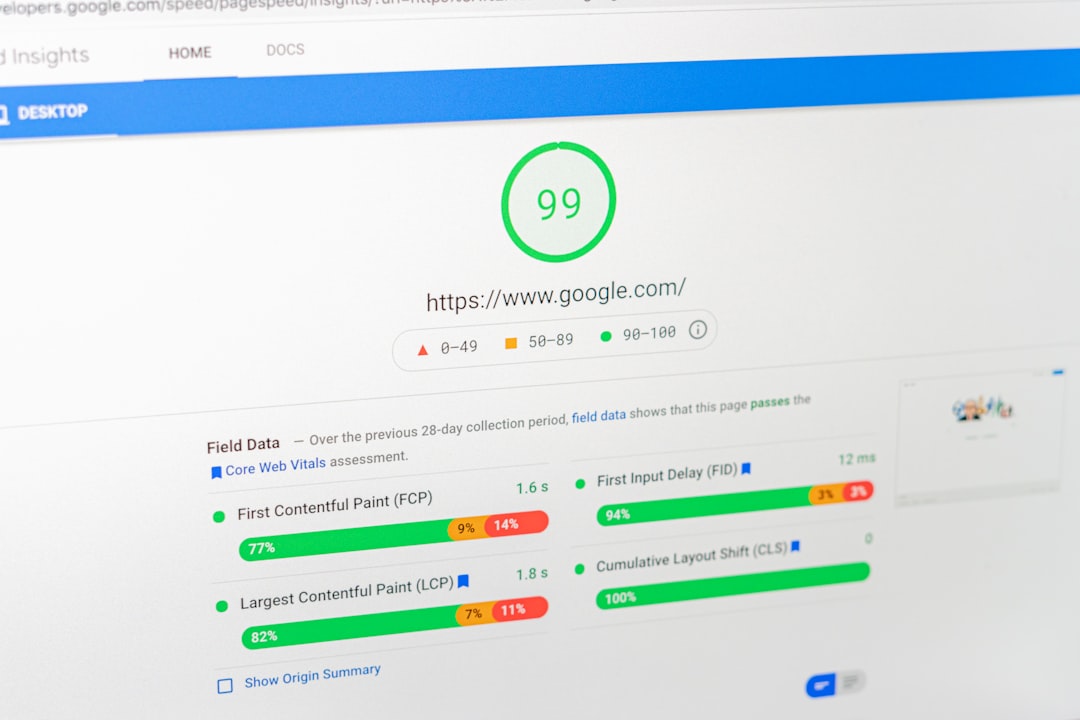
Review Page Speed
If a website has become noticeably slower, investigate what changed.
Possible causes include:
- Large images
- New plugins
- Excessive scripts
- Poor hosting performance
- Unoptimized themes
- Third-party tools
Use performance testing tools to identify specific bottlenecks instead of installing multiple optimization plugins without diagnosis.
Check Mobile Experience

A page that works well on desktop may still have problems on mobile.
Test:
- Navigation
- Buttons
- Forms
- Images
- Text size
- Horizontal scrolling
- Pop-ups
- Checkout functionality
Mobile usability should be checked whenever a website undergoes major design changes.
Review Content and Search Intent
Not every traffic decline is caused by a technical problem.
A page may lose visibility because:
- Search intent changed
- Competitors published stronger content
- The page became outdated
- The topic became less relevant
- Another page better satisfies the query
Compare the page with current search results and review whether the content still provides a complete and useful answer.
Check Internal Links
Important pages should be connected logically within the website.
If a page has very few internal links, search engines and visitors may have fewer paths to discover it.
Look for opportunities to connect:
- Service pages
- Product pages
- Blog posts
- Category pages
- Location pages
Use descriptive, natural anchor text.
Avoid Making Too Many Changes at Once
One of the biggest troubleshooting mistakes is changing everything simultaneously.
If you change the title, content, URL, internal links, plugins, and technical settings on the same day, it becomes difficult to determine which change produced the result.
Instead:
- Identify the likely issue
- Make a controlled change
- Monitor the result
- Document the change
- Continue with the next improvement
This creates a clearer troubleshooting process.
How a WordPress SEO Company Can Help
A WordPress SEO company can investigate SEO problems across technical, content, and performance areas.
The process may include:
- Reviewing Search Console data
- Comparing historical performance
- Crawling the website
- Checking indexing
- Reviewing recent website changes
- Analyzing content
- Testing speed and mobile usability
- Reviewing internal links
- Prioritizing fixes
- Monitoring results
Professional troubleshooting is especially useful when the cause of a problem is unclear or multiple technical issues are involved.
Use Evidence Before Making Changes
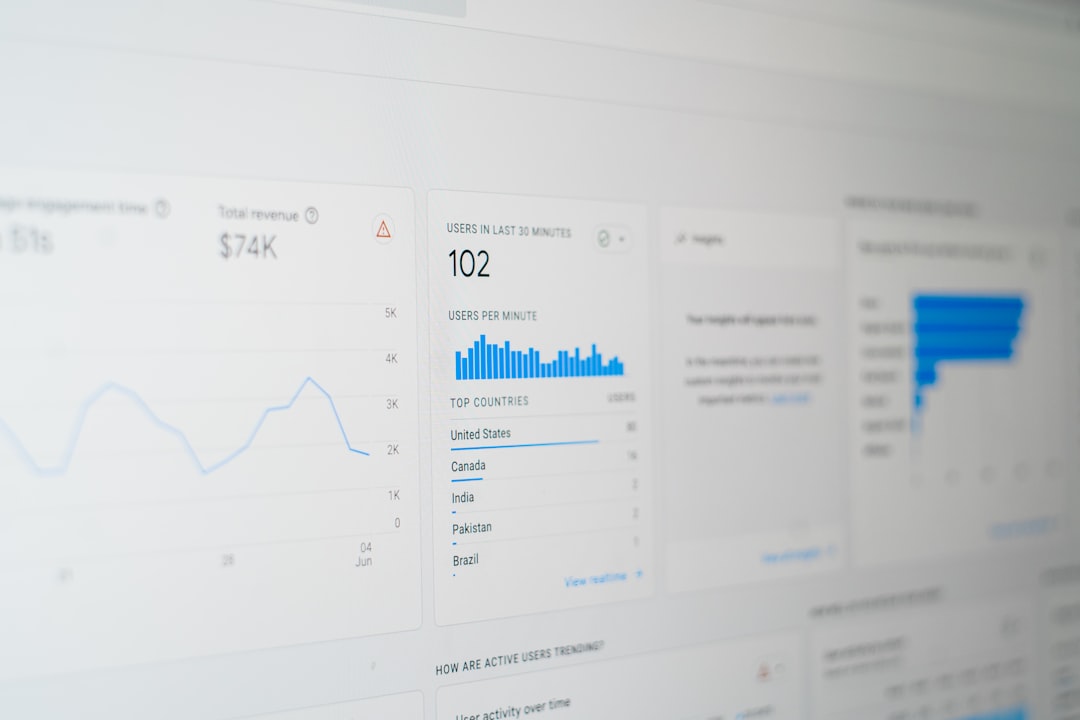
SEO troubleshooting works best when decisions are based on evidence.
Rather than assuming that a ranking drop was caused by one particular factor, investigate search data, technical changes, content quality, competitors, and website performance together.
A structured diagnosis can prevent unnecessary changes and make WordPress SEO improvements more predictable.