Low rankings usually come from a stack of smaller problems, not one missing plugin. If your WordPress SEO feels stuck, the fastest path is to troubleshoot in order: confirm pages can be indexed, review page-level optimization, then clean up technical issues that keep good content from performing.
Most site owners do not need another SEO plugin. They need a diagnostic workflow they can follow without guessing. That is the approach we use at WordPress SEO Expert when a site has content published, plugins installed, and still is not moving in search.
If you want the technical foundation behind this process, review our guide to fixing WordPress SEO problems and our WordPress site speed fixes for SEO as you work through the checks below.
Start with indexing first

If Google cannot index your important pages, better content and cleaner title tags will not help. Troubleshooting should start with visibility settings, index coverage, and whether Google is seeing the right version of your URLs.
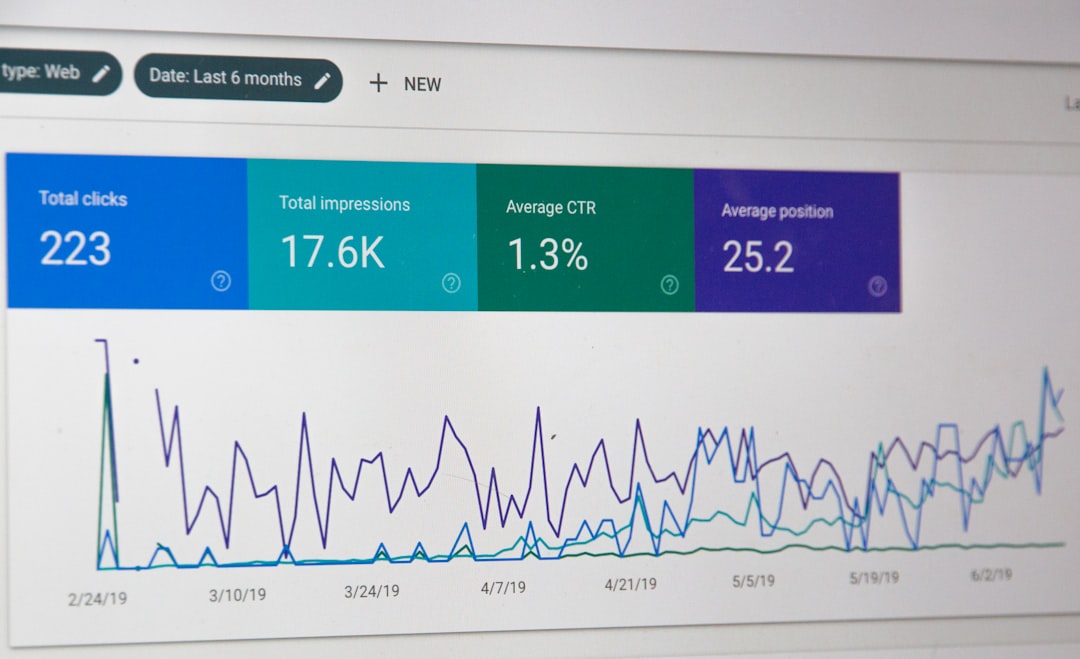
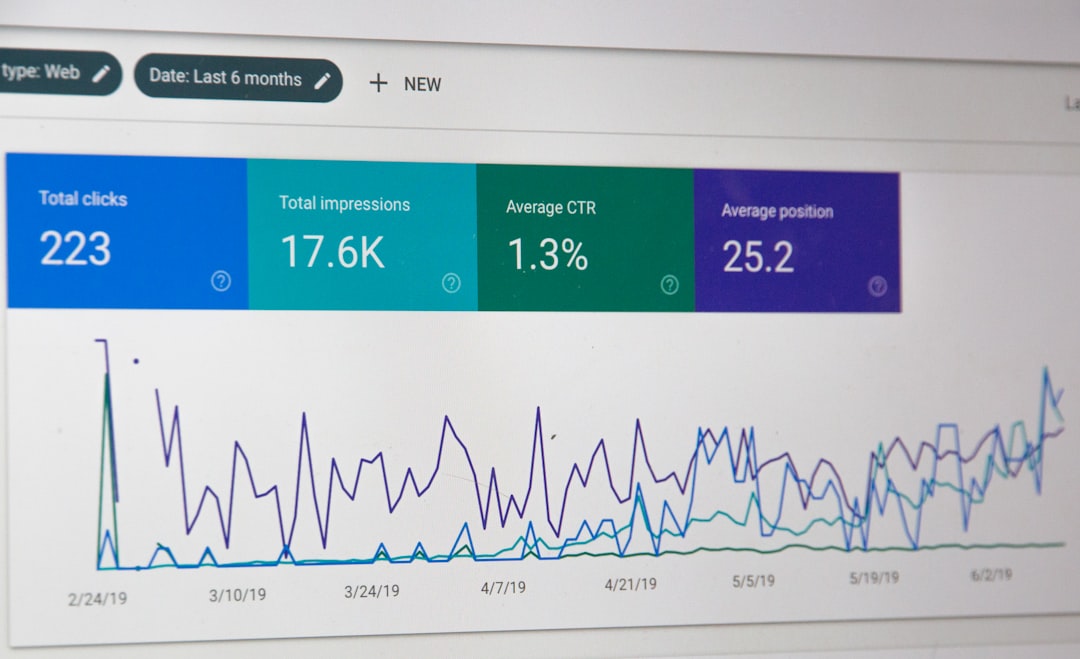
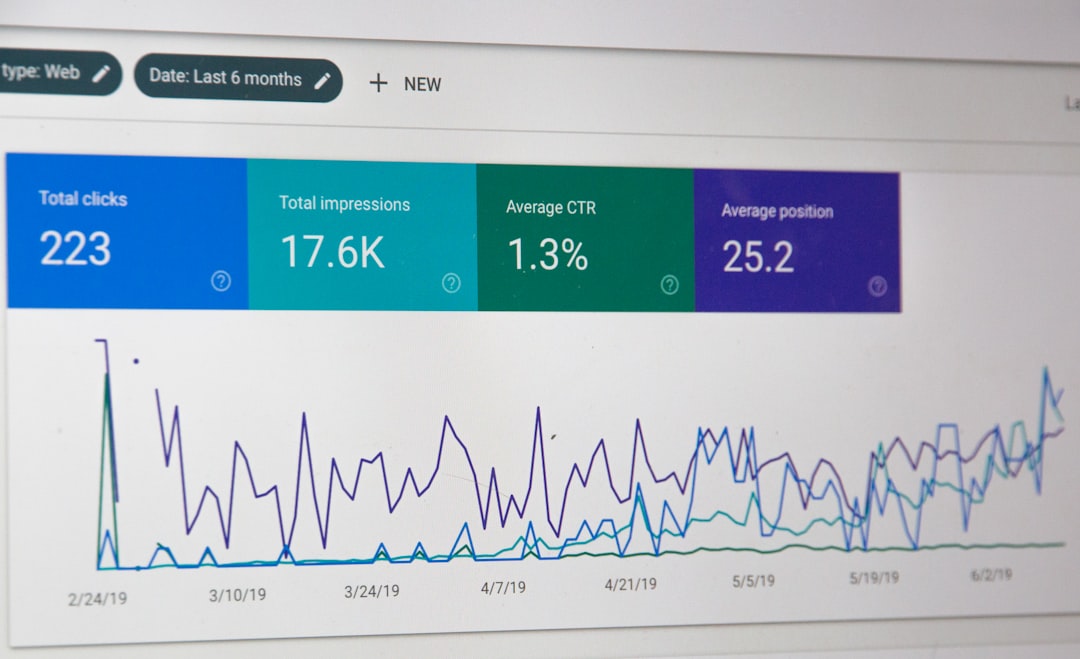
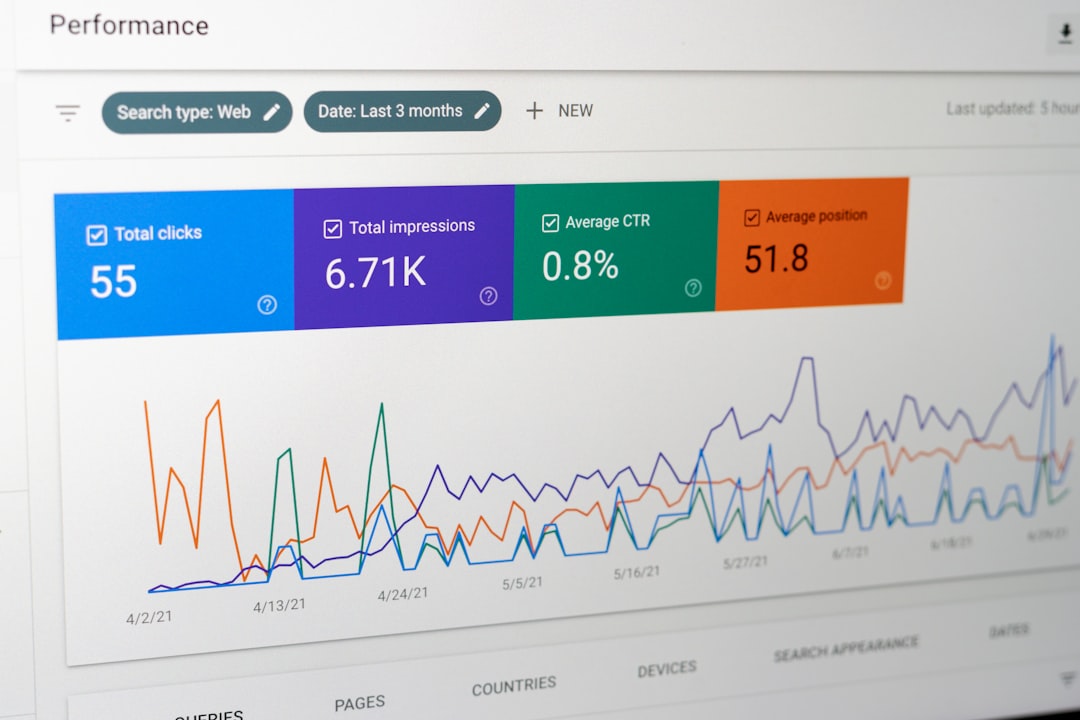
In WordPress, go to Settings, then Reading, and confirm the search engine visibility box is not checked. WordPress documentation says that setting asks search engines not to index the site and can generate a noindex directive in the page head. Then open Google Search Console and review the Page indexing report and URL Inspection tool to see whether key pages are indexed, excluded, or blocked for a specific reason.
| Check first | What to look for | Why it matters |
|---|---|---|
| Search engine visibility | The box in Settings > Reading should be unchecked on a live site | One wrong setting can suppress the whole site |
| Page indexing report | Important pages marked excluded, crawled but not indexed, or blocked | Shows whether Google is actually indexing the URLs you care about |
| URL Inspection | Canonical version, crawl status, last crawl details | Helps diagnose page-specific indexing issues |
| XML sitemap | Only important, indexable URLs included | Prevents sending mixed signals about what should rank |
Check titles, headings, and search intent
Once indexing is confirmed, the next step is on-page troubleshooting. Many WordPress pages underperform because the title is vague, the H1 is disconnected from the target query, or the page only partially answers what the searcher wants.
Google recommends descriptive, concise title text. That usually means removing repetitive boilerplate and making each important page clearly about one topic. If three pages target the same phrase, they may be competing with each other instead of helping the site grow.
A simple example makes the difference clearer. Weak title: SEO Services | SEO Company | SEO Expert. Stronger title: WordPress SEO Services for Small Businesses. The stronger version gives Google and the searcher a clearer topic without sounding stuffed.
Review your highest-value pages first: homepage, core service pages, product categories, and top blog posts. If the page is trying to rank for everything, narrow the topic. If the page is too thin to satisfy intent, improve it before publishing more content.
Look for common technical SEO conflicts

Technical SEO issues rarely look dramatic, but they compound fast. Canonical mistakes, redirect chains, broken internal links, parameter URLs, and thin archive pages can all weaken crawling and dilute ranking signals.
Most site owners do not have one catastrophic problem. They have a scattered setup: an SEO plugin, a redirect plugin, a performance plugin, a page builder, and a theme all outputting overlapping signals. The fix is to simplify the stack and verify what each tool is actually doing.
| Area | What to check | Typical fix |
|---|---|---|
| Canonicals | Pages pointing to the wrong preferred URL | Correct canonical settings in your SEO plugin or template |
| Redirects | Old URLs chaining through multiple hops | Update internal links and reduce chains to a single redirect |
| Broken links | Internal links returning errors | Replace or remove broken destinations |
| Archives | Tag or author archives with little unique value | Noindex or remove low-value archives if they create bloat |
| Plugin overlap | Multiple SEO or schema tools controlling the same output | Use one primary SEO setup and remove duplicate features |
If you are seeing traffic loss after a redesign or migration, this is usually the section to inspect hardest. Missing redirects, changed URL structures, or new noindex rules often do more damage than the design itself.
If you are experiencing these symptoms, our team at WordPress SEO Expert can help. A focused audit usually finds the exact bottlenecks faster than another round of plugin changes.
Test speed, but do not let speed distract you
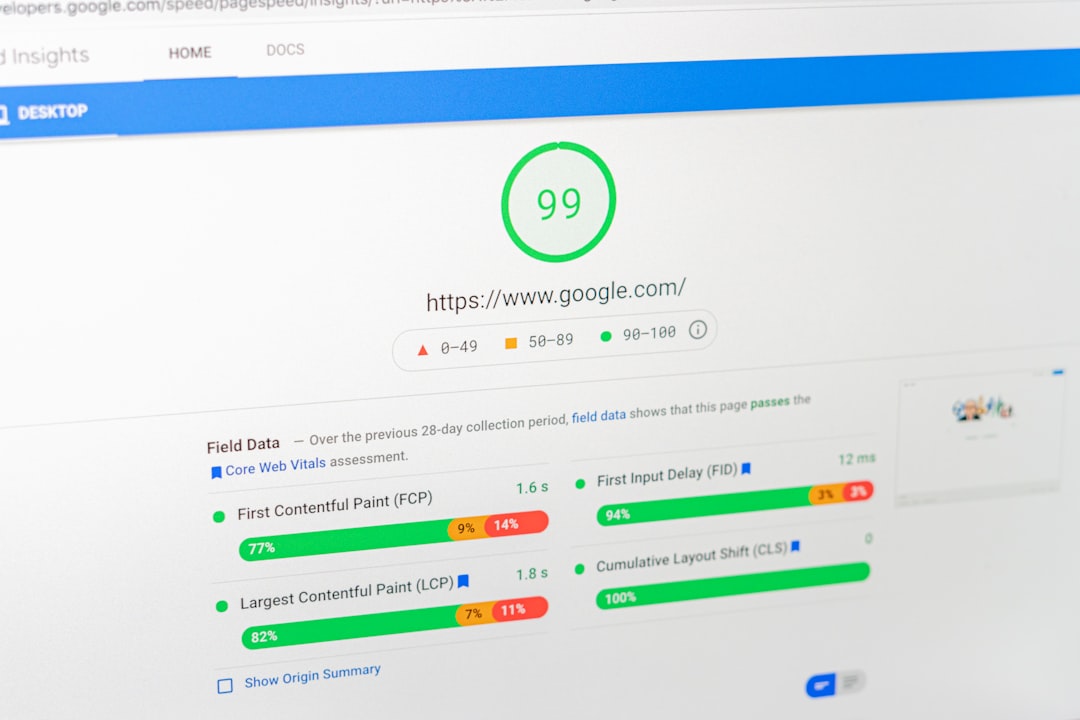
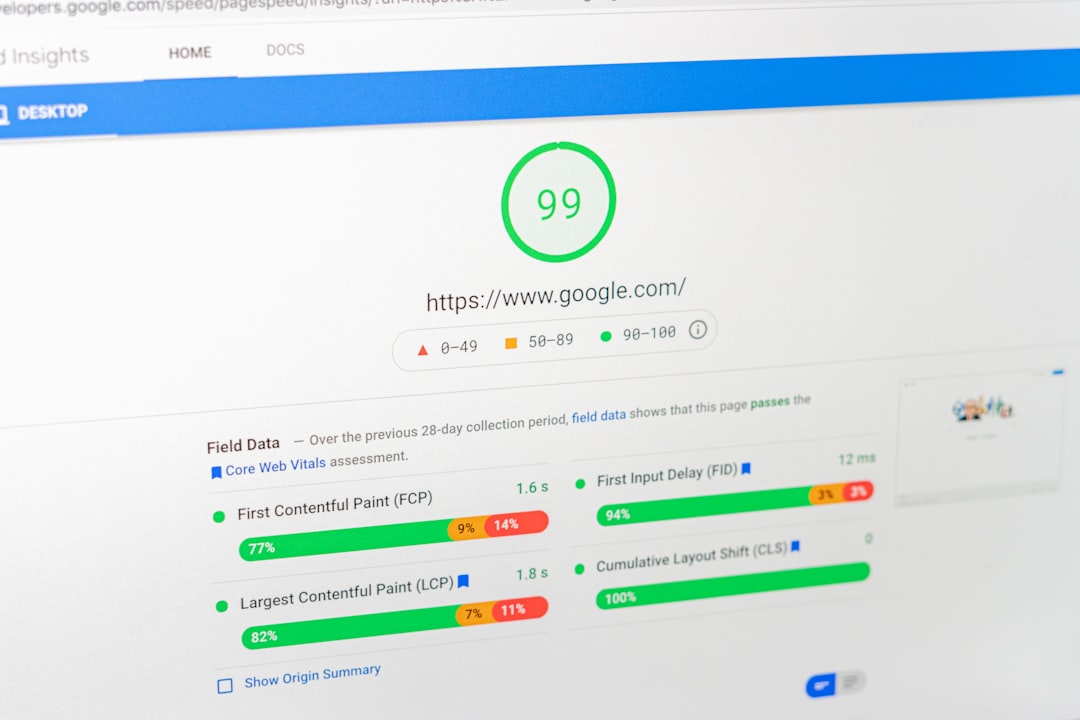
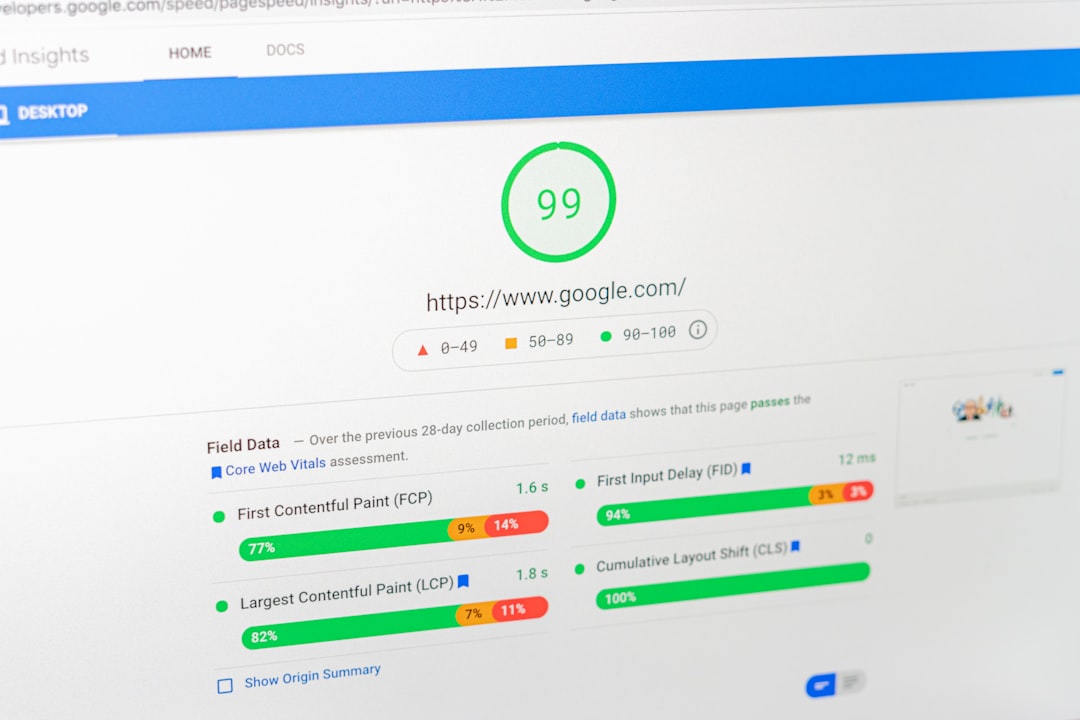
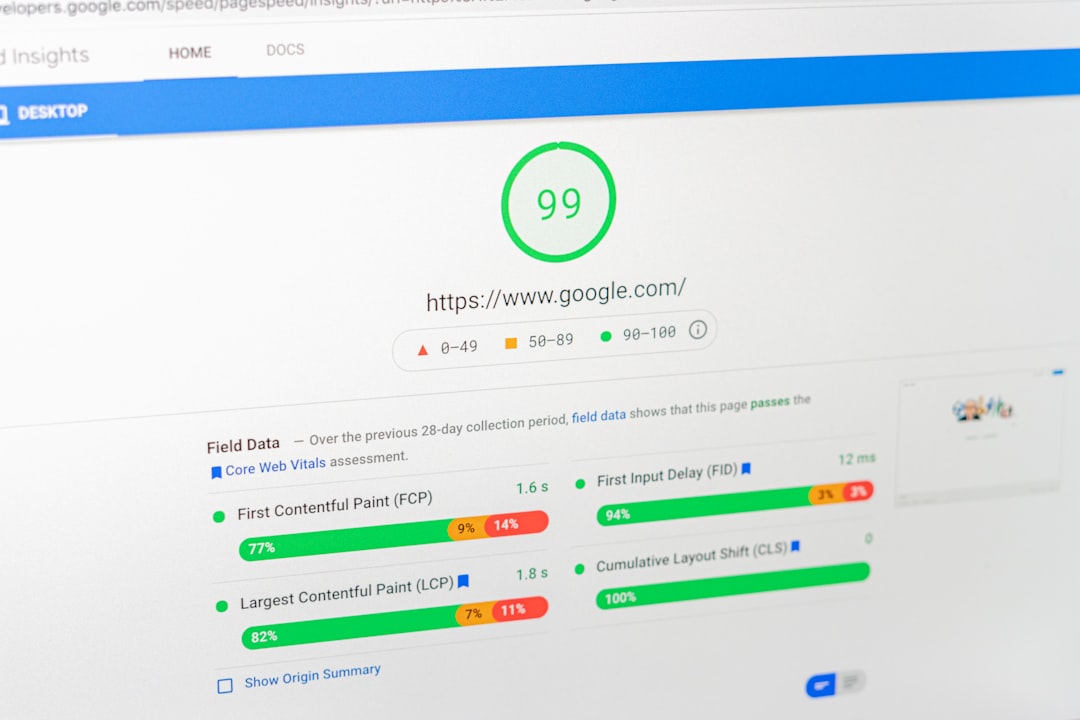
Slow pages can hold back SEO, but speed is rarely the only problem. Treat it as part of troubleshooting, not the whole strategy. The practical goal is to remove obvious friction, not chase a perfect lab score.
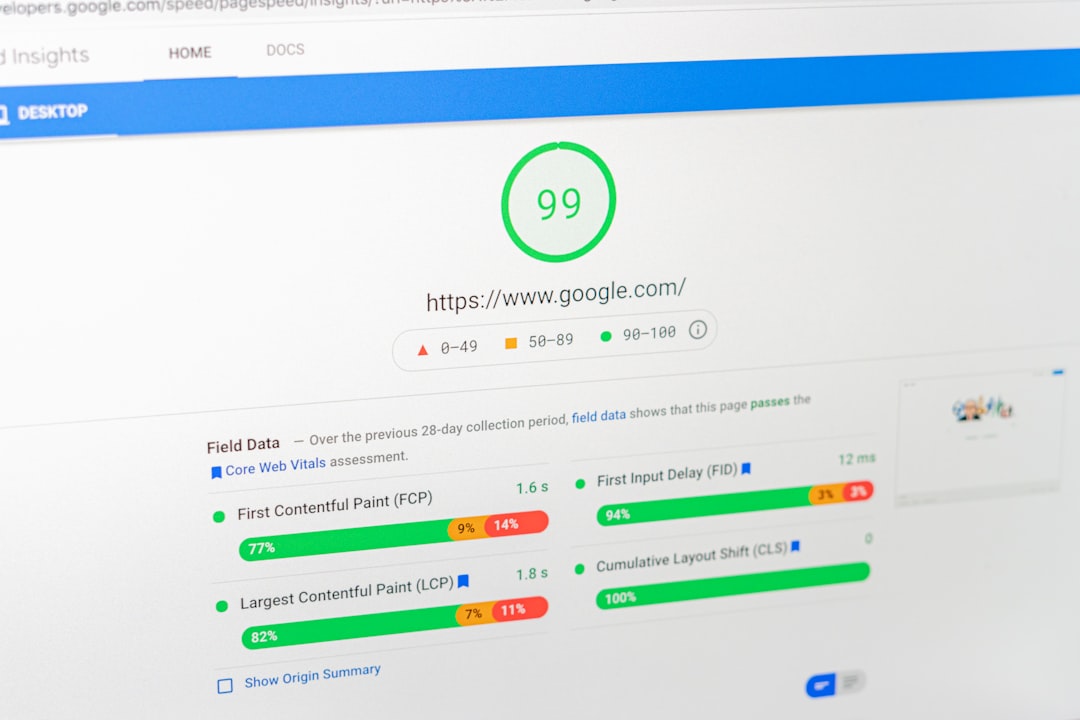
Start by testing the pages that matter most, then look for oversized images, render-blocking scripts, and heavy themes or plugins. Search Console can show how Google reports indexing issues, while your performance testing helps explain why users may still be having a poor experience on those pages.
If your site is image-heavy or built with a page builder, review the exact fixes in our WordPress speed troubleshooting guide. That walkthrough is useful when rankings are stuck and page speed is part of the bottleneck.
Strengthen internal linking before publishing more

Internal linking is one of the simplest WordPress SEO fixes because it helps both users and search engines understand which pages matter. If important pages are isolated, Google receives weaker signals about their relevance and priority.
Look for blog posts that mention your services, products, or supporting topics but do not link to the relevant page. Add contextual links using descriptive anchor text. Avoid generic anchors and avoid forcing links where they do not fit naturally.
A good rule is to link from informational posts into commercial pages, and from high-traffic pages into deeper supporting content. That turns scattered articles into a system instead of a pile of URLs.
A simple troubleshooting order
The most reliable way to troubleshoot SEO for WordPress is to work in sequence. Do not rewrite every page first, and do not install new plugins first. Fix the issues that block visibility before polishing everything else.
| Priority | Action | Result you want |
|---|---|---|
| 1 | Confirm indexing and crawlability | Important pages can appear in search |
| 2 | Improve titles, headings, and page focus | Pages better match search intent |
| 3 | Clean up technical conflicts | Stronger canonical, redirect, and crawl signals |
| 4 | Address obvious speed problems | Less friction for users and crawlers |
| 5 | Build internal links between related pages | Better authority flow and page discovery |
When to get outside help
If you have already updated plugins, rewritten copy, and changed settings, but rankings are still flat, the problem is usually not obvious from the WordPress dashboard alone. That is when a proper audit saves time because it replaces guesswork with a prioritized action plan.
WordPress SEO Expert can review indexing, on-page setup, internal linking, and technical SEO to show what is actually holding the site back. Contact WordPress SEO Expert today to schedule a consultation or request a free WordPress SEO audit.