
Low rankings usually come from a scattered setup, not one missing plugin. A clean WordPress SEO setup means Google can crawl the site, understand the pages, and avoid duplicate or low-value URLs before you spend months publishing content that never gets traction.
Most site owners do not have one catastrophic SEO problem. They have a stack of smaller setup issues: the wrong permalink structure, weak title templates, category and tag archives indexed without a plan, and plugin settings copied from a tutorial that did not match the site. This guide shows what to configure first, what to ignore for now, and where to stop tweaking.
What a good WordPress SEO setup includes
A good setup gives search engines one clear version of every important page and removes avoidable confusion. That means clean URLs, a single SEO plugin, sensible indexing rules, accurate metadata, and a basic technical foundation that does not block crawling or create duplicate pages.
Google recommends clear, concise page titles and unique page descriptions that accurately reflect the content, so your setup should support that across the whole site instead of forcing manual cleanup later. If you are starting from scratch, this is much easier to fix now than after dozens of pages are indexed. For a launch-focused version of this process, see our WordPress SEO checklist for new websites.
Set up WordPress SEO in this order
The order matters because some fixes make later work irrelevant if they are skipped. If search engines cannot crawl the site correctly, your homepage title tag and schema settings will not save you.
| Priority | Area | What to set up first | Why it matters |
|---|---|---|---|
| 1 | Visibility and crawling | Check search engine visibility, robots rules, and HTTPS | Prevents accidental noindex or blocked crawling |
| 2 | URL structure | Use clean permalinks and one preferred domain version | Reduces duplicate URLs and messy indexing |
| 3 | SEO plugin | Install one plugin and configure global defaults | Avoids conflicting canonicals, meta tags, and sitemaps |
| 4 | Indexing rules | Decide what should and should not be indexed | Stops thin archive pages from cluttering results |
| 5 | On-page templates | Set title and meta templates for posts and pages | Keeps metadata readable and consistent |
| 6 | Performance basics | Compress images, enable caching, test mobile speed | Improves usability and supports better crawl efficiency |
1. Check search engine visibility first

This setting causes more confusion than almost anything else in WordPress SEO. If the site is set to discourage search engines, your pages may never get indexed properly no matter how polished the content looks in the editor.
Go to Settings, then Reading, and make sure the search engine visibility box is not checked on a live site. WordPress core has used a noindex approach for this setting for years, and WordPress documentation around the feature makes clear that it is meant to discourage indexing, not to act as a complete security layer. In practical terms, this is a launch and recovery checkpoint, not a privacy tool.
After that, open a live page and view the source. Search for noindex. If you find it on pages that should rank, stop there and fix that first. If a site recently launched or was redesigned, compare your setup against our pre-launch SEO checklist before changing anything else.
2. Use the right permalink structure
Your permalink structure should be simple and readable. In most cases, Post name is the right default because it creates clean URLs that are easier for users to scan and easier for teams to manage long term.
Go to Settings, then Permalinks, and choose Post name. Avoid plain URLs with parameters for a standard marketing site. Also choose one preferred domain version, either www or non-www, and make sure the other redirects to it consistently. This helps consolidate signals instead of splitting them across two versions of the same page.
3. Install one SEO plugin only
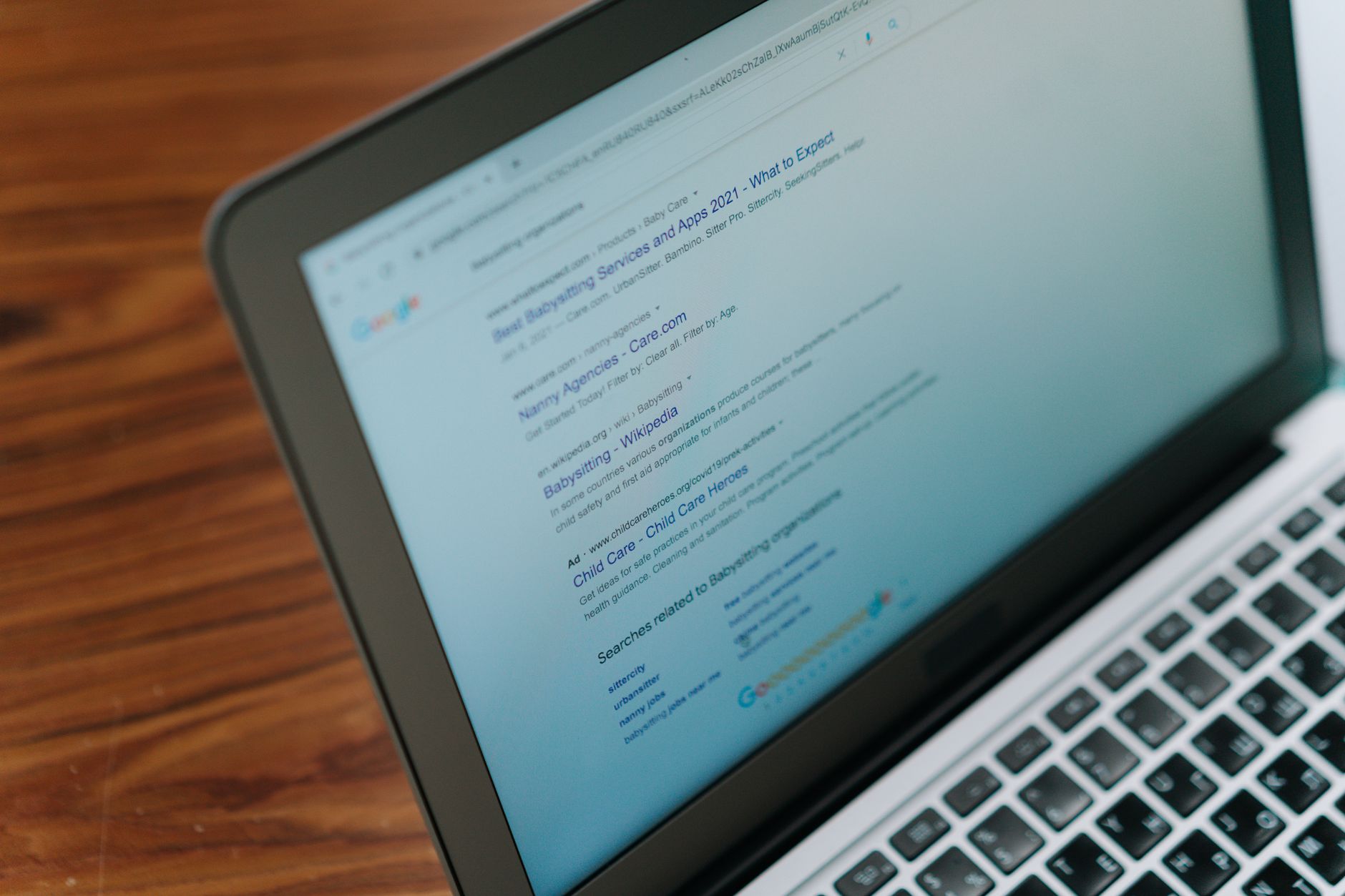
There is no single best SEO plugin for WordPress for every site. There is only a best fit for your workflow. What does matter is running one plugin, not stacking multiple plugins that output overlapping metadata.
Pick one established plugin and configure it fully. Running two SEO plugins at the same time often creates duplicate title tags, competing canonical tags, and multiple XML sitemaps. That is not advanced SEO. It is just a configuration mess. If you inherited a site, check the source code before assuming the plugin dashboard tells the whole story.
Your plugin should handle titles, meta descriptions, XML sitemaps, canonical tags, and basic schema defaults. Beyond that, keep the stack lean. More SEO features do not automatically mean better SEO.
4. Set title tags and meta templates before publishing at scale
A few good templates prevent a lot of cleanup later. Google advises writing descriptive, concise titles, so your default title format should produce readable results without repeating your brand or stuffing keywords into every page.
A practical setup is a homepage title written manually, then a simple template for posts and pages that combines the page title with the site name. Check a few real examples before calling it done. If the output feels repetitive or bloated, fix the template now.
Weak title: SEO Services | SEO Company | SEO Expert
Stronger title: WordPress SEO Services for Small Businesses
Do the same for meta descriptions. They do not guarantee rankings, but they influence how compelling your result looks in search. Write them for humans first, not plugin score meters.
5. Decide what should be indexed
Not every page type on a WordPress site should appear in Google. Most SEO problems on growing sites come from letting low-value archives and utility pages get indexed by default.
For many small business sites, pages and posts should be indexed, while tag archives, date archives, and thin author archives should usually stay out of the index unless they serve a real user purpose. Category archives can stay indexed if they are curated and useful. The key is to make this decision deliberately instead of accepting plugin defaults.
| Page type | Typical setup | Notes |
|---|---|---|
| Homepage | Index | Write title and description manually |
| Core service pages | Index | These usually carry the main commercial intent |
| Blog posts | Index | Only if they answer a real query clearly |
| Category archives | Depends | Keep indexed only if they add value |
| Tag archives | Usually noindex | Often thin or duplicative on small sites |
| Date archives | Usually noindex | Rarely useful for searchers on business sites |
| Author archives | Usually noindex on single-author sites | Avoid duplicate archive pages |
If you are unsure which templates are creating index bloat, WordPress SEO Expert can help you sort the high-impact fixes from the busywork before you change global settings across the site.
6. Verify canonical tags and XML sitemaps
Canonical tags and sitemaps should reinforce your indexing decisions, not contradict them. A healthy setup usually means one self-referencing canonical per indexable page and one primary XML sitemap source.
Open a few live pages and confirm the canonical tag points to the correct final URL. Then check your sitemap and make sure it includes the content types you want indexed and excludes the ones you do not. If your site is using an SEO plugin, you should verify that you do not also have a conflicting sitemap setup creating noise in the background.
If this part feels too abstract, a technical SEO review often reveals problems that are invisible from the WordPress admin area alone, especially after redesigns or plugin changes.
7. Cover the technical basics that support SEO

Technical SEO is rarely one dramatic fix. It is a collection of smaller decisions that keep the site accessible, fast enough, and easy for search engines to interpret.
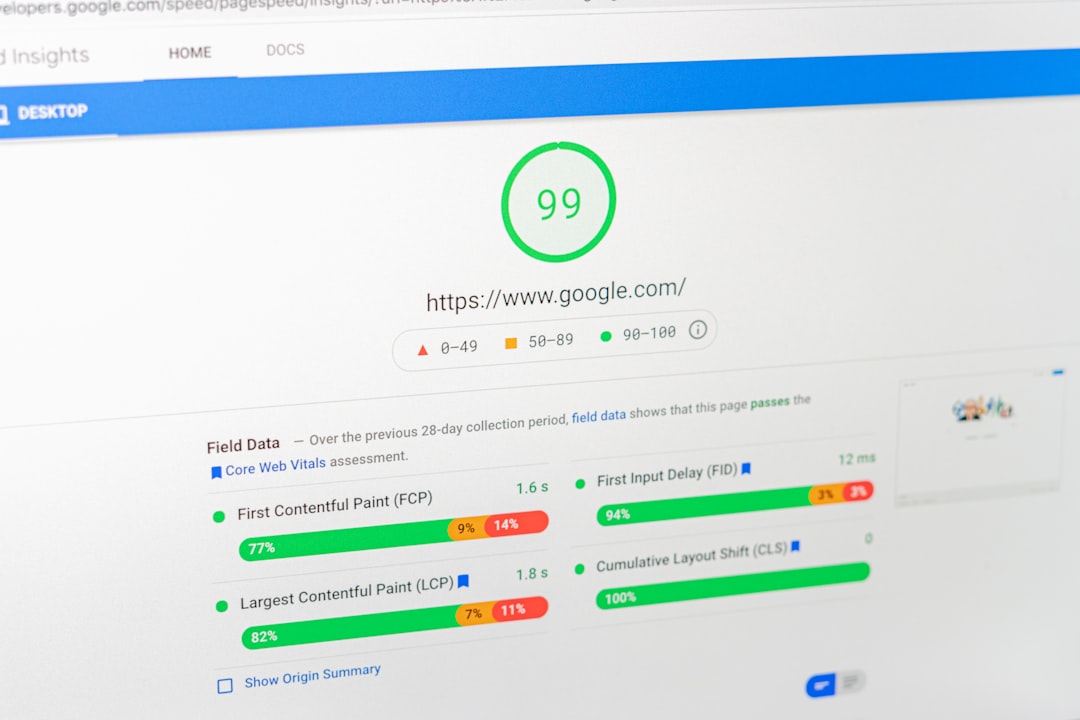
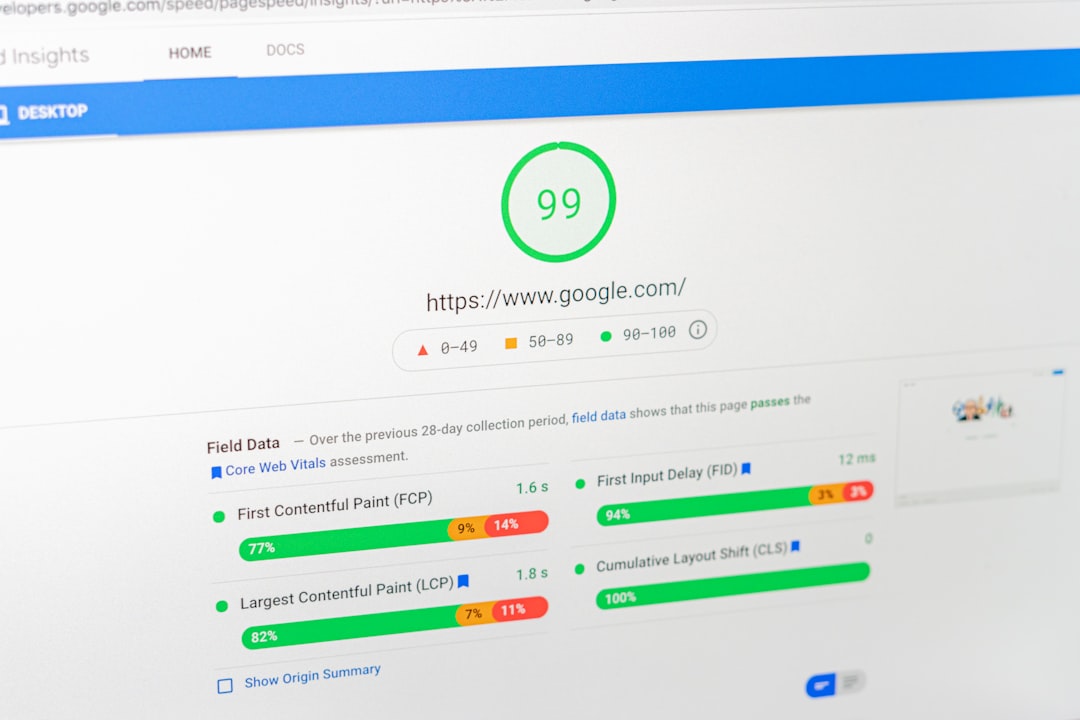
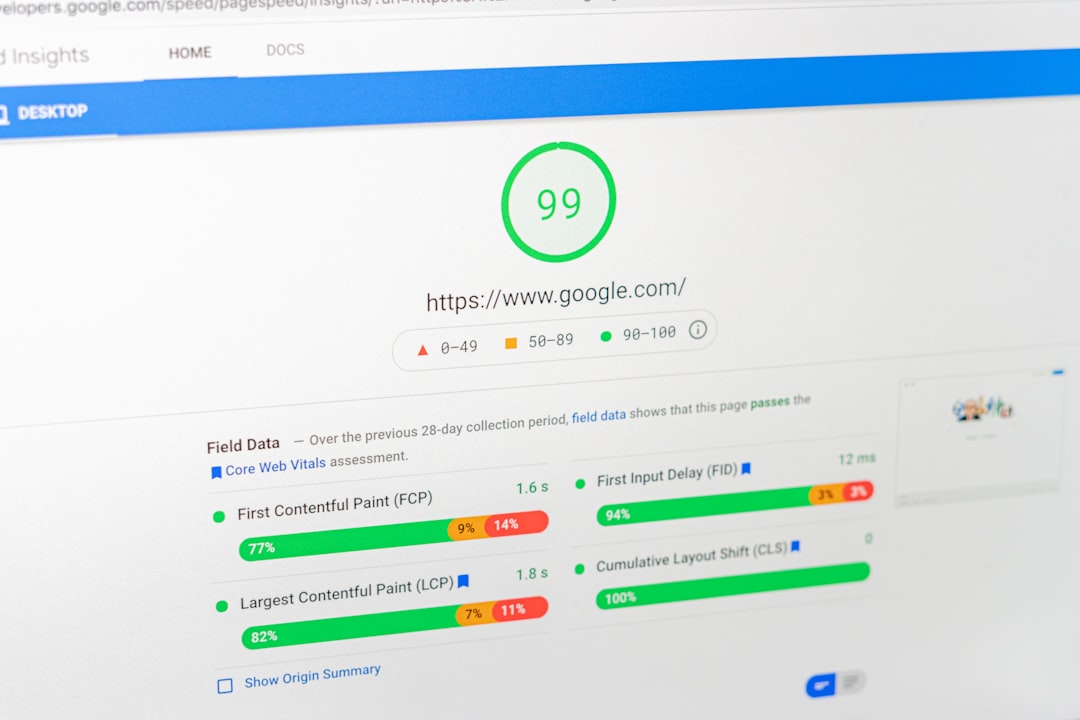
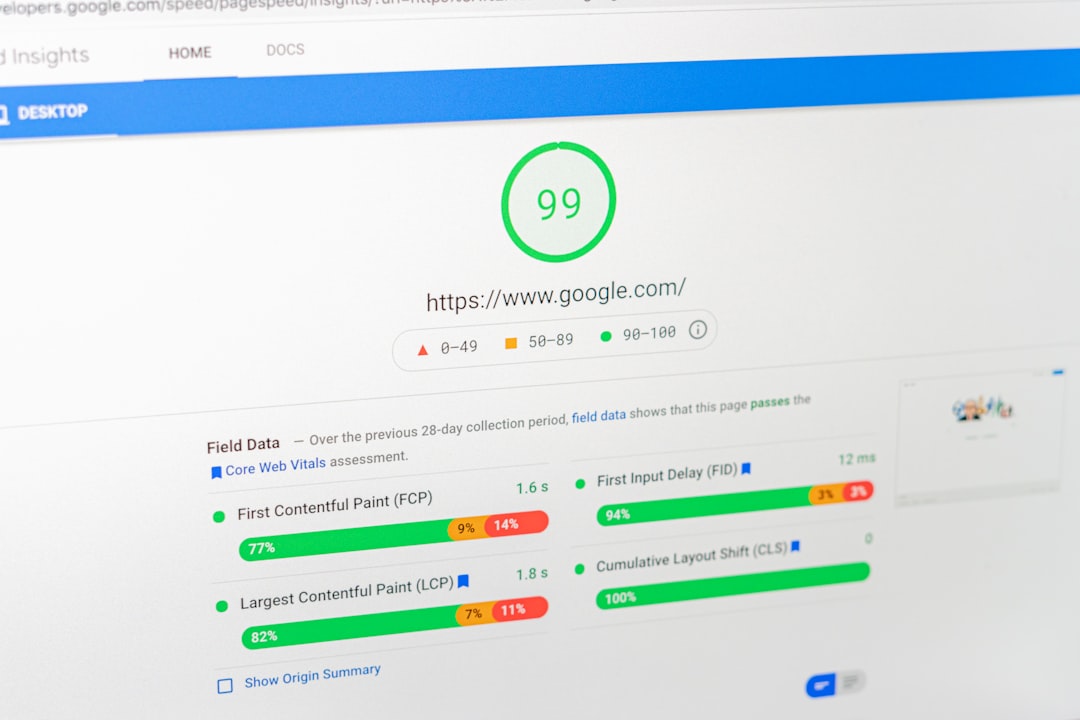
Make sure HTTPS is enforced, the site loads properly on mobile, and caching is active. Compress oversized images before upload, and keep plugin count under control. Speed does matter, but not in the way most plugin sales pages imply. It is better to reach a stable, fast-enough baseline than to spend weeks chasing a perfect test score while bigger SEO issues stay unresolved.
For the exact performance fixes that usually move the needle first, review our guide on improving WordPress site speed for SEO.
Common WordPress SEO setup mistakes
Most stalled sites are not failing because the owner skipped some secret tactic. They are underperforming because the setup was never reviewed as a system. Fixing these common mistakes usually does more than adding another plugin.
Common problems include leaving search engine visibility enabled on a live site, indexing tag archives by default, using thin category pages with no unique value, letting both www and non-www versions resolve, copying title templates across every page without checking the output, and trusting plugin scores more than real search performance.
When your setup is good enough
You do not need a perfect dashboard to have a strong SEO foundation. A good setup is one where important pages are crawlable, metadata is clear, low-value pages are controlled, and the site is technically stable enough that content and links can actually build on it.
That is the stopping point most site owners need. Once the setup is solid, shift your attention to content quality, internal linking, and commercial pages that deserve stronger targeting. Endless plugin tweaking usually creates less value than publishing one strong page built around real search intent.
Need help reviewing your setup?
If you have worked through these setup steps and rankings are still stuck, the problem is usually prioritization, not effort. WordPress SEO Expert can review the site, identify what is actually holding it back, and give you a shorter list of changes worth making.
Request a free WordPress SEO audit or book a free SEO consultation with WordPress SEO Expert if you want a second set of eyes before changing plugin settings, archive indexing, or technical SEO rules sitewide.