
Low rankings usually come from a scattered setup, not one missing plugin. A WordPress SEO setup guide should help you fix the pages, settings, and site structure that block growth first, before you spend more time publishing content that Google still struggles to understand.
Most WordPress sites do not need a huge stack of tools. They need one clean SEO plugin, indexable pages, clear titles, useful internal links, and a structure that matches search intent. If you want a second set of eyes on your setup, WordPress SEO Expert can help you separate high-impact fixes from busywork.
What should you set up first for WordPress SEO?
Start with the settings that affect the entire site. If search engines cannot crawl the right pages, or if your plugin, titles, and sitemap are misconfigured, content optimization will not do much until those basics are fixed.
First, confirm that WordPress is not discouraging search engines from indexing the site. Then make sure your preferred domain version resolves consistently over HTTPS, your permalinks are clean, and one SEO plugin controls your titles, canonicals, and sitemaps. If you need a broader walkthrough, review a step-by-step WordPress SEO guide alongside your setup.
Google says every important page should have a unique, clear, and concise title, and it also recommends descriptive meta descriptions when they help users understand the page better. Google also uses alt text and page context to understand images, so image SEO belongs in the setup process, not as an afterthought.
Your WordPress SEO setup checklist
Use this checklist in order. The sequence matters because technical access problems come first, sitewide metadata second, and page-level improvements third.
| Area | What to set up | Why it matters |
|---|---|---|
| Indexing | Make sure search engines are not discouraged and key pages are indexable | Blocked pages cannot rank |
| Domain | Force one HTTPS version of the site | Prevents duplication and split signals |
| SEO plugin | Install one plugin and complete its setup | Keeps titles, canonicals, schema, and sitemaps consistent |
| Permalinks | Use short, readable URLs | Improves crawl clarity and site structure |
| Titles and meta | Write unique page titles and useful descriptions | Improves relevance and click appeal |
| Headings | Use one H1 and logical H2/H3 sections | Makes page topics easier to understand |
| Internal links | Link related pages with descriptive anchor text | Helps search engines and users move through the site |
| Images | Add descriptive alt text and compress files | Supports accessibility and page performance |
| Monitoring | Connect Google Search Console and review indexing | Shows what is actually happening after setup |
Step 1: Choose one SEO plugin

There is no single best plugin for every site, but there is a clear best practice here: use one SEO plugin, not several overlapping ones. Running multiple SEO plugins can create conflicting titles, duplicate schema, and competing sitemap settings.
After installation, finish the setup wizard and manually review the homepage title, global title templates, sitemap settings, indexing rules for posts and pages, and breadcrumb options. Do not stop just because a plugin shows green lights. Plugin scores do not replace search intent, page quality, or technical clarity.
What to configure inside the plugin
Focus on the settings that affect the whole site. That usually means your homepage metadata, default title formats, XML sitemap, social preview image, canonicals, and whether low-value archives should be indexed. If your site is brand new, compare your launch settings with a WordPress SEO checklist for new websites before you go live.
Step 2: Clean up URLs and site structure
SEO-friendly URLs are less about stuffing keywords into slugs and more about keeping the site easy to crawl. Short, readable URLs paired with a clean category structure usually outperform messy archives and duplicated pathways.
Use a simple permalink structure, keep slugs concise, and avoid creating tag or category archives that add little value. Service sites often do better with a clear hierarchy of core pages and supporting content than with a large pile of thin archives. If you change live URLs, use permanent redirects and update internal links so users and search engines both land on the correct destination.
Step 3: Write titles and meta descriptions that make sense

Good titles do two jobs: they tell Google what the page is about and they give searchers a reason to click. The right setup is usually clearer and shorter than most site owners expect.
Google recommends descriptive, concise titles and warns against boilerplate or unnecessarily long title text. It also says the meta description can be used as the search snippet when it gives a more accurate summary of the page. That means every important page should have a unique title and a description written for humans, not a template stuffed with repeated keywords.
Weak title: SEO Services | SEO Company | SEO Expert
Stronger title: WordPress SEO Services for Small Businesses
Step 4: Set up pages around one main intent
Each page should answer one main search need. When a page tries to target several unrelated keywords at once, the title, headings, copy, and internal links all get diluted.
Choose one primary topic for each core page, then support it with close variants and related questions where they fit naturally. A service page should target commercial intent. A tutorial should target informational intent. Most sites that feel stuck are not missing content volume. They are mixing intents and forcing one page to do too many jobs.
Step 5: Use headings and internal links deliberately
Headings and internal links help search engines understand relationships between pages and sections. They also help users move forward without getting lost, which is why they should be part of setup, not just content polishing.
Use one H1 per page, then break the rest into logical H2 and H3 sections. Link related pages with descriptive anchors that explain what comes next. For example, a service page can link to a blog post that explains the process in more detail, while that blog post links back to the service page when readers are ready to take action.
If you are experiencing these setup problems across multiple pages, our team at WordPress SEO Expert can help.
Step 6: Do basic image and schema setup
Image SEO and schema setup are easy to ignore because they feel secondary, but both help search engines interpret the page more accurately. They also improve accessibility and search appearance when implemented correctly.
Google recommends useful, information-rich alt text written in context, not alt text stuffed with keywords. For schema, keep it simple and accurate. Breadcrumb structured data can help Google understand your site hierarchy, but it needs to reflect a normal user path and match what users see on the page. Do not add schema types your content does not actually support.
Step 7: Connect Search Console and review performance

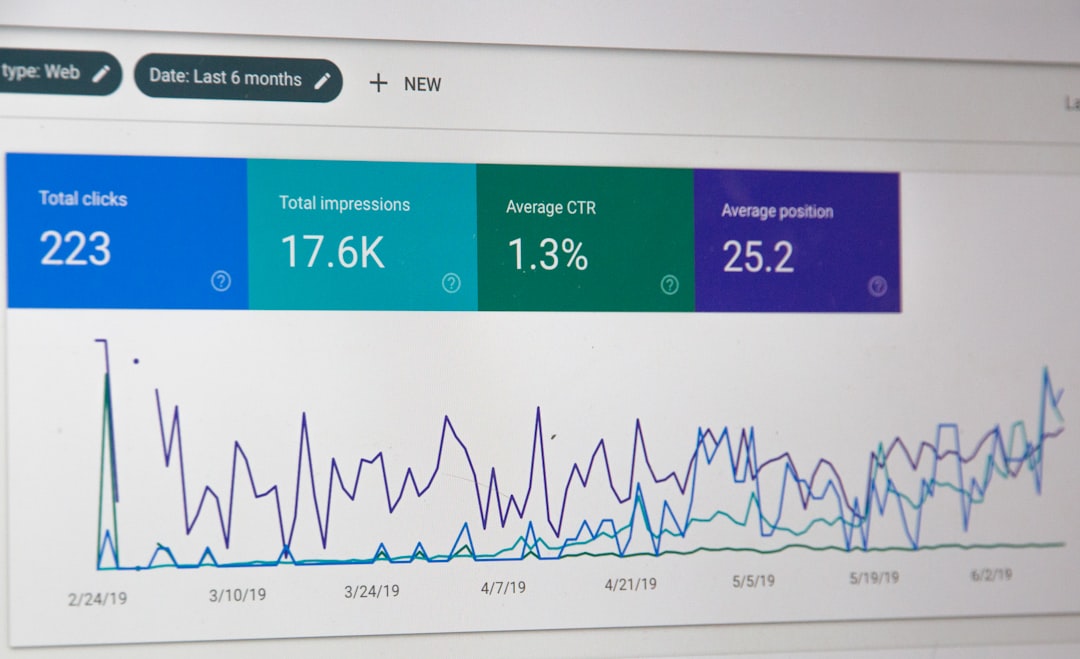
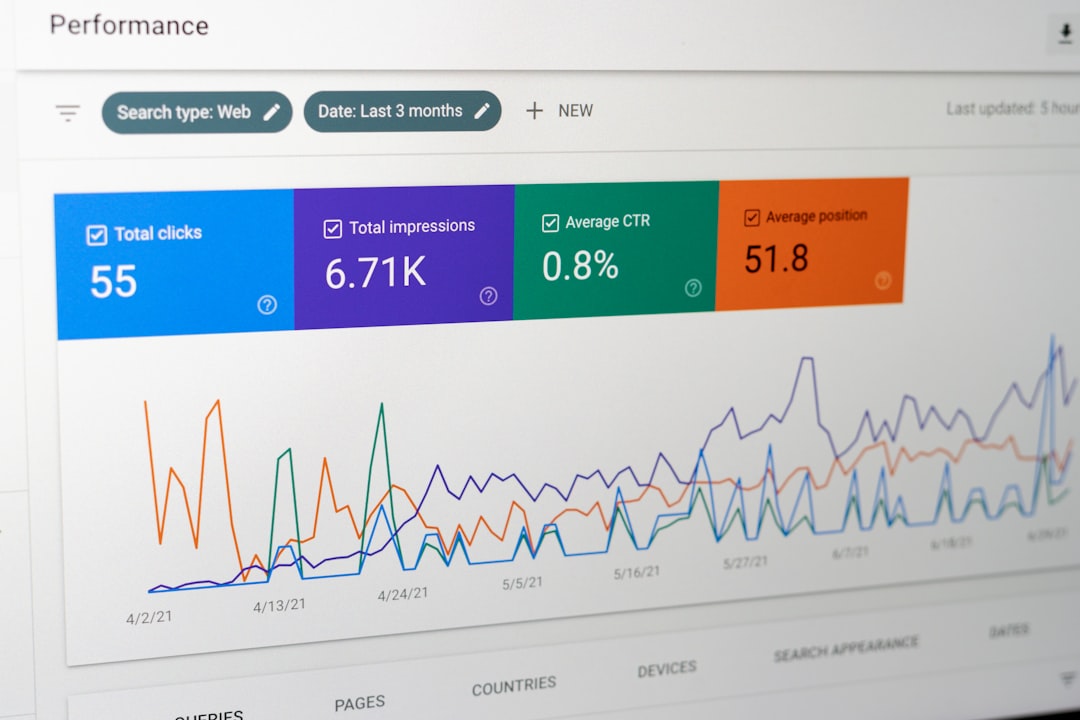
A setup is not finished until you can measure whether Google is indexing the right pages. Search Console shows whether your fixes are working and where your next bottleneck is likely to be.
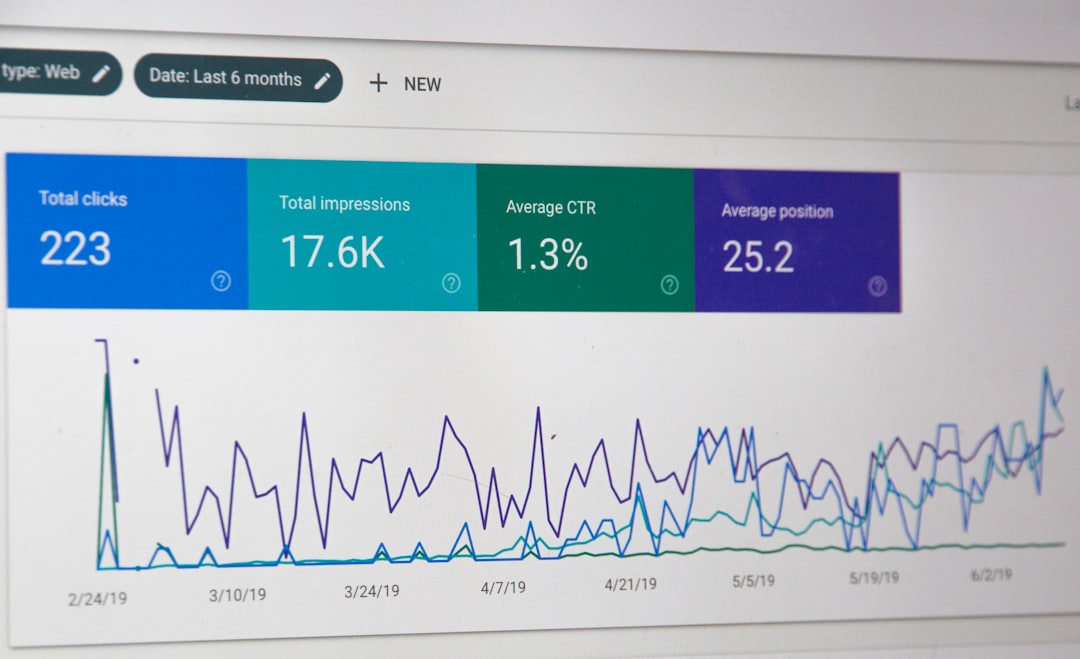
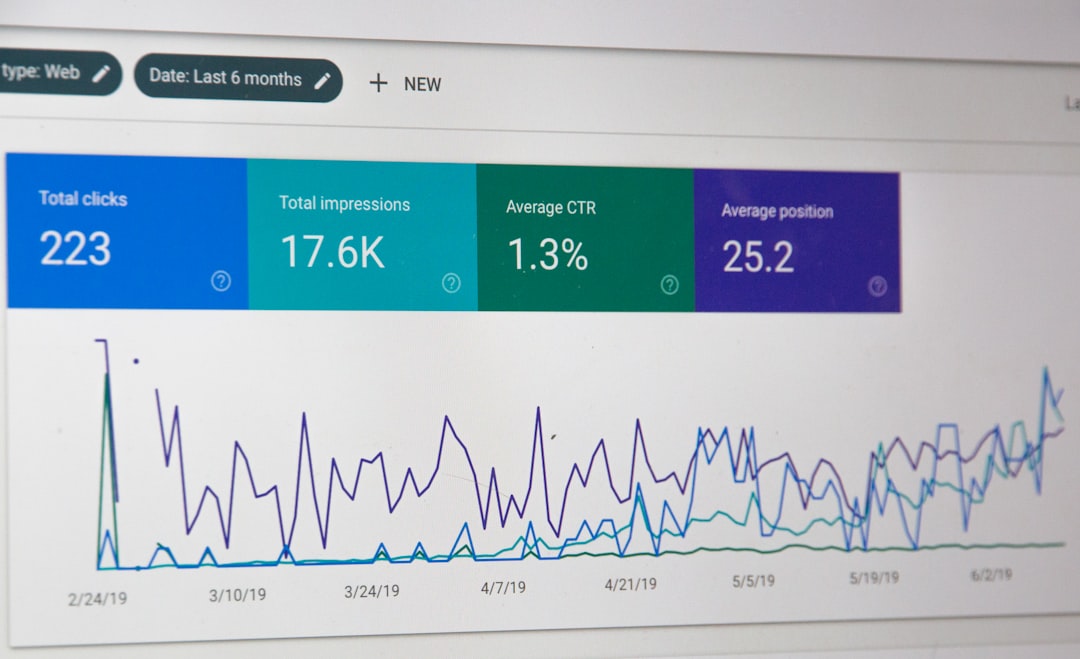
Submit your sitemap, check which pages are indexed, and watch for URLs getting impressions but few clicks. That pattern often means the page is visible enough to be tested but not compelling enough to win the click. In those cases, better titles and tighter intent matching usually come before a full rewrite.
Common WordPress SEO setup mistakes
Most setup problems are small on their own but damaging in combination. Fixing these common issues often does more than adding another plugin or publishing five more articles.
| Mistake | Why it hurts | What to do instead |
|---|---|---|
| Using multiple SEO plugins | Creates conflicts in metadata and schema | Keep one plugin active and remove the rest |
| Leaving default homepage metadata | Makes the most important page weak or generic | Write custom homepage title and description |
| Thin archive pages everywhere | Creates low-value indexable URLs | Noindex weak archives or improve them |
| Changing URLs without redirects | Breaks access and loses signals | Add permanent redirects for every changed page |
| Weak internal linking | Important pages stay isolated | Link from relevant pages with descriptive anchors |
| Keyword-stuffed titles or alt text | Reduces clarity and hurts usability | Write naturally for users first |
When to get help with WordPress SEO setup
If you have checked the basics and rankings are still flat, the problem is usually not one dramatic error. It is usually a stack of smaller issues involving indexation, page targeting, internal linking, and content structure.
That is where an outside review saves time. WordPress SEO Expert can audit your setup, show you what to fix first, and help you avoid changing settings that are not the real bottleneck. Contact WordPress SEO Expert today to schedule a consultation.