
A WordPress website can have great design and useful content, but without proper SEO, it may struggle to appear in search results. A structured SEO checklist helps make sure important areas of the website are reviewed instead of focusing on only keywords or content.
A WordPress SEO Consultant can use a checklist to identify technical problems, content opportunities, keyword gaps, and areas that may improve the website’s overall search visibility.
Here is a practical WordPress SEO checklist covering the most important areas.
1. Start With a Website Audit
Before making SEO changes, review the website’s current condition.
Check:
- Website structure
- Existing pages
- Indexing status
- Broken links
- Page titles
- Headings
- Internal links
- Technical issues
- Mobile usability
- Page speed
An audit gives you a starting point and helps determine which problems should be addressed first.
2. Check Keyword Targeting

Every important page should have a clear topic and purpose.
Review whether the website is targeting relevant keywords for:
- Main services
- Products
- Locations
- Important informational topics
- Commercial searches
Keyword research should consider search intent, competition, relevance, and business value.
Avoid assigning multiple unrelated topics to one page simply to target more keywords.
3. Review Page Titles
Page titles help users and search engines understand what a page is about.
Check that important pages have:
- Clear titles
- Relevant wording
- A logical connection to the page content
- Natural keyword usage
Avoid repeating the same title across multiple important pages.
4. Optimize Headings
A clear heading structure makes content easier to understand.
Review:
- H1 headings
- H2 sections
- H3 subsections
- Heading relevance
- Content organization
Headings should describe the sections accurately rather than being used only to insert keywords.
5. Improve Page Content
Content should answer the user’s search intent clearly.
Check whether each important page:
- Provides useful information
- Covers the main topic sufficiently
- Uses clear language
- Answers common questions
- Avoids unnecessary repetition
- Includes relevant examples where useful
A WordPress SEO Consultant can also identify older content that needs updating.
6. Review Existing Blog Posts

Old content should not automatically be ignored.
Look for articles that:
- Have declining traffic
- Receive search impressions
- Rank for related terms
- Contain outdated information
- Have weak internal links
- No longer fully satisfy search intent
Updating useful existing content can be an important part of an SEO strategy.
7. Check Internal Links
Internal linking connects related pages across the website.
Review whether important pages receive relevant internal links from other pages.
For example, an article about WordPress website performance could naturally link to a related WordPress SEO service page.
Good internal linking can improve navigation and help search engines understand relationships between pages.
8. Review URLs
URLs should be clear and easy to understand.
For example:
example.com/wordpress-seo-services/
is more descriptive than a URL containing unnecessary characters or confusing terms.
When reviewing existing URLs, avoid changing them without a clear reason. URL changes may require redirects and careful monitoring.
9. Check Indexing
Search engines need to be able to access and index important pages.
Review:
- Noindex settings
- Robots.txt
- XML sitemap
- Canonical URLs
- Redirects
- Crawl issues
Pay particular attention to important pages that are not appearing in search results as expected.
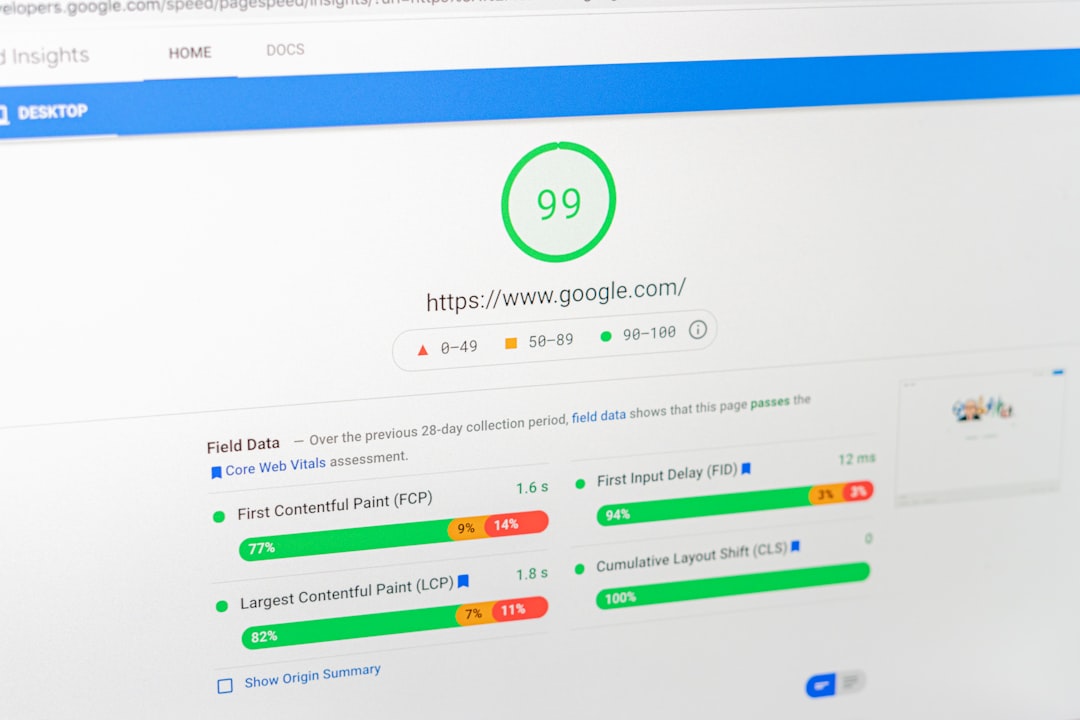
10. Check Website Speed
Website performance should be part of the SEO checklist.
Look for possible causes of slow loading, including:
- Large images
- Too many plugins
- Heavy scripts
- Poor caching
- Unoptimized themes
- Hosting limitations
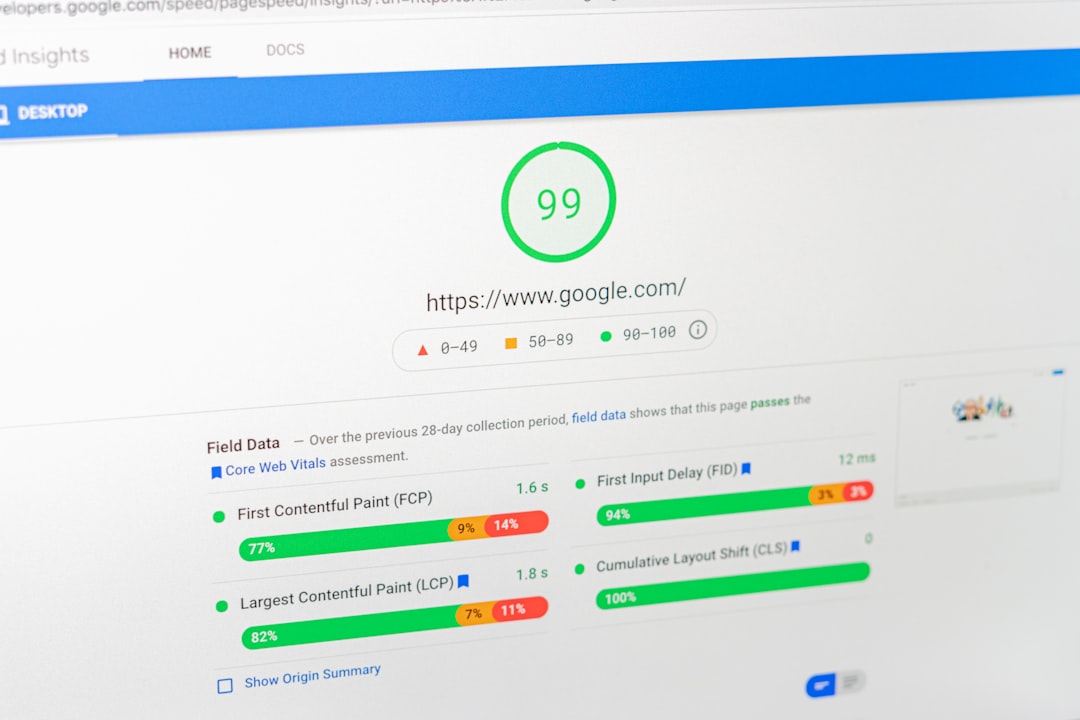
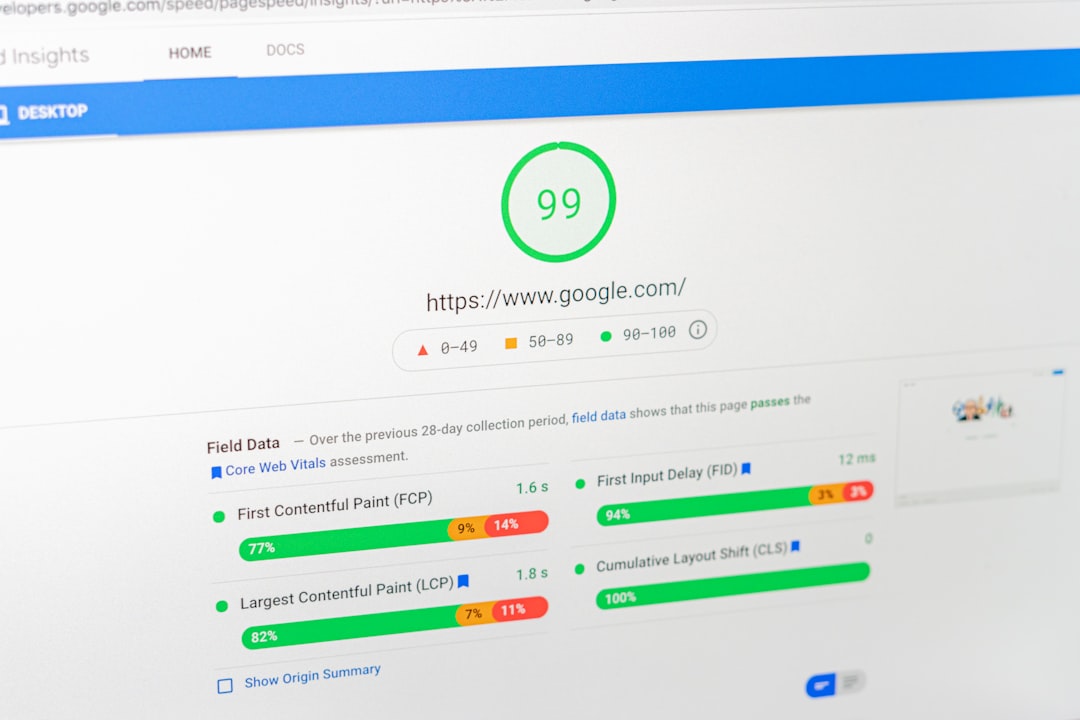
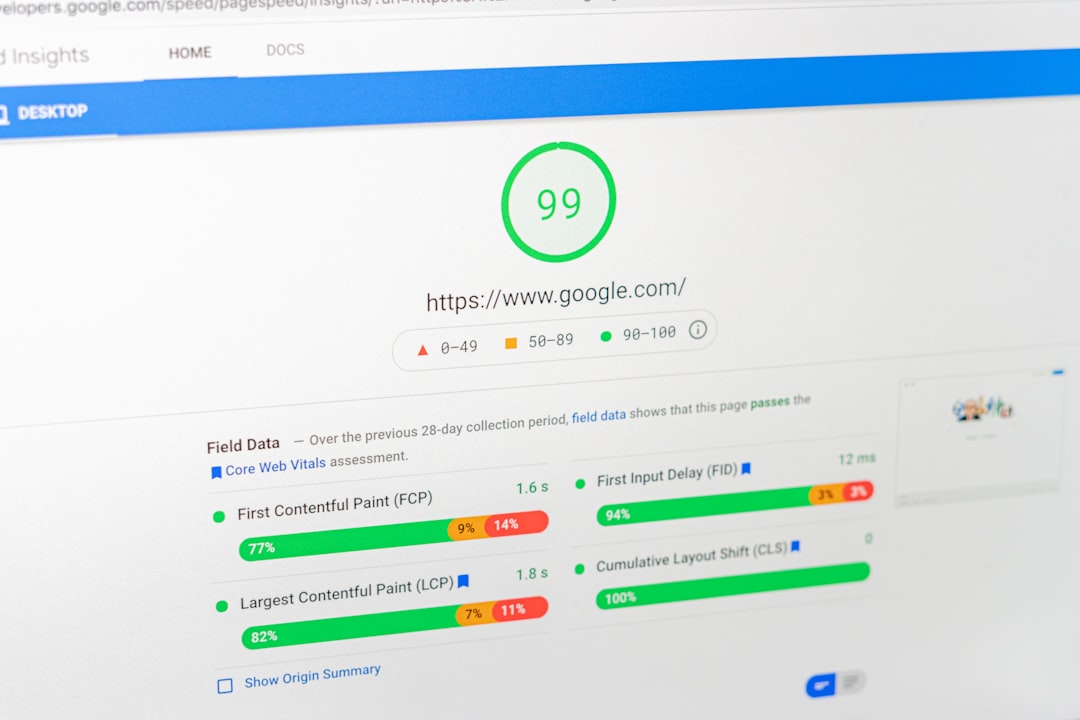
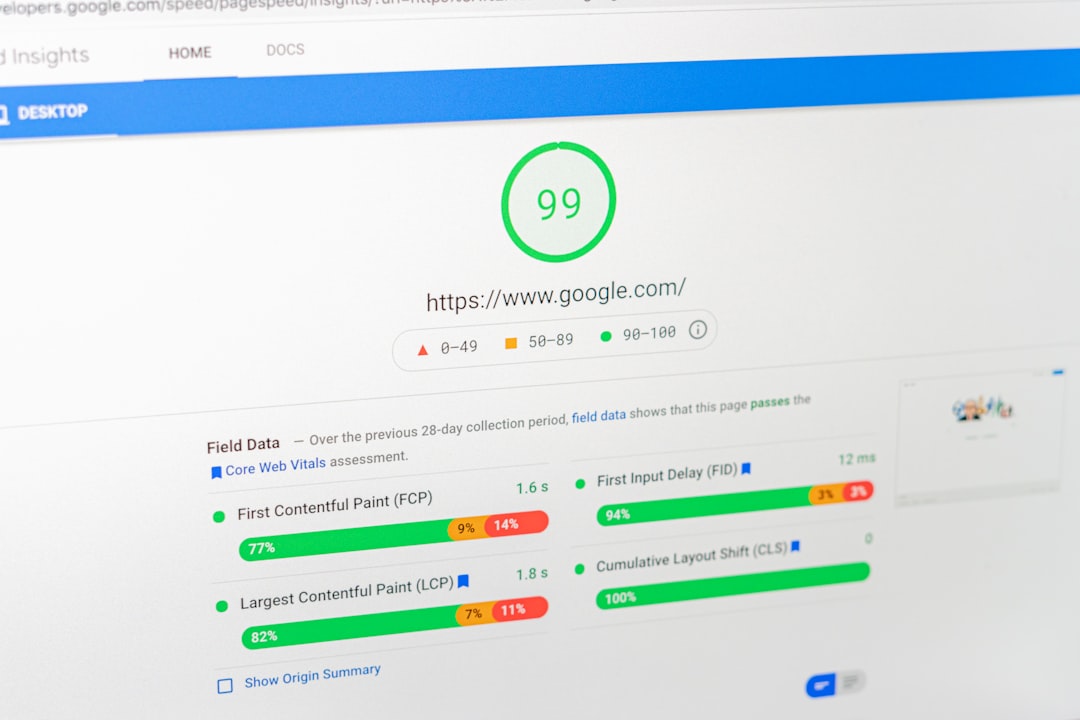
Tools such as PageSpeed Insights can help identify performance opportunities.
The aim should be a fast and usable website rather than focusing only on a numerical score.
11. Check Mobile Experience
A WordPress website should work properly across mobile devices.
Check whether:
- Text is readable
- Buttons are easy to use
- Menus work correctly
- Images fit the screen
- Important information is easy to find
- Pages load efficiently
A page that looks good on a desktop computer should also provide a smooth experience on smaller screens.
12. Review Images
Images can support both user experience and content quality.
Check that images:
- Are appropriately sized
- Are compressed where necessary
- Use descriptive file names
- Have useful alt text when appropriate
- Do not unnecessarily slow down the page
Avoid adding images simply for decoration when they do not improve the page.
13. Check Technical SEO
A technical review can include:
| Area | Checklist Item |
|---|---|
| Crawlability | Can search engines access important pages? |
| Indexing | Are valuable pages indexable? |
| Sitemap | Is the XML sitemap working properly? |
| Redirects | Are old URLs handled correctly? |
| Canonicals | Are preferred URLs clear? |
| Mobile | Is the website usable on mobile? |
| Performance | Are important pages loading efficiently? |
Technical issues should be prioritized according to their potential impact.
14. Review Local SEO
For businesses serving specific locations, local SEO can be important.
Check:
- Business information
- Location pages
- Local keywords
- Contact information
- Relevant local content
- Business profile consistency
The exact local SEO strategy should depend on the business and the areas it serves.
15. Check SEO Plugin Configuration
WordPress SEO plugins can simplify many optimization tasks.
Whether a website uses Rank Math, Yoast, or another SEO plugin, review the configuration carefully.
Avoid using multiple plugins that perform the same SEO functions, as overlapping settings can create unnecessary conflicts.
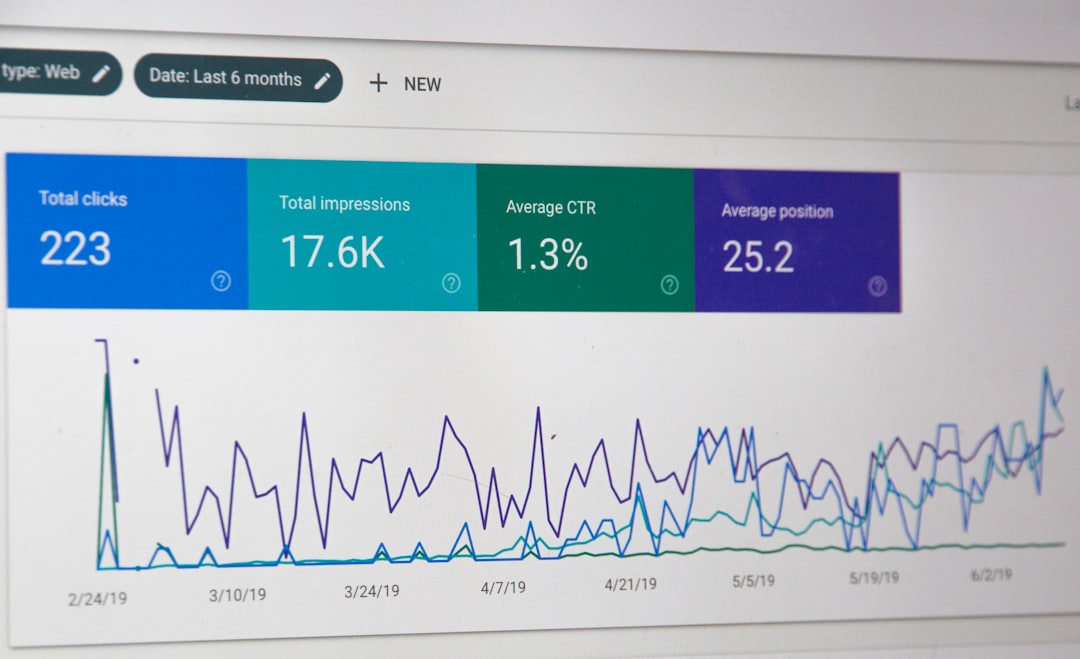
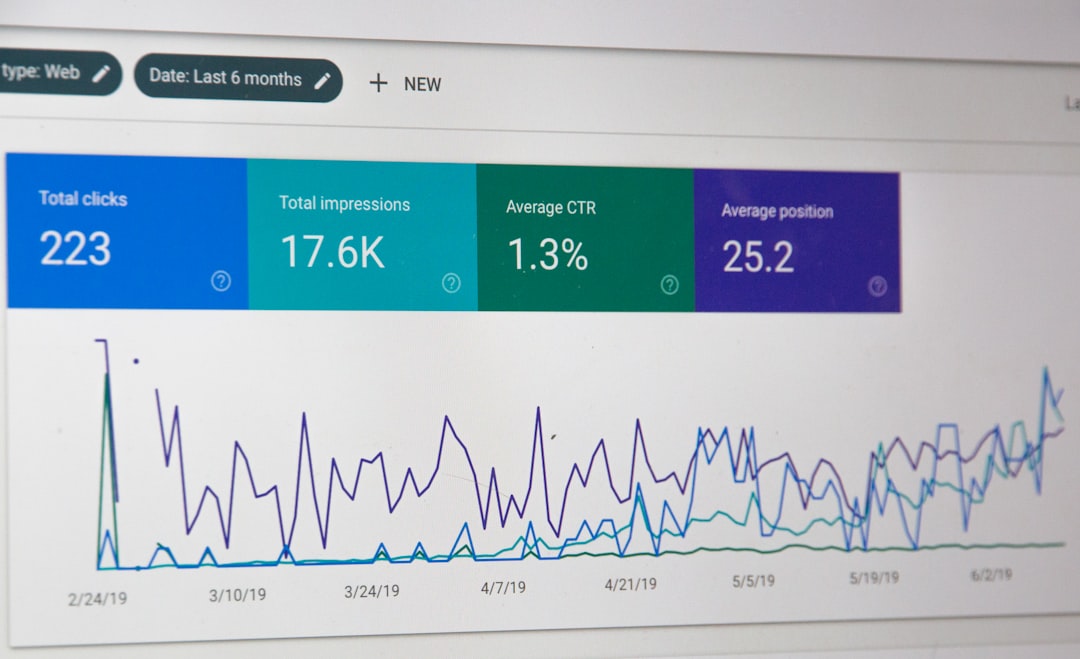
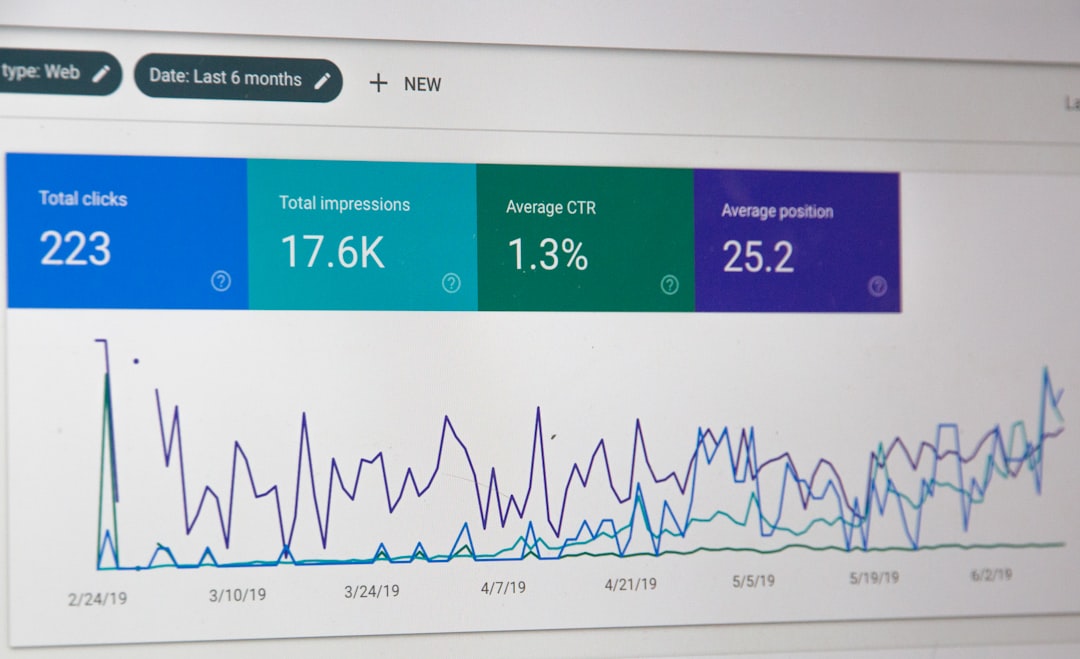
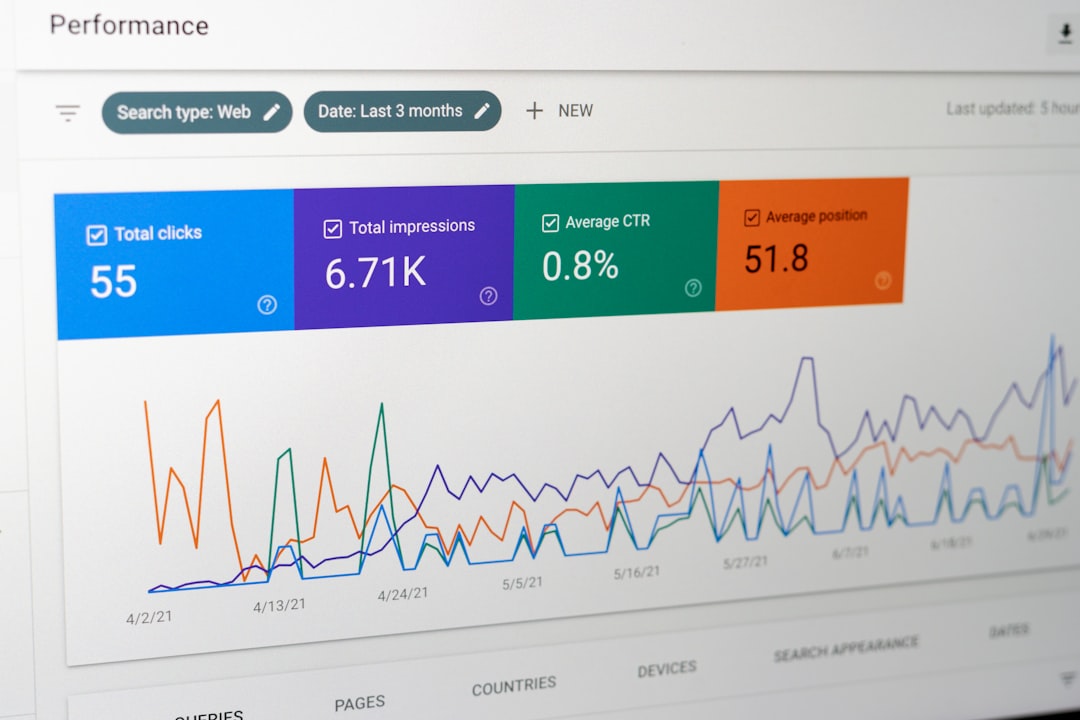
16. Monitor Search Performance
SEO should be measured after changes are made.
Track useful metrics such as:
- Organic clicks
- Impressions
- Click-through rate
- Keyword performance
- Organic traffic
- Conversions
- Individual page performance
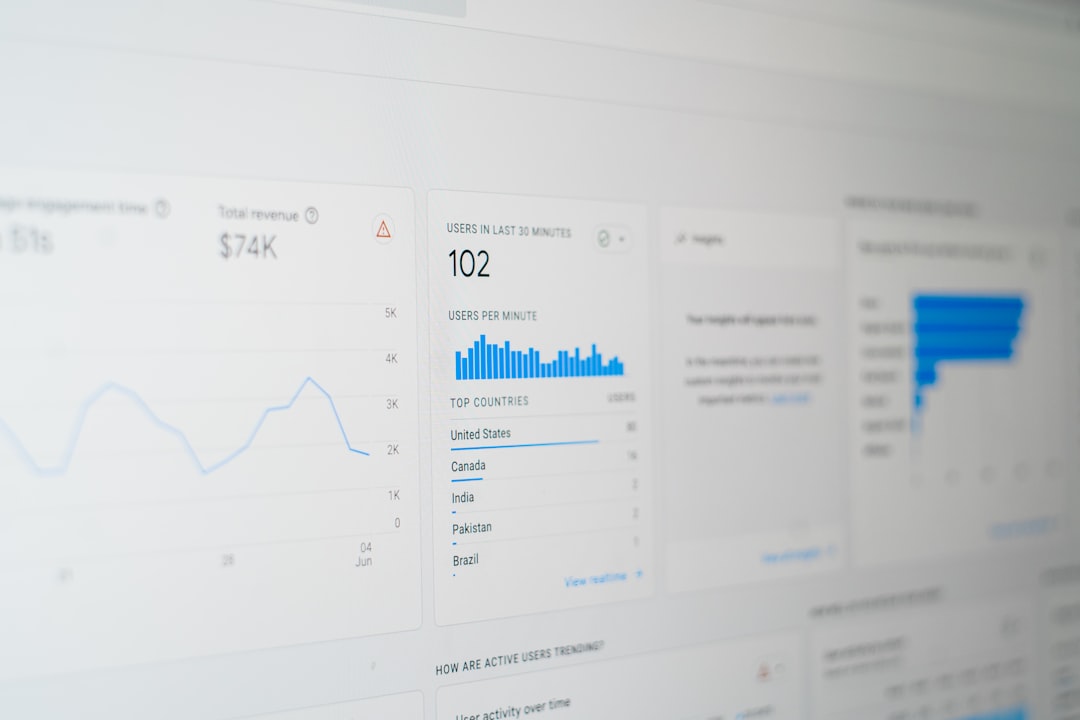
Google Search Console can provide valuable information about how pages perform in Google Search.
17. Keep an SEO Change Log
Record important SEO changes, including:
- New pages
- Content updates
- Title changes
- URL changes
- Technical fixes
- Internal linking improvements
- Speed optimizations
Keeping a simple record makes it easier to understand changes in performance over time.
Common Checklist Mistakes
A checklist is useful, but it should not become a box-ticking exercise.
Avoid:
- Fixing minor issues before major problems
- Adding keywords unnaturally
- Publishing content without a clear purpose
- Ignoring technical SEO
- Changing URLs unnecessarily
- Measuring only keyword rankings
- Making many major changes without tracking them
The checklist should support an SEO strategy rather than replace one.
A Simple WordPress SEO Workflow
A practical process can follow this order:
Audit → Research → Prioritize → Optimize → Monitor → Improve
Start by understanding the website, then identify keywords and opportunities. Prioritize important improvements, implement them carefully, and monitor the results.
A WordPress SEO Consultant can use this process to keep SEO work organized and focused on measurable improvements.
When to Use a WordPress SEO Consultant
Professional SEO support can be useful when a website has technical problems, unclear keyword targeting, declining organic traffic, underperforming content, or a large number of pages that need systematic optimization.
A consultant can turn the checklist into a customized strategy based on the website’s goals, audience, competition, and current SEO condition.