When a WordPress website is not getting the organic traffic or rankings you expect, the problem is not always easy to identify. Sometimes a technical setting is blocking search engines. In other cases, the issue may come from poor page structure, broken links, slow loading times, duplicate content, or an SEO plugin configuration.
This is where How to Troubleshoot WordPress SEO Expert becomes an important part of maintaining a healthy website.
SEO troubleshooting is not about changing everything at once. It is about finding the actual problem, understanding its cause, applying the right solution, and monitoring the website afterward.
Whether you manage a small business website, an ecommerce store, or a service-based WordPress site, a systematic troubleshooting process can help prevent small SEO issues from becoming bigger problems.
What Is WordPress SEO Troubleshooting?

WordPress SEO troubleshooting is the process of identifying and fixing issues that can negatively affect a website’s search visibility, crawling, indexing, performance, or user experience.
Some problems are easy to notice. Others may remain hidden until they affect traffic or rankings.
Common SEO problems include:
- Pages not appearing in Google
- Sudden organic traffic drops
- Incorrect noindex settings
- Broken internal links
- Incorrect redirects
- Duplicate URLs
- Missing metadata
- Slow pages
- Mobile usability problems
- Canonical errors
- XML sitemap issues
- Plugin conflicts
A WordPress SEO Expert can investigate these problems by combining technical checks with search-performance data.
Start by Defining the Problem
Before trying to fix anything, identify exactly what is happening.
For example, saying:
“My SEO is not working.”
does not provide enough information.
Instead, determine whether:
- Traffic has decreased
- Rankings have dropped
- One page has disappeared
- Multiple pages have been removed from search
- Impressions have declined
- Clicks have declined
- The website has become slower
- A problem appeared after a recent update
The more specific the problem is, the easier it becomes to investigate.
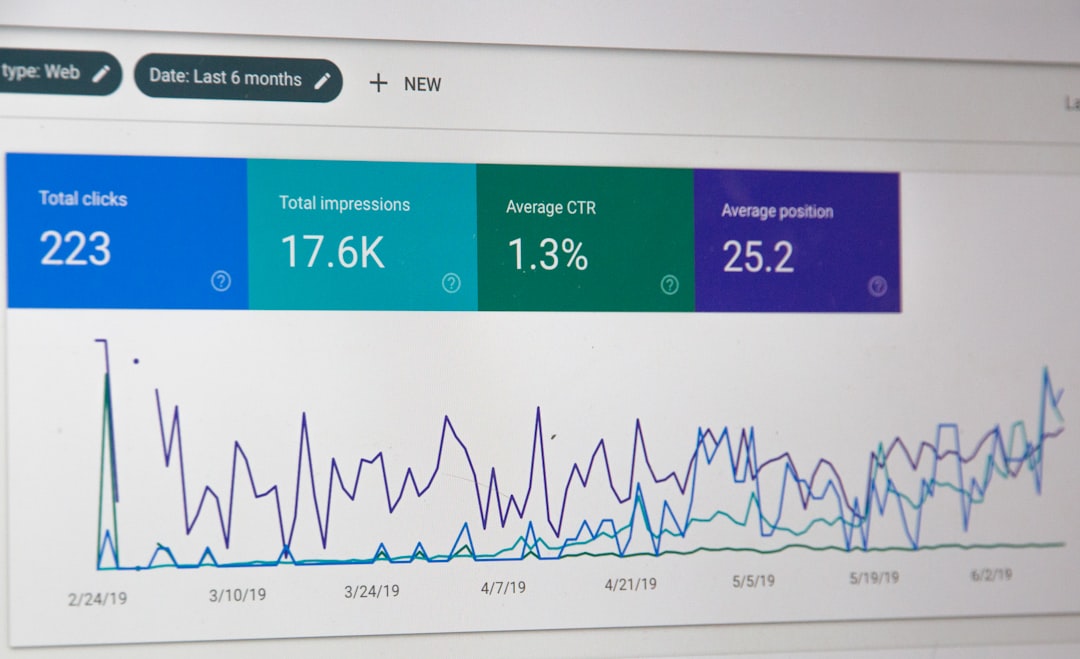
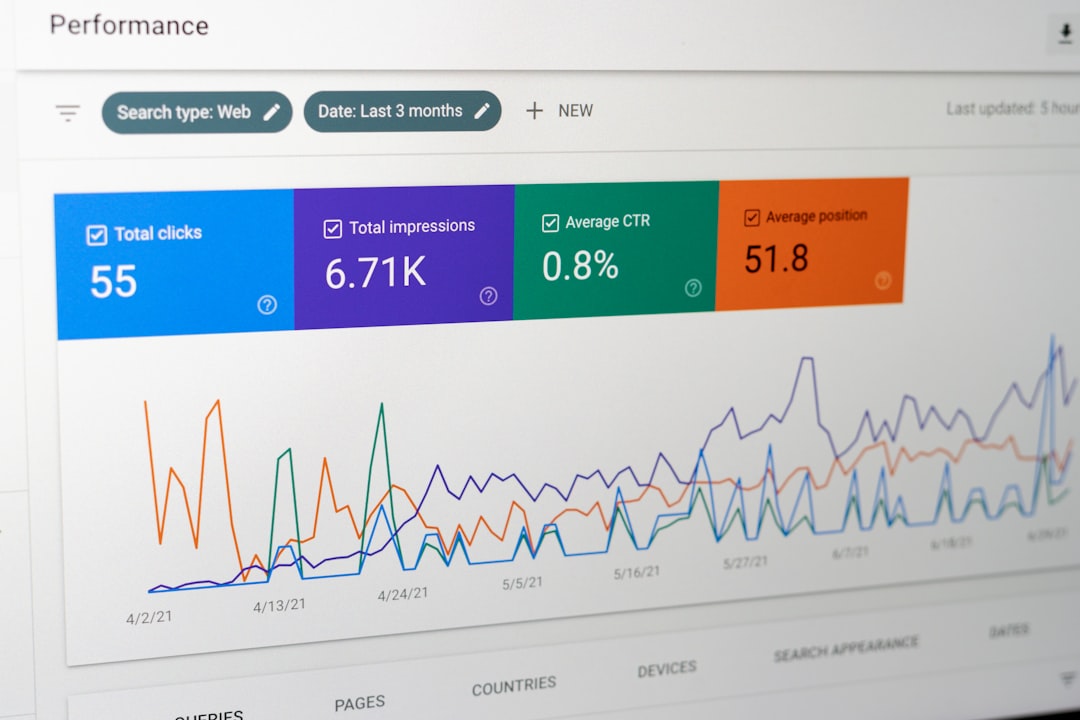
Check Google Search Console
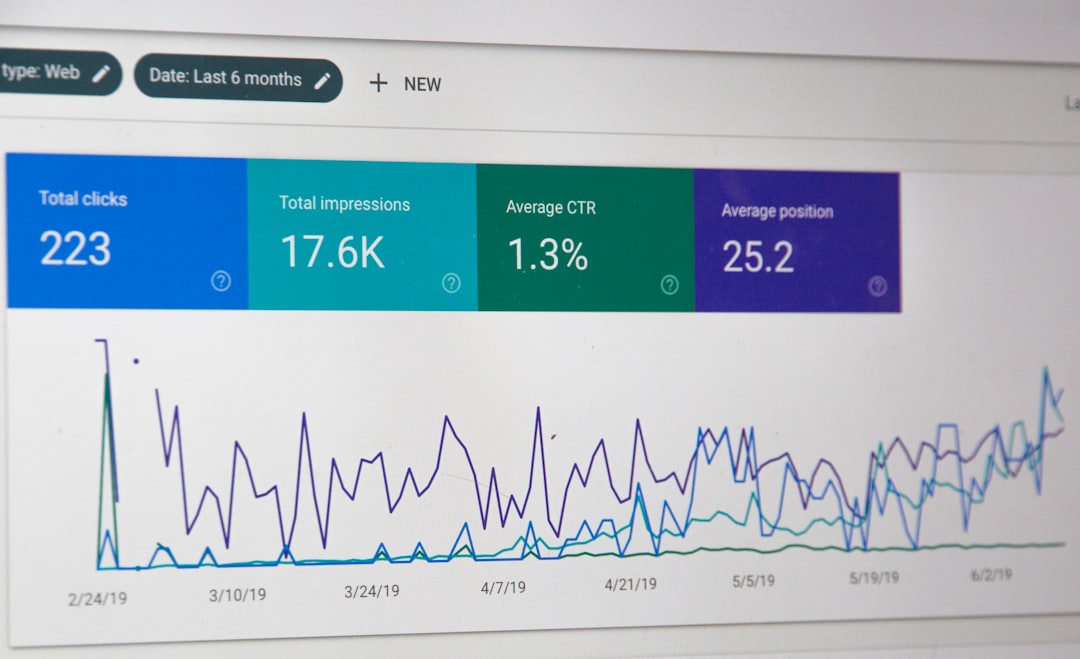
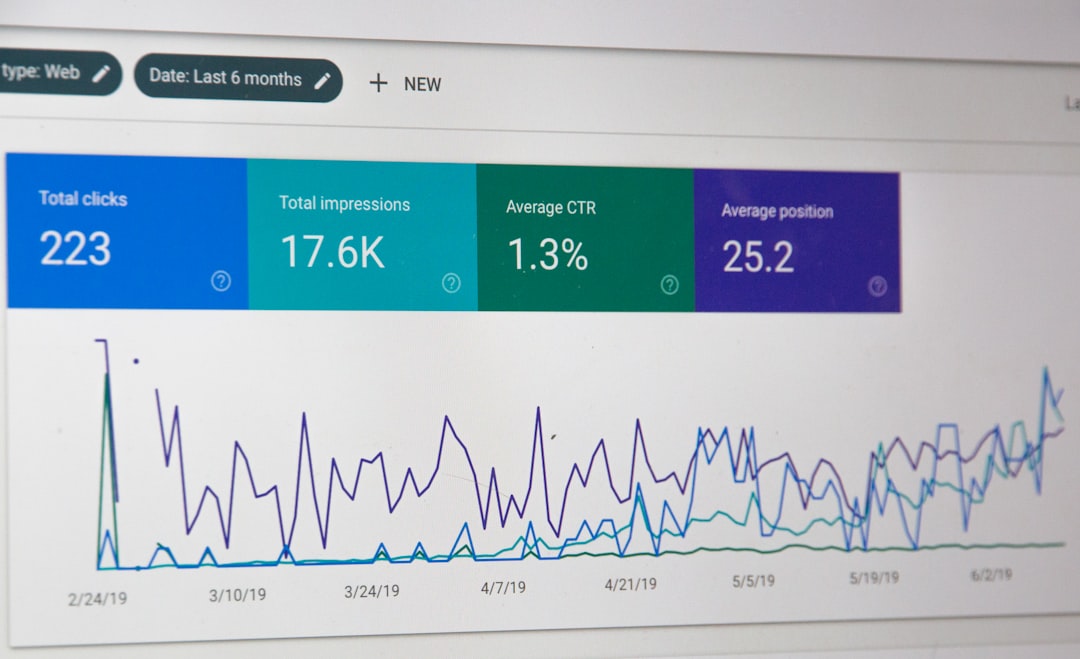
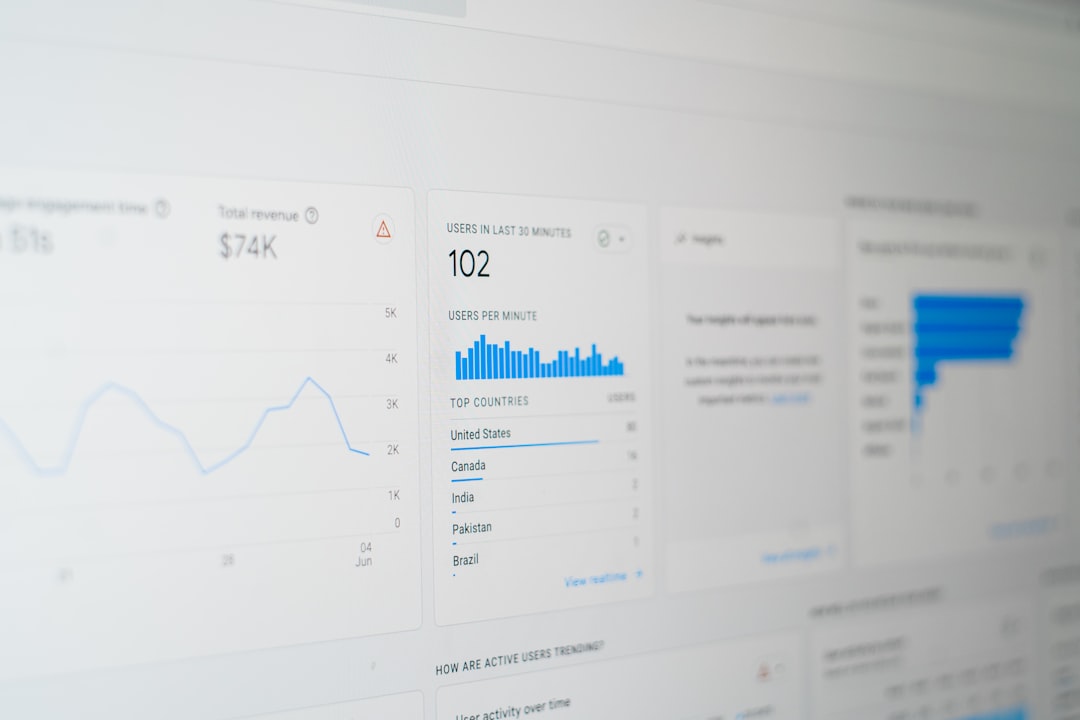
Google Search Console is one of the first tools you should use when troubleshooting SEO.
It can provide information about:
- Search clicks
- Impressions
- Average position
- CTR
- Search queries
- Indexed pages
- Page indexing problems
- Sitemaps
- Core Web Vitals
Start with the Performance report.
If clicks have decreased, compare them with impressions.
For example, if impressions remain stable but clicks fall, the issue may involve search-result presentation or CTR.
If both impressions and clicks fall, investigate whether rankings, search demand, indexing, or other factors have changed.
Troubleshoot Indexing Problems
A page cannot normally generate organic search traffic if it is not indexed.
If an important page is missing from Google, use Google Search Console’s URL Inspection tool to investigate its status.
Possible causes include:
- Noindex directives
- Robots.txt restrictions
- Incorrect canonical tags
- Server errors
- Redirects
- Duplicate content
- Recently published content
- Poor internal linking
Do not assume that every excluded URL is an error. Some pages, such as certain utility pages, may intentionally remain outside search results.
The goal is to make sure the pages that matter for your SEO strategy are properly accessible and indexable.
Check WordPress Search Visibility

WordPress has a built-in setting that can discourage search engines from indexing the website.
You can review it through:
WordPress Dashboard → Settings → Reading → Search Engine Visibility
This setting deserves special attention after moving a website from development or staging to a live domain.
A staging website may intentionally be hidden from search engines. But if the same setting remains active after launch, it can create a serious SEO problem.
Review Your SEO Plugin
SEO plugins can simplify many optimization tasks, but incorrect configuration can also create problems.
Check whether your SEO plugin is:
- Properly installed
- Updated
- Configured correctly
- Generating the sitemap
- Setting appropriate canonical URLs
- Accidentally applying noindex settings
- Creating conflicts with another SEO plugin
Avoid running multiple SEO plugins that perform the same functions.
For example, if two plugins attempt to control titles, canonicals, sitemaps, or robots directives, troubleshooting becomes more complicated.
A simple, properly configured setup is usually easier to maintain.
Check Broken Links
Broken links can occur when pages are deleted, URLs are changed, or content is moved.
During an SEO troubleshooting process, look for links that lead to:
- 404 pages
- Redirects
- Incorrect URLs
- Deleted content
For example, if an old service page has been replaced by a new service page, update relevant internal links to point directly to the new URL.
This avoids unnecessary redirects and creates a cleaner navigation structure.
Understand 404 Errors
A 404 response simply means the requested page cannot be found.
Not every 404 is a serious SEO problem.
If an old URL has no useful replacement, keeping a 404 response may be appropriate.
If there is a closely related replacement page, a relevant redirect may be useful.
The important thing is to avoid sending users from an old page to an unrelated destination simply because you want to eliminate the 404.
Troubleshoot Redirects
Redirects are especially important after website redesigns, migrations, and URL changes.
A basic redirect should work like:
Old URL → Relevant New URL
During troubleshooting, check for:
- Redirect loops
- Long redirect chains
- Incorrect destinations
- Links pointing to old URLs
- Redirects to irrelevant pages
If an old URL redirects to another URL that redirects again, simplify the path where possible.
Review Canonical URLs
Canonical tags help search engines understand the preferred version of a page when multiple similar URLs exist.
Problems can occur when a canonical points to:
- The wrong page
- A redirected URL
- A non-indexable page
- An unrelated URL
For important pages, check that the canonical URL represents the version you actually want search engines to consider.
Canonicalization should be handled carefully rather than used as a quick solution for every duplicate-content problem.
Check Internal Linking
Internal links connect different pages within your website.
They can help users discover useful content and help search engines understand the relationship between pages.
If an important service page has almost no internal links, look for relevant opportunities from:
- Homepage
- Related service pages
- Blog posts
- Category pages
- Resource pages
Also check for internal links pointing to old or broken URLs.
A well-organized internal linking structure can make the website easier to navigate and crawl.
Investigate Sudden Ranking Drops
A sudden ranking decline can be worrying, but it should be investigated before making major changes.
First determine:
When did the decline begin?
Then ask:
- Was the website recently redesigned?
- Were URLs changed?
- Were pages deleted?
- Was an SEO plugin changed?
- Did the website move to a new server?
- Did content change?
- Did indexing change?
- Did competitors publish stronger content?
Google Search Console can help identify which queries and pages were affected.
Do not assume that a ranking drop has only one possible cause.
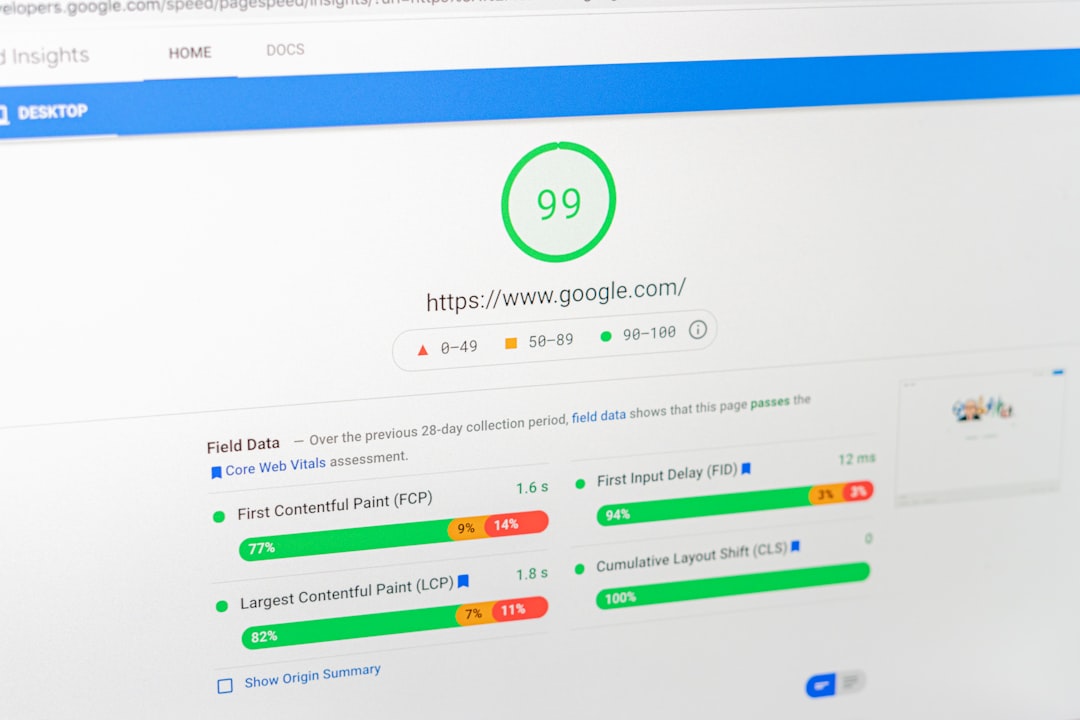
Check Website Speed
Website performance should also be part of troubleshooting.
Slow pages may result from:
- Large images
- Excessive plugins
- Unoptimized scripts
- Poor caching
- Slow hosting
- Heavy themes
- Unnecessary third-party resources
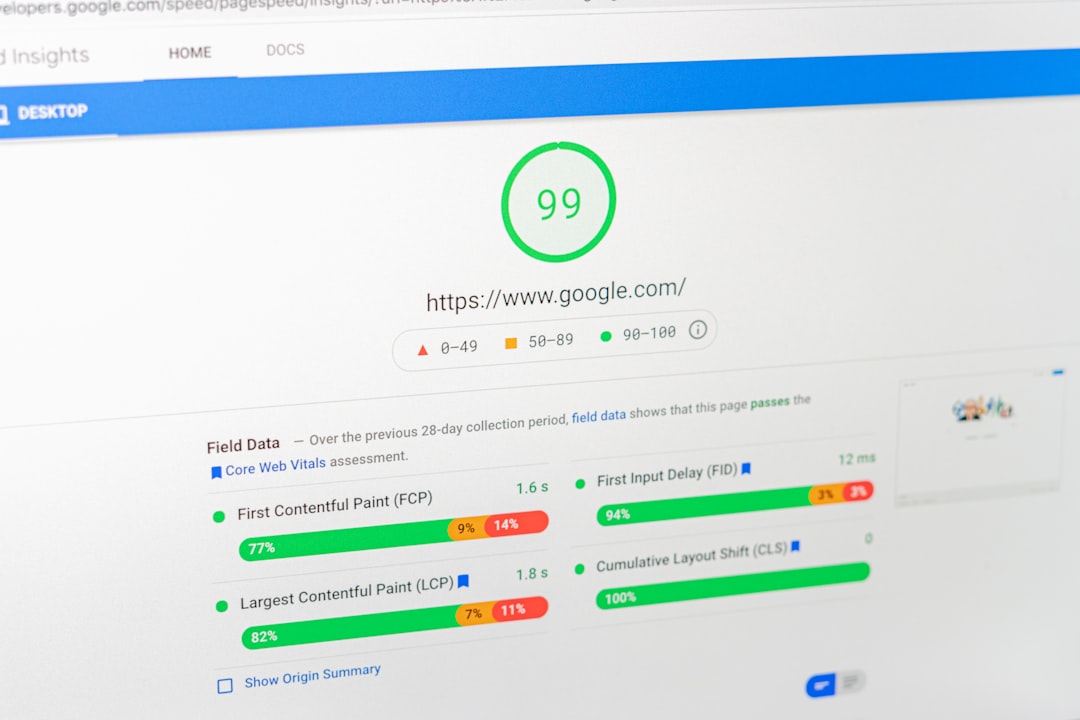
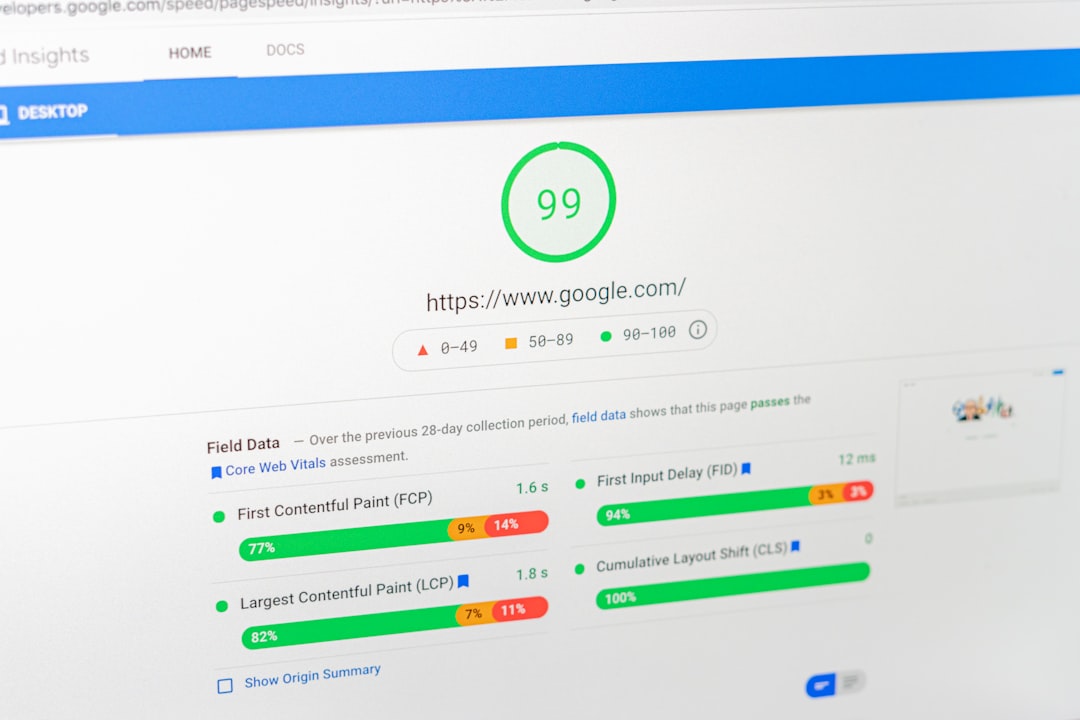
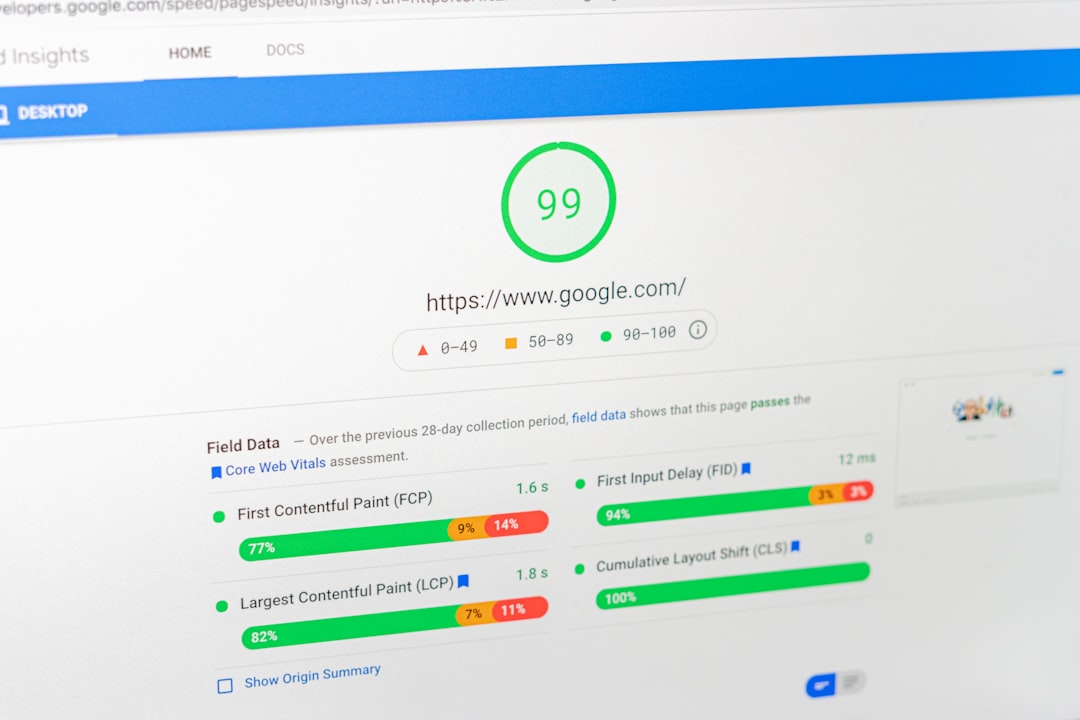
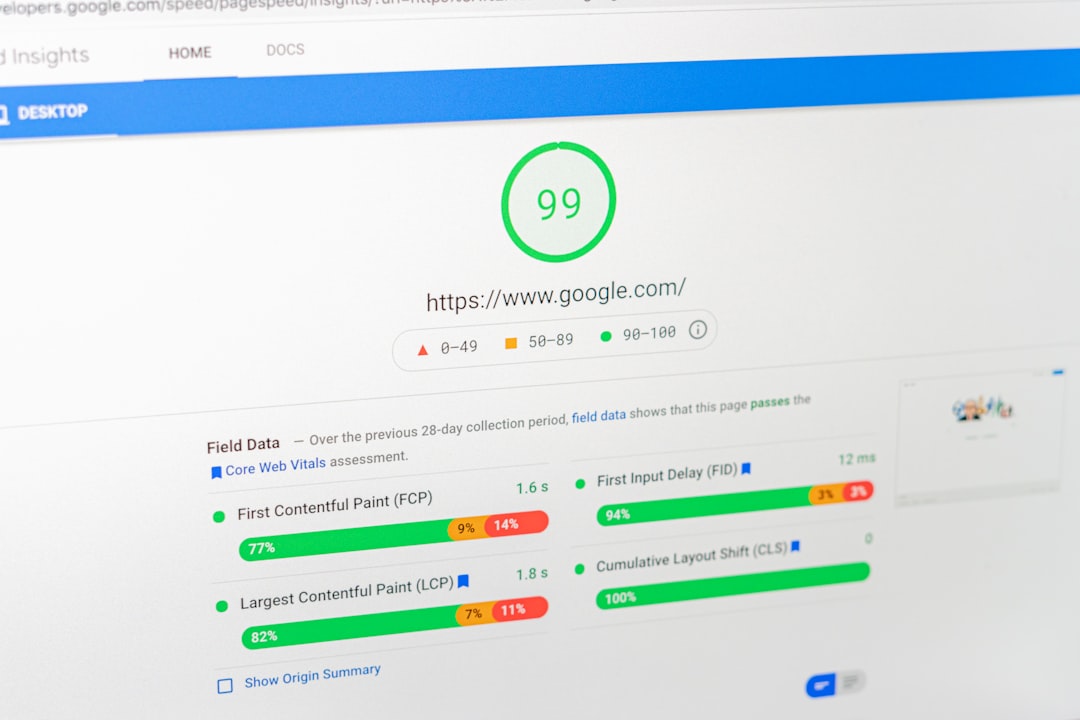
Tools such as Google PageSpeed Insights can help identify performance opportunities.
For WordPress websites, start with practical improvements rather than installing multiple optimization plugins without understanding what they do.
Troubleshoot Mobile SEO

A website may look fine on a desktop screen while providing a poor experience on mobile.
Check:
- Navigation menus
- Font sizes
- Buttons
- Images
- Forms
- Popups
- Page speed
- Important content
- Layout
Users should be able to access the important information and functionality of the website regardless of the device they use.
Review Content Problems
SEO troubleshooting is not limited to technical issues.
Sometimes the page itself is the problem.
Ask:
- Does the content match the search intent?
- Does it answer the user’s main question?
- Is the information accurate and useful?
- Is the content outdated?
- Does another page cover almost exactly the same topic?
- Is the page clearly targeting the right audience?
If an existing page has potential, improving it may be more useful than creating another page targeting the same search term.
Check Image Optimization
Images can affect both performance and accessibility.
Review whether images have:
- Appropriate file sizes
- Suitable dimensions
- Descriptive alt text where necessary
- Modern formats when appropriate
- Proper placement within content
Alt text should describe the image naturally when the image provides meaningful information.
It should not simply be a list of keywords.
Common WordPress SEO Troubleshooting Mistakes
Making Too Many Changes at Once
If you change your titles, content, URLs, plugins, and technical settings simultaneously, it becomes difficult to identify what actually affected performance.
Deleting Pages Too Quickly
A page with low traffic may still have rankings, backlinks, or future potential.
Analyze it before deleting it.
Redirecting Every 404
Not every missing page needs a redirect. Redirect only when a genuinely relevant destination exists.
Installing Too Many Plugins
Adding more plugins does not automatically improve SEO. It can sometimes create conflicts or performance problems.
Ignoring Recent Website Changes
If a problem started immediately after a redesign, migration, plugin change, or URL update, investigate those changes first.
A Practical Troubleshooting Workflow
A simple process can keep SEO troubleshooting organized.
Step 1: Identify the exact problem.
Step 2: Determine when it started.
Step 3: Check Google Search Console.
Step 4: Inspect affected URLs.
Step 5: Review indexing and canonical settings.
Step 6: Check redirects and broken links.
Step 7: Review internal linking.
Step 8: Test mobile usability and performance.
Step 9: Review recent WordPress, theme, and plugin changes.
Step 10: Apply the appropriate fix and monitor the results.
Keeping a record of changes is useful because SEO improvements often take time to evaluate.
When Should You Work With a WordPress SEO Expert?
Some SEO problems can be handled by website owners, but more complicated issues may require professional assistance.
A WordPress SEO Expert can help investigate:
- Technical SEO problems
- Indexing issues
- Ranking drops
- Website migrations
- Redirect structures
- Canonical problems
- Internal linking
- Website speed
- Content issues
- SEO plugin configuration
Professional troubleshooting is particularly useful when several problems appear at the same time and you are not sure which one should be fixed first.
Final Thoughts
Understanding How to Troubleshoot WordPress SEO Expert issues can help website owners respond to SEO problems more logically.
A ranking decline, indexing problem, broken link, or slow page should not automatically lead to major changes. First collect the evidence, identify the affected pages, investigate the likely cause, and then apply a focused solution.
SEO troubleshooting works best when technical SEO, content, website structure, performance, and search data are considered together.
With regular monitoring and a structured process, you can identify problems earlier and maintain a stronger foundation for long-term organic growth.
Frequently Asked Questions
Why did my WordPress website lose rankings?
Rankings can change for many reasons, including technical issues, content changes, competition, search demand, website migrations, and changes in Google’s search systems. Investigate the affected pages and timing before making changes.
How can I check whether my page is indexed?
Google Search Console’s URL Inspection tool can help you check the indexing status of a specific URL.
Can plugins cause SEO problems?
Yes. Incorrect configurations, conflicts between plugins, unnecessary scripts, or overlapping SEO functions can contribute to technical and performance issues.
Should every 404 page be redirected?
No. A redirect is generally useful when there is a relevant replacement page. Otherwise, a 404 response can be appropriate.
When should I hire a WordPress SEO Expert?
Consider professional help when technical problems are complex, rankings have changed significantly, a website migration is involved, or you need a structured SEO troubleshooting and optimization process.