
SEO problems on a WordPress website can have many different causes. A sudden traffic drop, indexing issue, slow page, or ranking decline does not always mean the entire SEO strategy is failing.
The right approach is to identify the actual problem first, then make targeted changes. A WordPress SEO agency can use a systematic troubleshooting process to find and resolve these issues.
Start by Identifying the Problem

Avoid changing multiple SEO elements at once.
First determine what has changed.
Ask:
- Did organic traffic decline?
- Did specific pages lose visibility?
- Are pages missing from search?
- Did website performance become slower?
- Did a recent update change the website?
- Are conversions declining while traffic remains stable?
The answer helps narrow the investigation.
Check for Recent Website Changes
WordPress websites can change frequently.
Review recent:
- Plugin installations
- Plugin updates
- Theme changes
- Website redesigns
- URL changes
- Content edits
- Hosting changes
- Migration work
A recent change can sometimes explain a sudden SEO problem.
Check Indexing Problems
If important pages disappear from search results, inspect their indexing status.
Review:
- Noindex settings
- Robots.txt
- Canonical URLs
- XML sitemap
- Redirects
- Search engine visibility settings
Make sure important pages are accessible and not accidentally excluded.
Investigate Ranking Drops
A ranking decline does not always have one obvious cause.
Check whether:
- The page content changed
- Competitors improved their pages
- Search intent changed
- Technical issues appeared
- Important backlinks were lost
- Internal links were removed
Compare the affected page with its previous version and review the search results for the target topic.
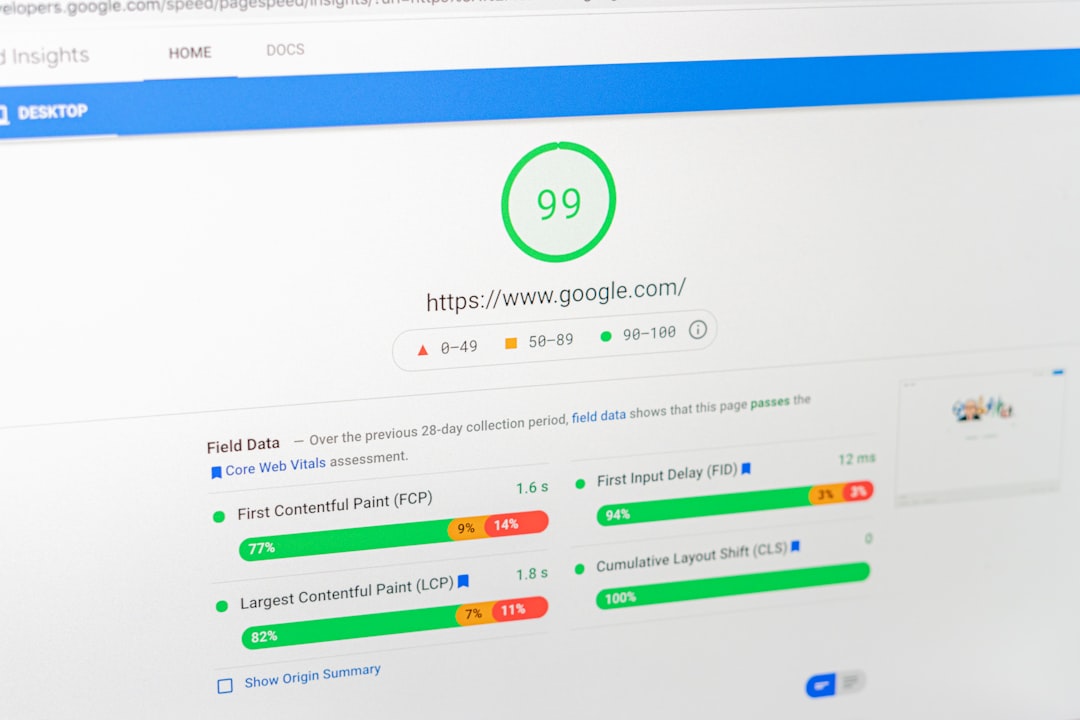
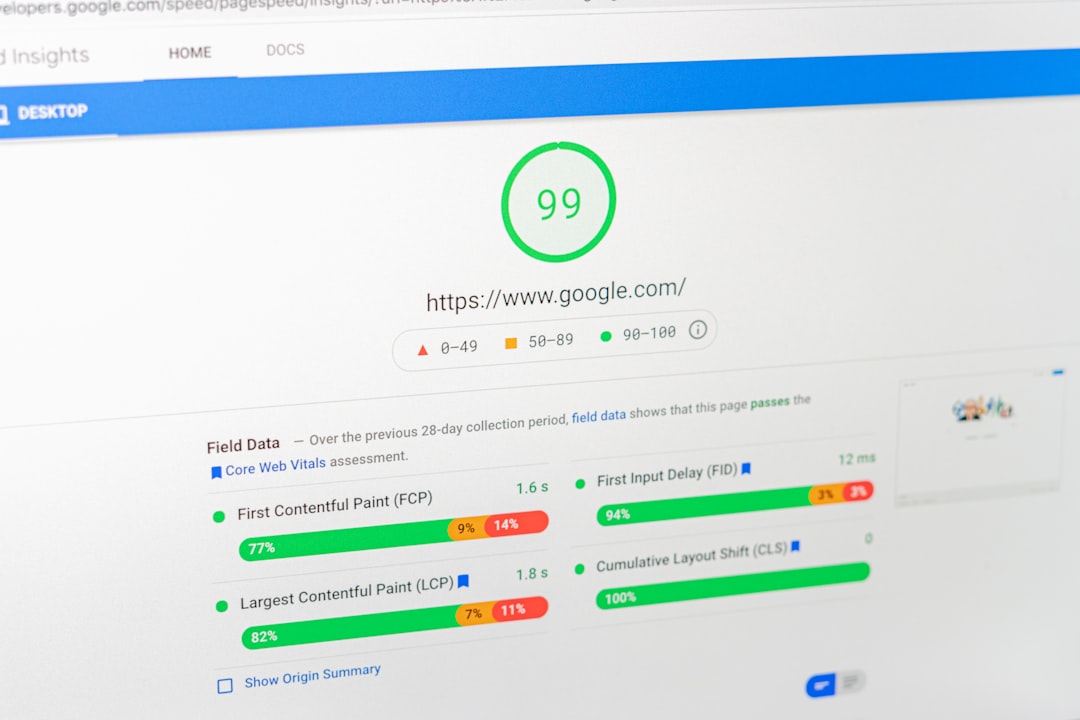
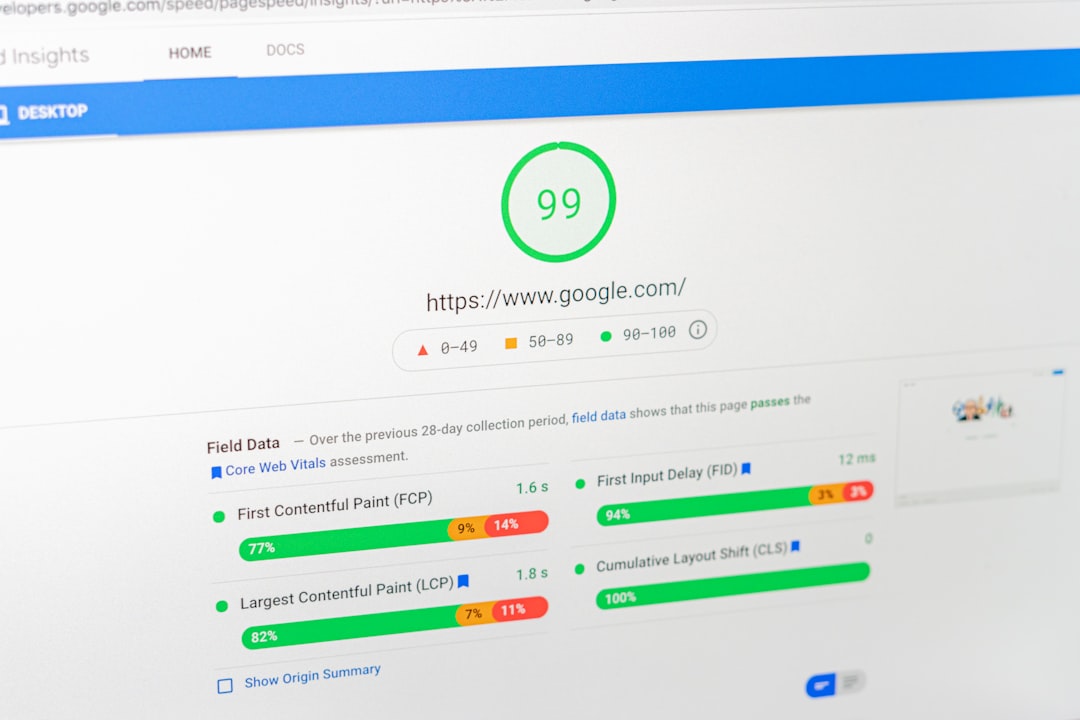
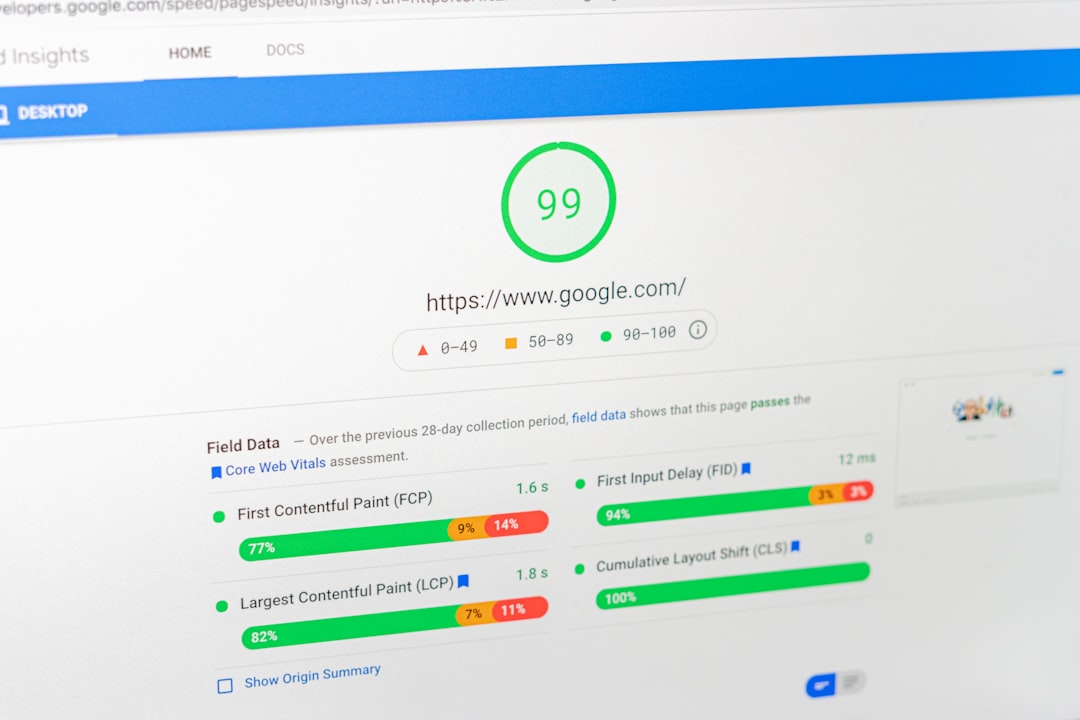
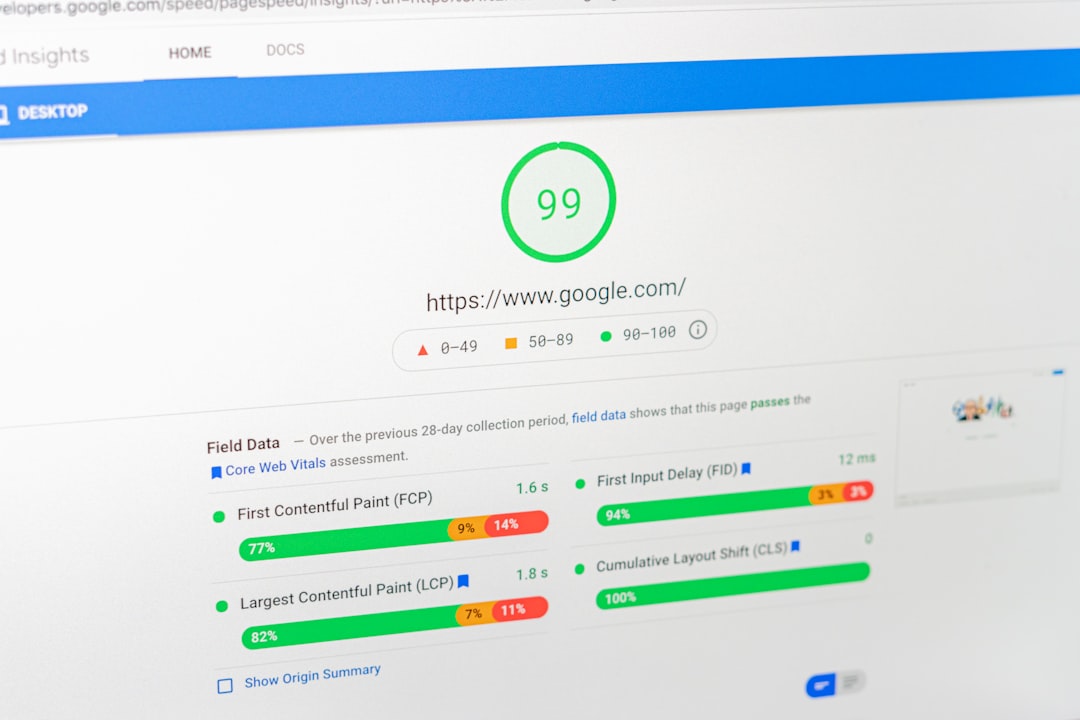
Check Website Speed
If pages have become slower, investigate the cause rather than immediately installing another optimization plugin.
Review:
- Large images
- New scripts
- Plugins
- Hosting
- Caching
- Third-party tools
Test important pages individually because one slow page does not necessarily mean the entire website has the same problem.
Review Internal Links
A page can lose visibility if important internal links are removed.
Check whether:
- Important pages are still linked
- Navigation changed
- Related articles link to service pages
- Orphan pages exist
- Anchor text remains relevant
Restore useful connections where appropriate.
Investigate Duplicate Content
WordPress can create multiple versions of similar content through categories, tags, archives, filters, or URL parameters.
Review whether search engines are encountering unnecessary duplicate or near-duplicate pages.
Use appropriate canonicalization, redirects, or indexing controls when needed.
Check Content Quality
If technical settings look correct, review the actual content.
Ask:
- Does the page satisfy search intent?
- Is the information current?
- Does it provide enough useful detail?
- Is the introduction clear?
- Does it answer the main question?
- Does it offer something useful compared with competing pages?
Content improvements should be based on user needs rather than simply adding more words.
Review Backlinks

A significant loss of relevant backlinks can sometimes affect a page’s visibility.
Check for:
- Lost links
- Broken referring pages
- Changed URLs
- Reduced authority from important sources
Do not respond by buying large numbers of low-quality links. Focus on relevant and legitimate opportunities.
Check Mobile Experience
A desktop review can miss mobile-specific problems.
Test:
- Navigation
- Text
- Buttons
- Forms
- Images
- Page speed
- Layout
A recent design change may have introduced problems that only appear on smaller screens.
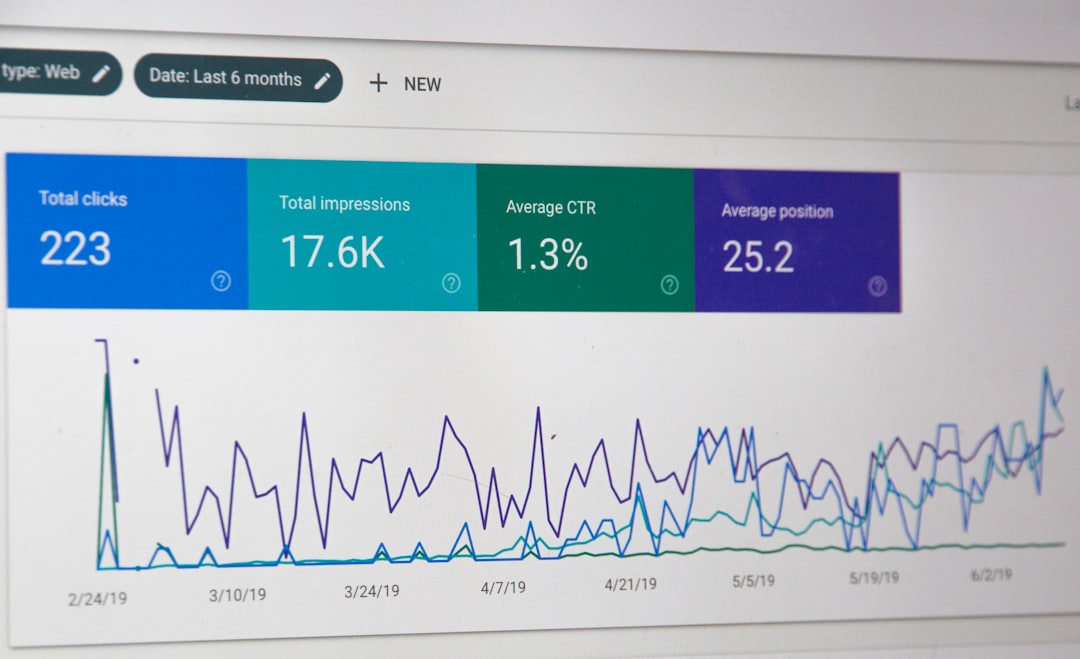
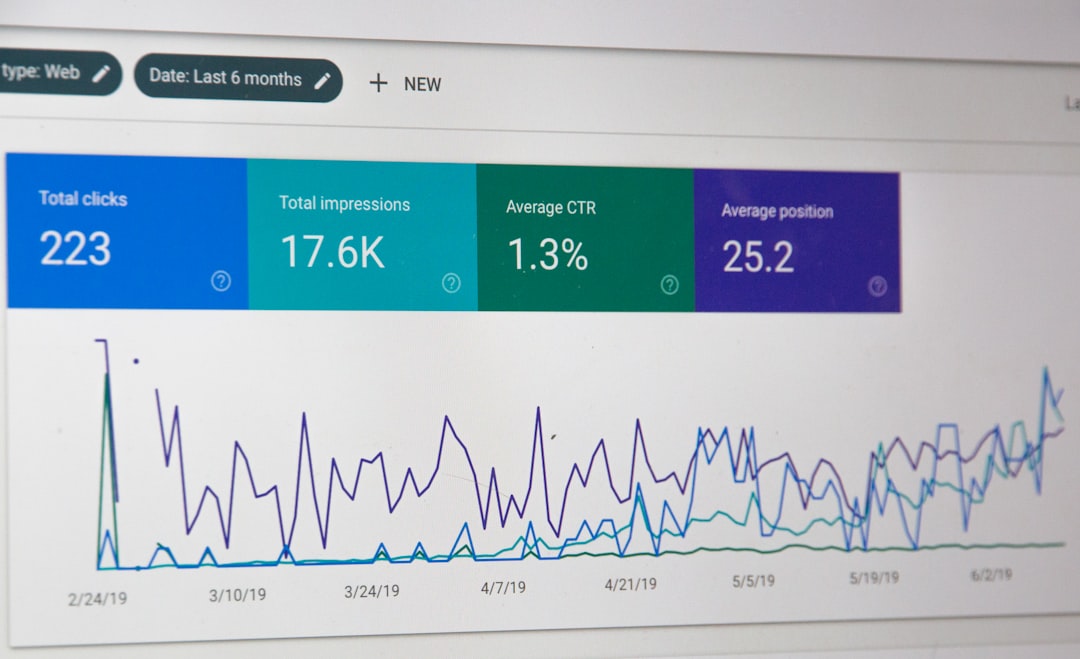
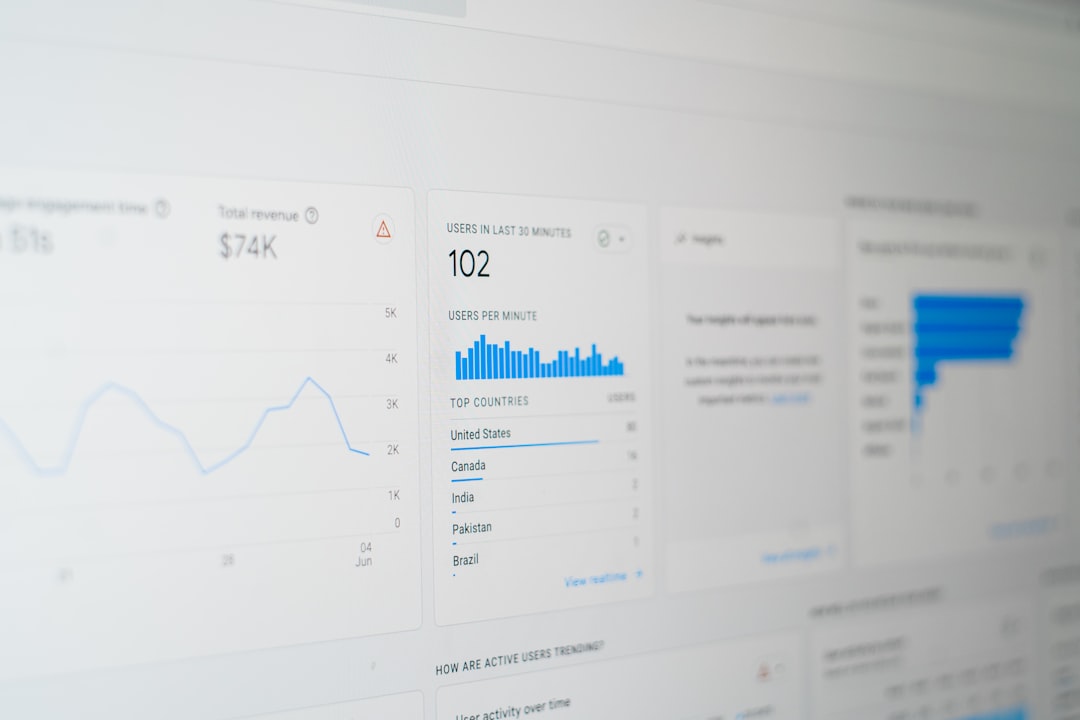
Use Data Before Making Changes
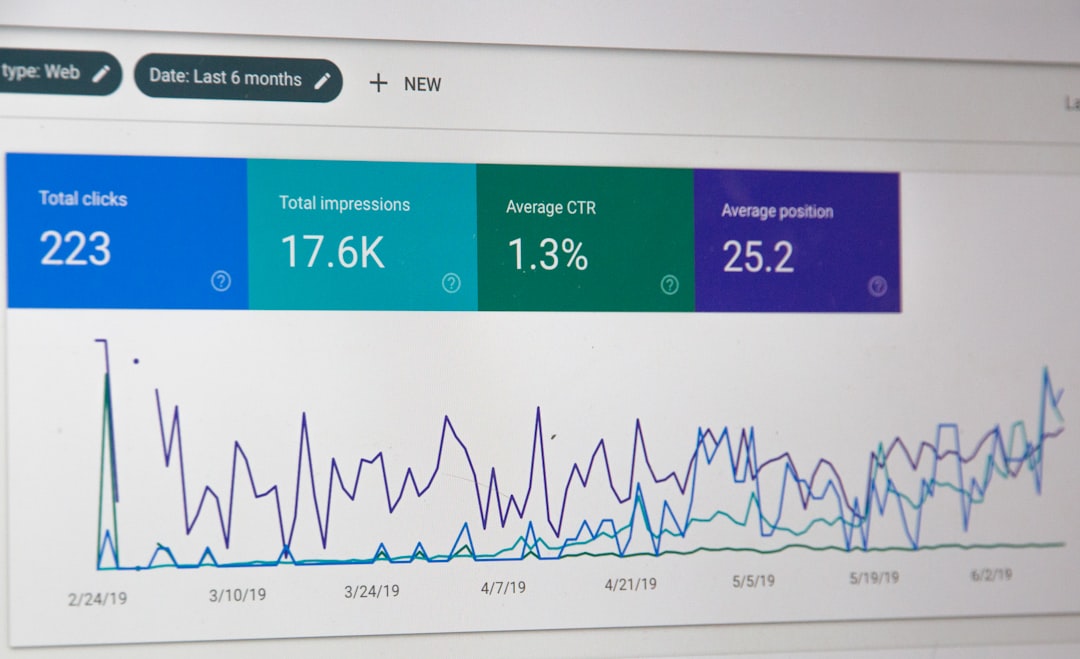
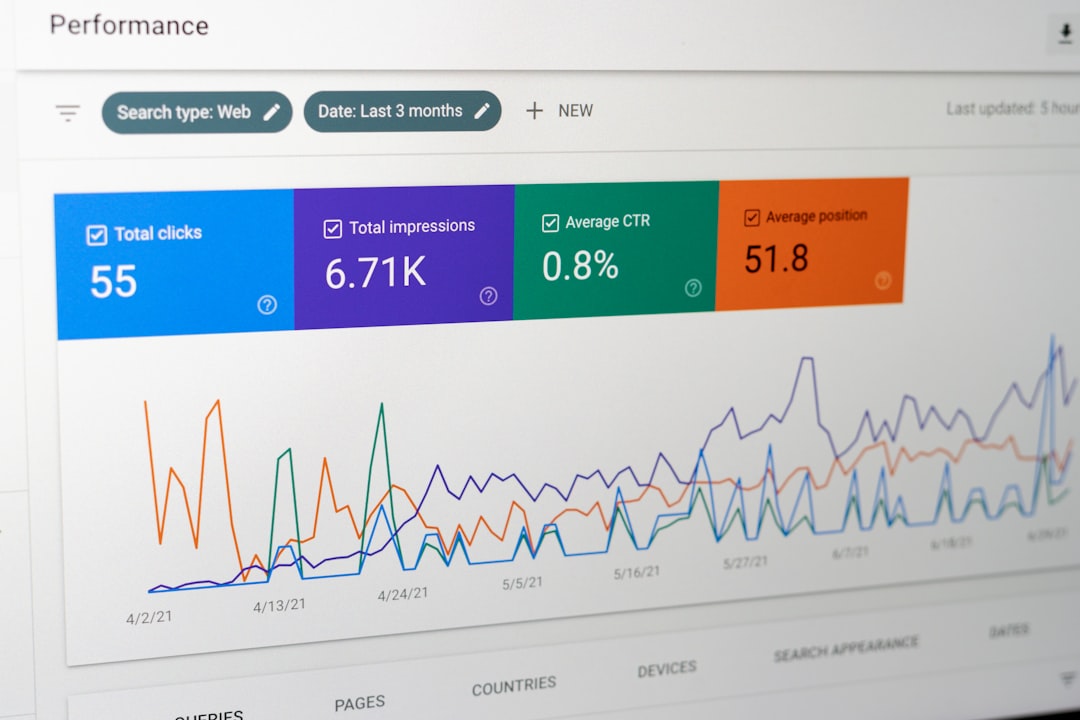
Compare current performance with previous periods.
| Problem | First Area to Investigate |
|---|---|
| Traffic drop | Search and analytics data |
| Missing page | Indexing |
| Slow page | Performance |
| Ranking decline | Content and competition |
| Fewer leads | Conversion experience |
| Broken URLs | Redirects |
This prevents random optimization.
Create a Troubleshooting Process
A useful workflow is:
Identify → Investigate → Test → Fix → Monitor
After making a change, monitor the affected page rather than immediately making another change.
A WordPress SEO agency can use this process to separate technical problems from content, competition, and conversion issues. This makes SEO troubleshooting more organized and reduces the risk of making unnecessary changes.