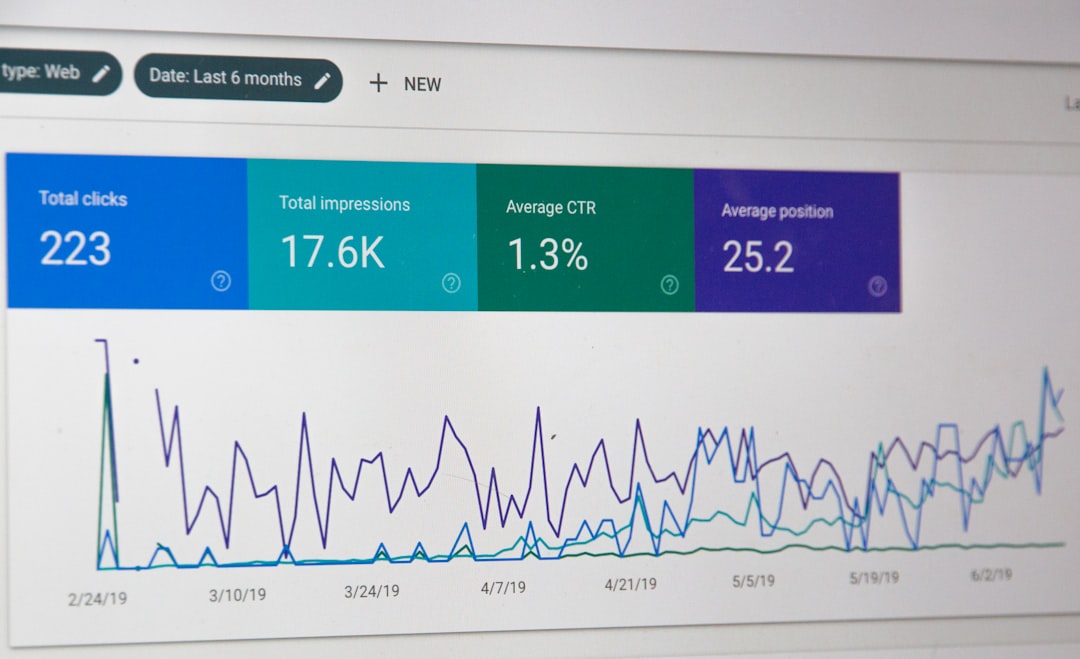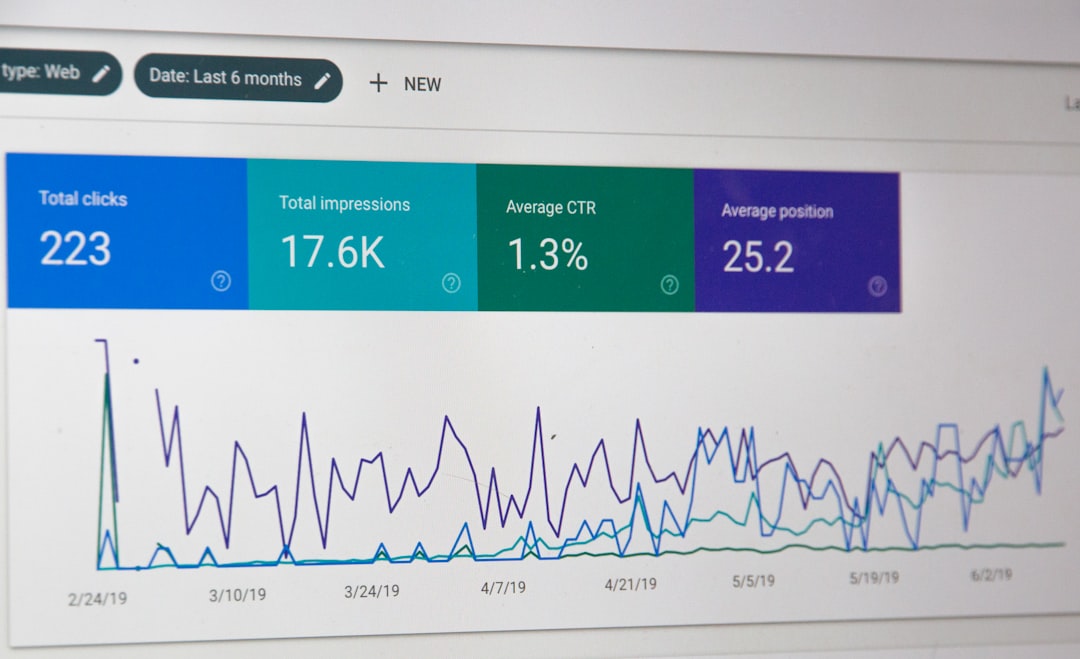

Low rankings usually come from a stack of smaller WordPress SEO problems, not one missing plugin. If your pages are published, your SEO plugin looks green, and traffic is still flat, the fastest way forward is to troubleshoot in order: crawling, indexing, canonicals, titles, internal links, and page speed.
This guide gives you a practical sequence to follow so you can stop guessing. If you want a broader pre-launch view first, review our WordPress SEO checklist for new websites. If performance is part of the problem, our guide on how to improve WordPress site speed for SEO pairs well with the checks below.
Start with the symptoms, not the plugin score
The first step is to identify what is actually failing. A page that is not indexed needs a different fix from a page that is indexed but ranking poorly, and both are different from a page that lost traffic after a redesign. Troubleshooting works when you name the failure before you change settings.
Look at one page at a time and ask three questions. Can Google crawl it? Can Google index it? If it is indexed, does the page send the right relevance and quality signals? That sequence keeps you from rewriting content on a URL that is blocked by noindex or a bad canonical.
| Symptom | Most likely area to check first |
|---|---|
| Page does not appear in Google at all | Indexing, noindex tags, robots access, sitemap inclusion |
| Page is indexed but stuck beyond page 2 | Search intent, title tag, internal links, content depth, competition |
| Traffic dropped after launch or redesign | Redirects, canonicals, accidental noindex, template changes |
| Homepage ranks, deeper pages do not | Site structure, internal linking, archive settings, thin pages |
| Pages are slow and engagement is weak | Images, caching, scripts, hosting, Core Web Vitals |
Step 1: Check whether the page is indexable
If a page cannot be indexed, nothing else matters yet. Google says the noindex rule removes a page from Search, and it also notes that robots.txt is not the right tool for preventing indexing. Start here before touching titles, headings, or schema.
Open the page source and search for noindex. Then check your SEO plugin settings for the page, the post type, and the archive type. It is common to find a page marked indexable in the editor while a theme function, template rule, or global setting injects noindex into the rendered HTML.
Next, confirm the page is included in your XML sitemap if it should be indexed. If important URLs are missing, the issue is usually a noindex setting, a canonical conflict, or a post type excluded in the SEO plugin.
What to verify on this step
Check the page source for a robots meta tag. Review WordPress Reading settings to make sure search engines are not discouraged sitewide. Confirm the page is not set to noindex in your SEO plugin. Then load the sitemap and make sure the URL is present.
Step 2: Rule out canonical problems
A wrong canonical can quietly tell Google that another URL should rank instead. Google recommends using a self-referential canonical on the canonical page itself. When rankings vanish after a migration, redesign, or WooCommerce template change, canonicals are one of the first places we check.
View the page source and find rel=”canonical”. The canonical should usually match the live URL exactly, including protocol and preferred hostname. If the page points to a different URL without a strong reason, Google may consolidate signals elsewhere.
This gets especially messy on category filters, paginated archives, staging clones, and WooCommerce variations. Most site owners do not have one catastrophic problem. They have a stack of smaller issues that compound over time, and a misfiring canonical is often one of them.
Step 3: Make sure titles are clear, unique, and not stuffed

Weak titles can suppress clicks and relevance even when the page is indexed correctly. Google recommends descriptive, concise title text and specifically warns against keyword stuffing and repetitive boilerplate. If multiple pages use near-identical titles, troubleshooting should include templates, not just individual posts.
Check whether your title tag matches the page topic and the search intent. A service page should not read like a blog post, and a local page should not use a generic national template. Homepages, service pages, and core category pages deserve hand-written titles instead of fully automated variables.
| Weak title | Stronger title |
|---|---|
| SEO Services | SEO Company | SEO Expert | WordPress SEO Services for Small Businesses |
| Blog | Company Name | WordPress SEO Tips for Site Owners |
| Plumber Page | Emergency Plumbing in Dallas, TX |
Step 4: Audit internal links before rewriting content

Pages often underperform because they are isolated, not because they are badly written. Internal links help Google understand page relationships and help users reach deeper content. Before you rewrite a page from scratch, check whether the rest of the site is actually supporting it.
Look for opportunities to link from relevant blog posts, service pages, and category pages using descriptive anchor text. Google recommends descriptive and natural anchor text, not vague phrases or keyword-stuffed links. If one service page has no internal links pointing to it, that is a structural problem, not a copy problem.
If you are cleaning up an older site, link your troubleshooting work back to the pages that explain the surrounding systems. For example, a pre-launch or redesign issue often connects to the checks in our pre-launch WordPress SEO checklist, while slow templates should lead you into our WordPress site speed troubleshooting guide.
If you are not sure which pages should support each other, WordPress SEO Expert can help you map internal links around your most valuable service and revenue pages before you start editing everything else.
Step 5: Check speed only after crawl and index basics
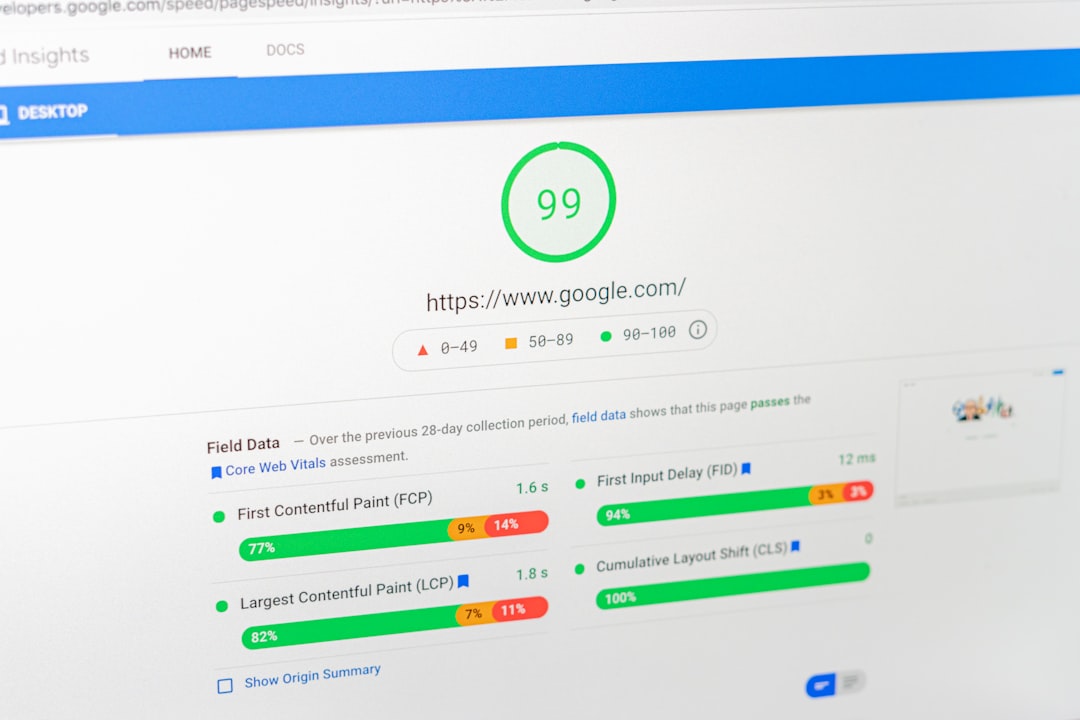
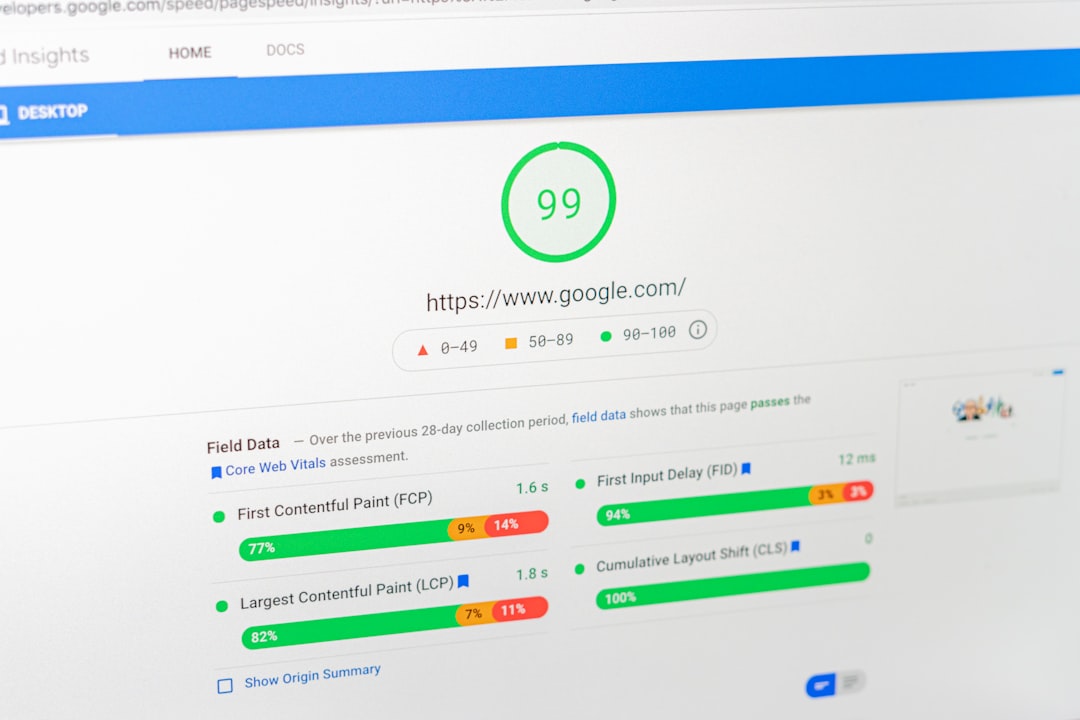
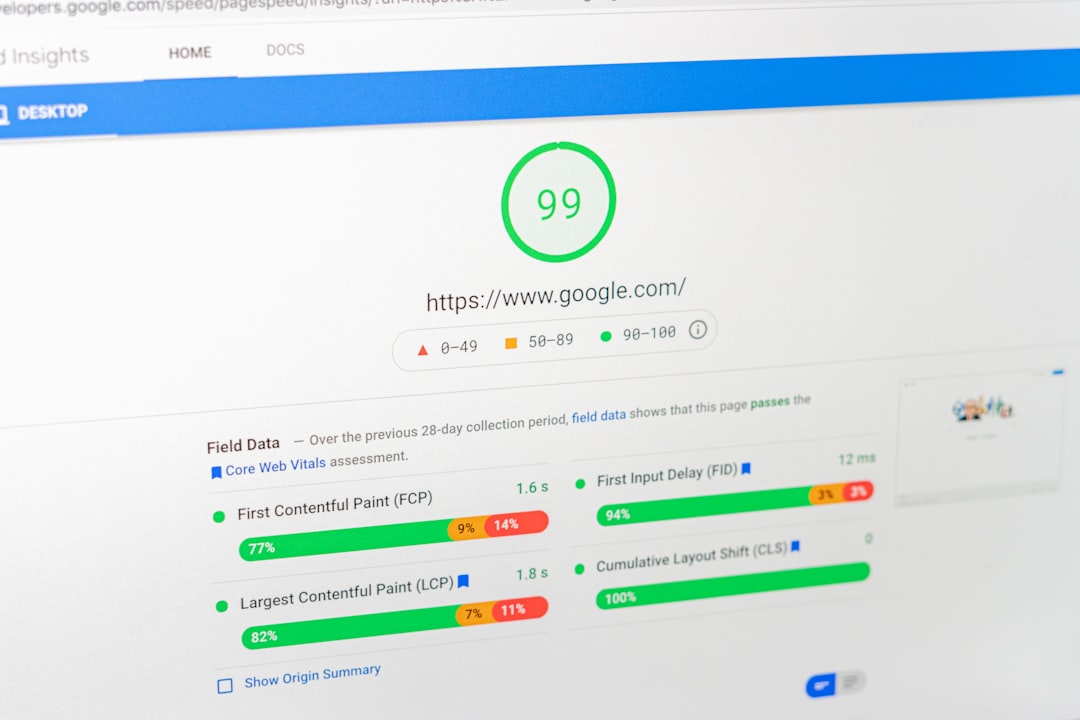
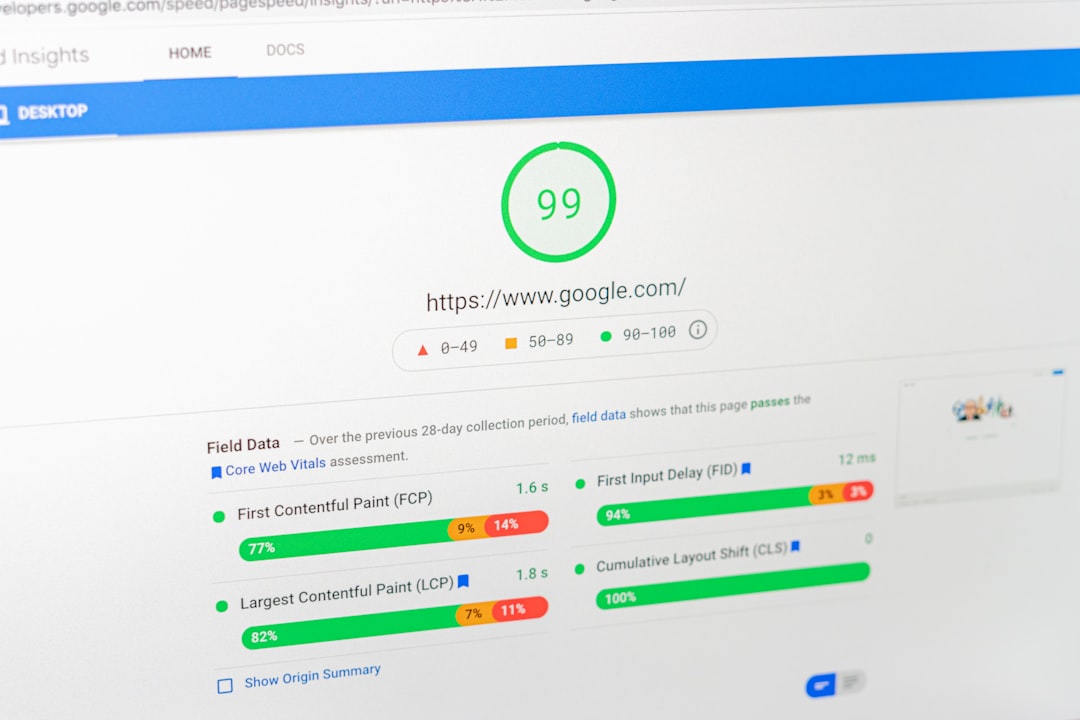
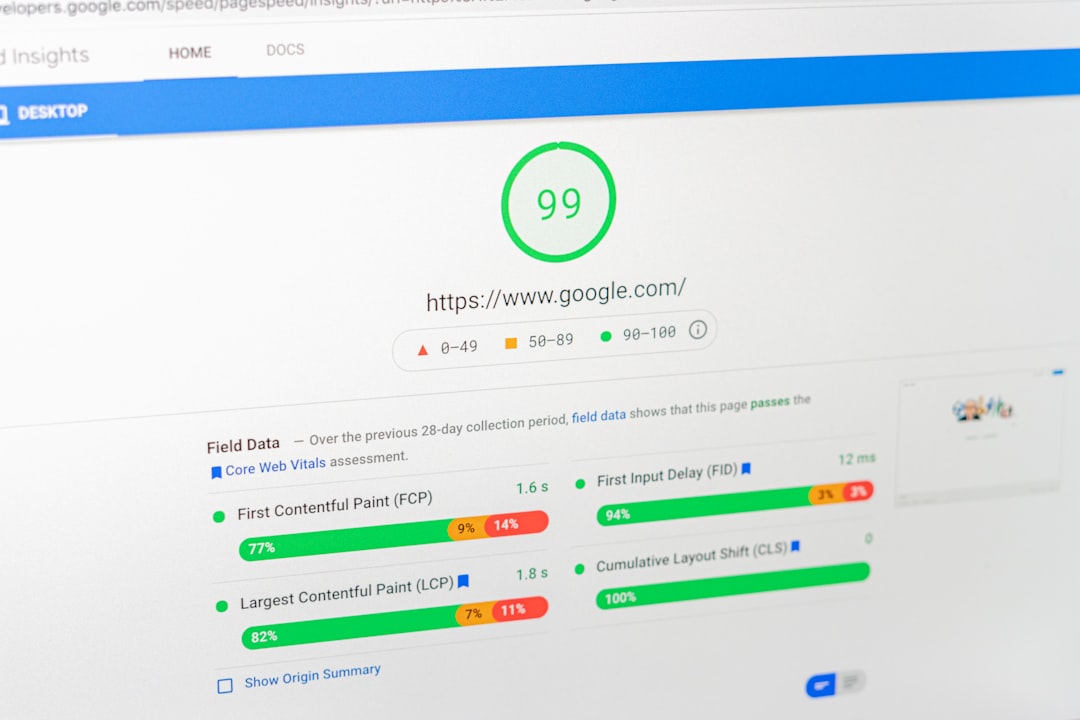
Speed matters, but it is usually not the first reason a page is invisible. Once crawlability, indexability, and canonicals are correct, speed becomes the next practical layer. The biggest wins usually come from image compression, caching, deferred scripts, and fewer plugin conflicts.
A common mistake is chasing plugin scores while ignoring actual bottlenecks. You do not need five optimization plugins fighting each other. You need one clean SEO setup, one caching approach, compressed images, and a baseline test so you know whether the fix worked.
If your site feels slow but you are not sure what to prioritize, read our guide to improving WordPress site speed for SEO. It breaks the work into specific fixes instead of vague advice.
Step 6: Review what changed before the rankings changed
When traffic drops suddenly, the most useful question is not “what is the best SEO fix?” It is “what changed?” Most ranking losses follow a redesign, migration, plugin swap, template edit, permalink change, or archive setting update. Troubleshooting gets much faster when you compare before and after states.
Check whether URLs changed, redirects were added, canonicals shifted, or headings and title templates were rewritten. A site can keep the same content and still lose performance because technical signals changed underneath it. This is why a page can be well written and still underperform.
A practical WordPress SEO troubleshooting order
If you want the short version, troubleshoot in a strict sequence. Fix access and indexing first, then duplication signals, then on-page relevance, then internal links, and only then polish performance. This order prevents you from wasting time on low-impact edits.
| Priority | What to check | Why it comes first |
|---|---|---|
| 1 | Noindex, robots access, search visibility, sitemap inclusion | If the page cannot be indexed, other optimizations do not matter |
| 2 | Canonical tag and duplicate URL handling | Wrong canonicals can send ranking signals to another page |
| 3 | Title tags, headings, search intent match | These shape relevance and click-through potential |
| 4 | Internal links and site structure | Important pages need contextual support from the rest of the site |
| 5 | Speed, scripts, images, caching | Performance helps, but usually after core technical issues are fixed |
When to get a second set of eyes
If you have already checked indexing, canonicals, titles, and internal links and the page is still stuck, the next step is a proper diagnosis, not more random edits. WordPress SEO Expert can review the page, the template, and the surrounding site signals to pinpoint what is actually holding rankings back.
Request a free WordPress SEO audit if you want a prioritized action plan instead of another generic checklist. We will help you separate the high-impact fixes from the noise so you can make changes with confidence.