SEO problems can be frustrating, especially when a WordPress website has already been optimized but still does not receive the expected organic traffic. Sometimes the problem is technical. In other cases, the issue may come from content, keyword targeting, internal linking, website structure, or a mismatch between the page and search intent.
A WordPress SEO Consultant can help identify these problems by reviewing the website systematically instead of making random changes.
The first step is to understand exactly what is wrong. Once the problem is identified, the right solution becomes much easier to determine.
1. Start by Identifying the Problem
Do not begin by changing titles, keywords, plugins, or URLs without knowing what is causing the issue.
First ask:
- Has organic traffic decreased?
- Are important pages not indexed?
- Are rankings lower than expected?
- Are pages receiving impressions but few clicks?
- Is the website slow?
- Are there broken links?
- Are important pages difficult to find?
- Is content targeting the wrong search intent?
Different problems require different solutions.
2. Check Google Search Console
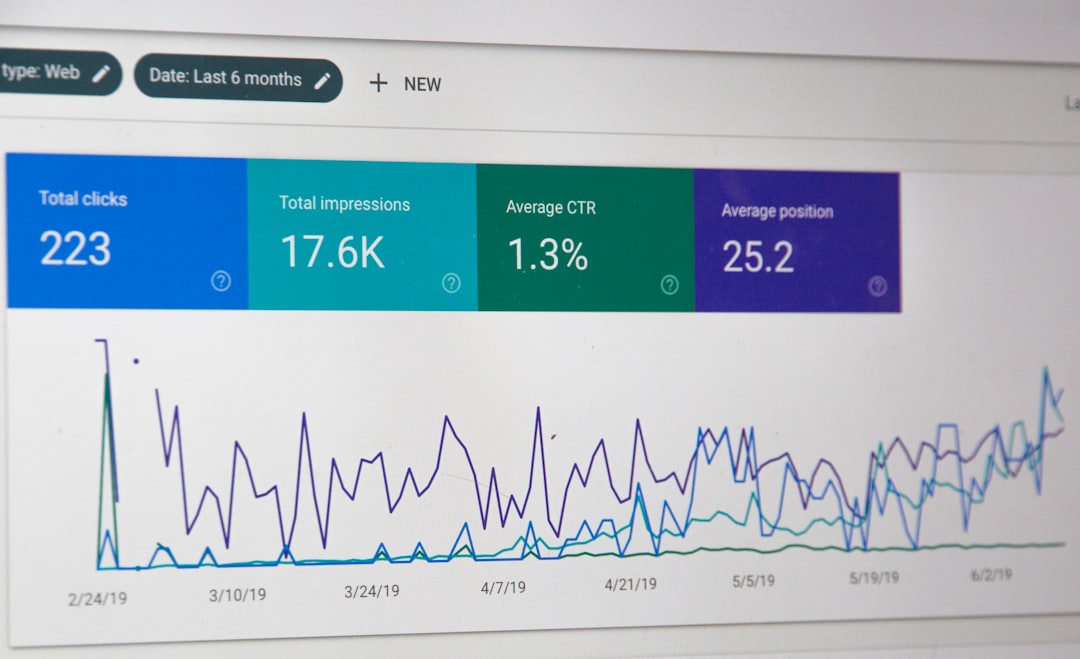
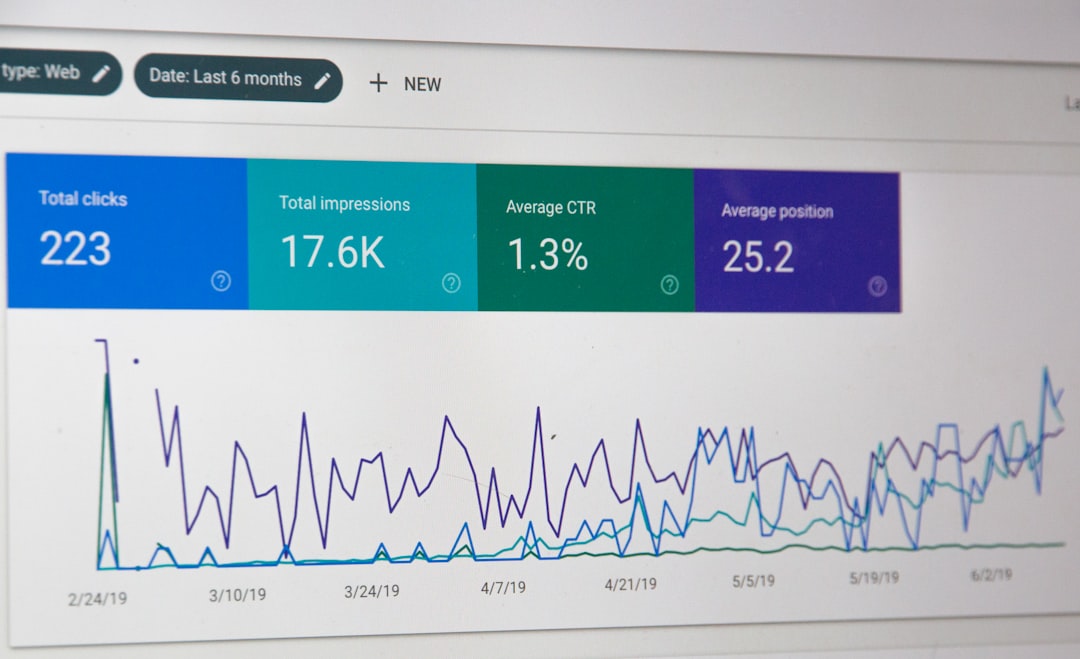
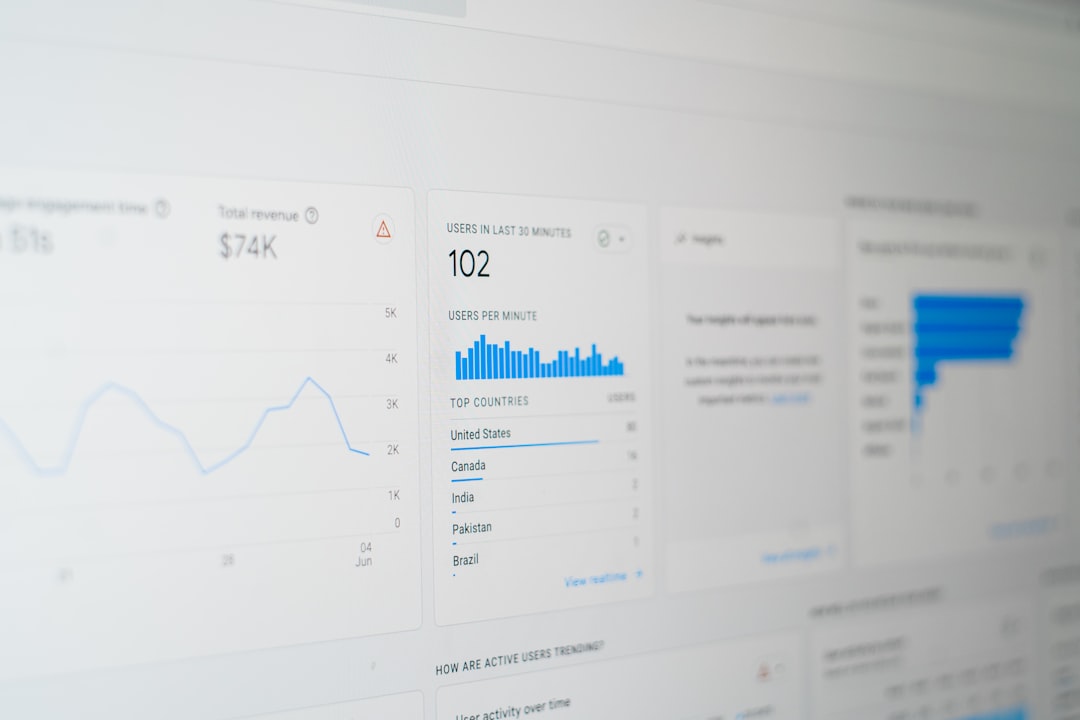
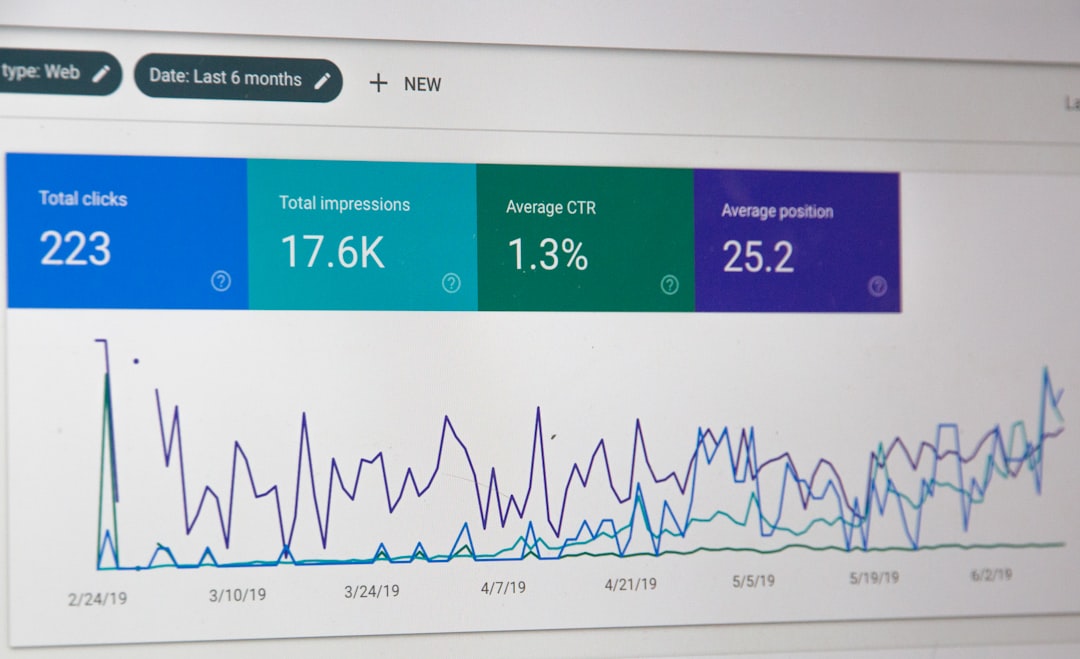
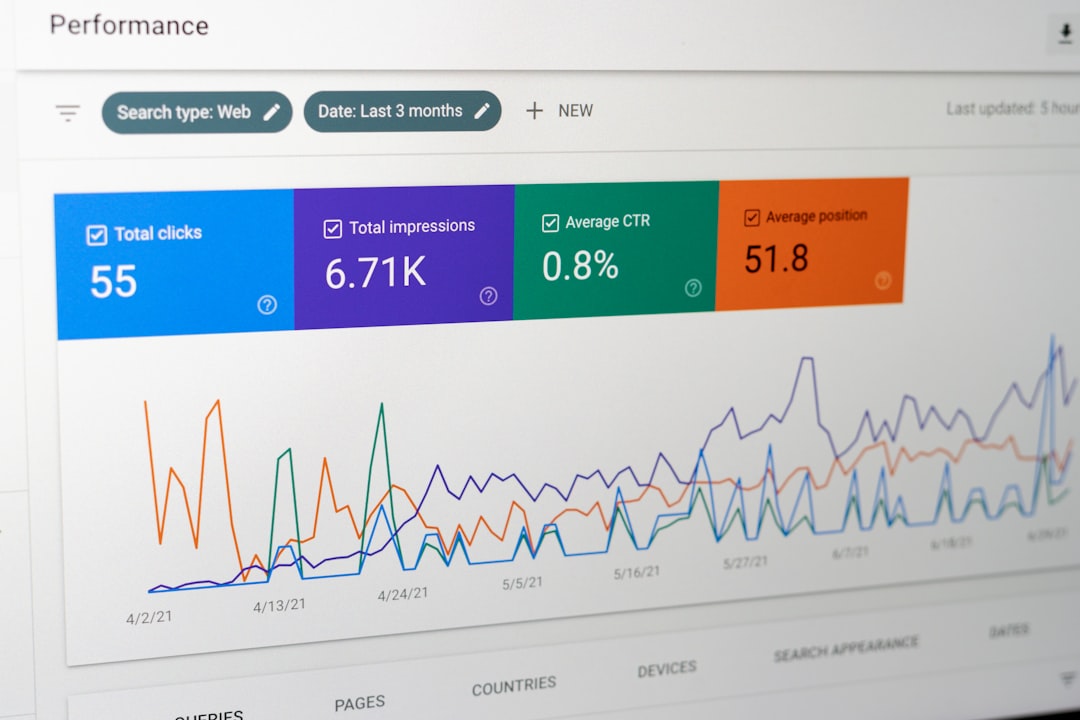
Google Search Console should be one of the first places to investigate search-related problems.
Review:
- Search queries
- Impressions
- Clicks
- Average position
- Click-through rate
- Indexing reports
- Sitemap status
- Page experience information
For example, if a page has many impressions but a low click-through rate, the problem may involve how the page appears in search results.
If a page is not indexed, the issue needs a different type of investigation.
3. Fix Indexing Problems
A page cannot normally receive organic search traffic if it is not properly available for indexing.
Check whether important pages have been:
- Accidentally set to noindex
- Blocked incorrectly
- Excluded because of technical problems
- Redirected unexpectedly
- Removed from the XML sitemap
Also check the WordPress visibility settings.
If a website has recently moved from development to production, indexing settings deserve particular attention.
4. Review the SEO Plugin Configuration

SEO plugins provide useful controls, but incorrect settings can cause problems.
Review settings related to:
- Page titles
- Meta descriptions
- Canonical URLs
- XML sitemap
- Robots directives
- Structured data
Also make sure multiple SEO plugins are not trying to control the same settings.
If two plugins generate overlapping SEO information, the website can become difficult to manage and diagnose.
5. Check Keyword Targeting
Sometimes a website is not ranking because the chosen keyword does not match the page.
For example, a service page targeting an informational search may struggle to satisfy users who are looking for a detailed tutorial.
Review:
- Main keyword
- Related topics
- Search intent
- Competitor content
- Page type
The goal is to make sure the right topic is assigned to the right page.
6. Avoid Keyword Cannibalization
Keyword cannibalization can occur when several pages target very similar search intent.
For example, a website might have several pages focused on variations of:
- WordPress SEO expert
- WordPress SEO consultant
- Professional WordPress SEO consultant
- WordPress SEO services consultant
If these pages are substantially similar, it may become difficult to maintain a clear purpose for each one.
Review overlapping pages and decide whether they should be differentiated, improved, consolidated, or otherwise handled based on their individual value.
7. Improve Weak Content
If a page receives little search visibility, review the actual content before assuming the problem is only technical.
Ask:
- Does the page answer the main question?
- Is the information useful?
- Is it current?
- Does it match search intent?
- Are important subtopics missing?
- Is the content easy to read?
Improve the page where necessary rather than simply adding more words.
Useful content is more important than reaching an arbitrary word count.
8. Improve Titles and Headings
A page can contain useful information but still need better presentation.
Review titles for:
- Relevance
- Clarity
- Accuracy
- Natural keyword usage
Then check the heading structure.
For example:
What Is WordPress SEO Consulting?
How the SEO Process Works
Common WordPress SEO Problems
When Should You Hire a Consultant?
Clear headings make long pages easier to navigate and understand.
9. Strengthen Internal Links
A page may have good content but receive little internal support from the rest of the website.
Look for relevant opportunities to connect pages.
For example:
SEO Guide → Technical SEO Article → SEO Service Page
Internal links can help users discover related content and provide search engines with additional context about the website structure.
Also look for orphan pages that have few or no relevant internal links.
10. Fix Broken Links and 404 Errors
Broken links can create a poor experience for visitors.
During troubleshooting, check for:
- Broken internal links
- Deleted pages
- Incorrect URLs
- 404 errors
- Redirect chains
- Redirect loops
A crawling tool such as Screaming Frog can help identify these issues on larger websites.
Not every 404 requires a redirect. The correct solution depends on whether the old page has a relevant replacement.
11. Review URL Changes
If rankings dropped after URLs were changed, investigate whether proper redirects were implemented.
For example:
Old URL → New URL
A relevant redirect can help users and search engines reach the new location.
Avoid changing established URLs simply because a different version looks cleaner. Existing URLs may have accumulated traffic, links, and search visibility.
12. Check Canonical Issues
Canonical problems can occur when search engines receive mixed signals about which URL represents the preferred version of similar content.
Review whether important pages have appropriate canonical settings.
This can be particularly important for websites with:
- Product variations
- Filtered pages
- Tracking parameters
- Duplicate URLs
- Similar content
Canonical settings should accurately reflect the preferred page rather than being added automatically without review.
13. Improve Page Speed
If a website is slow, identify the actual cause before making changes.
Common issues include:
- Large images
- Excessive scripts
- Too many unnecessary plugins
- Poor hosting performance
- Unoptimized resources
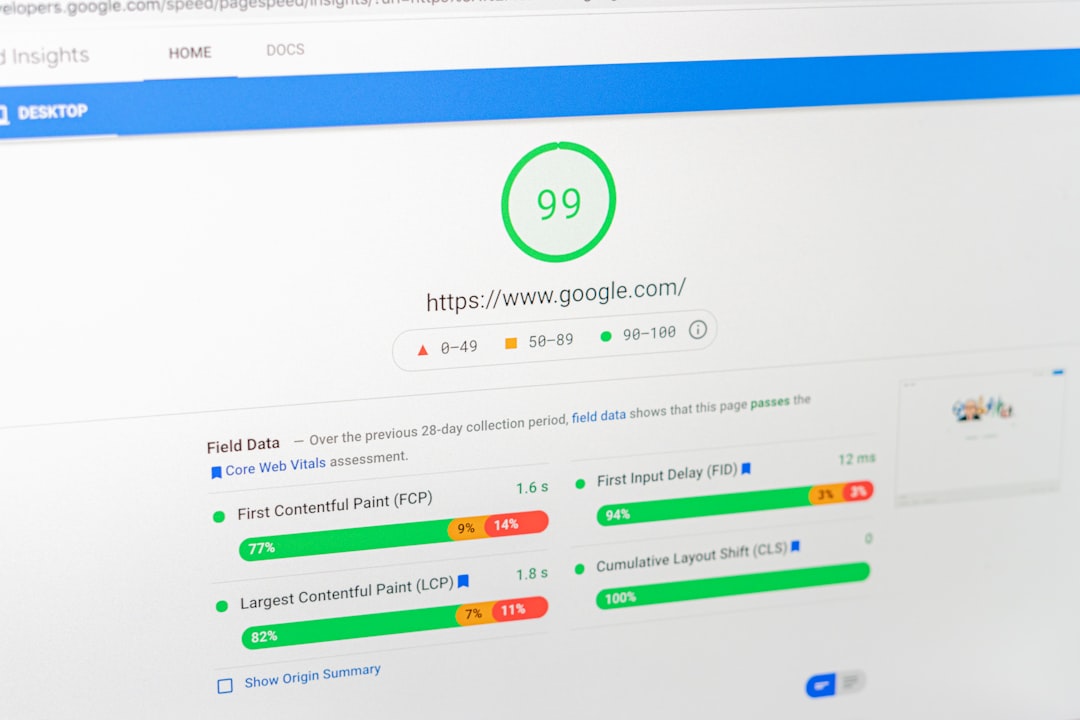
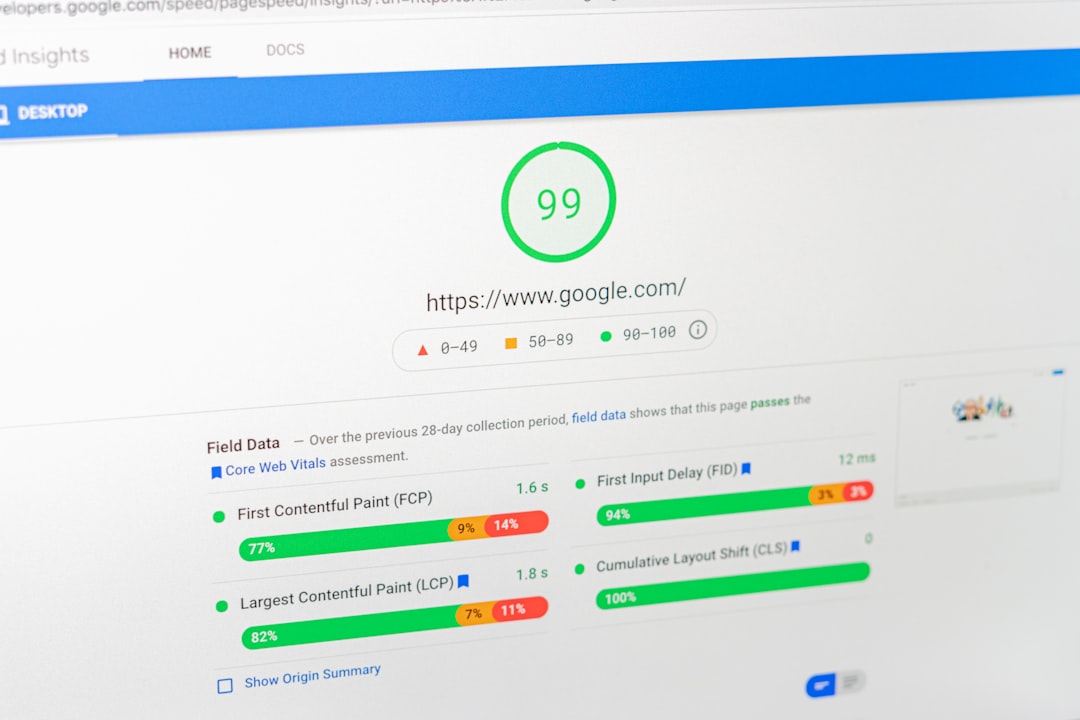
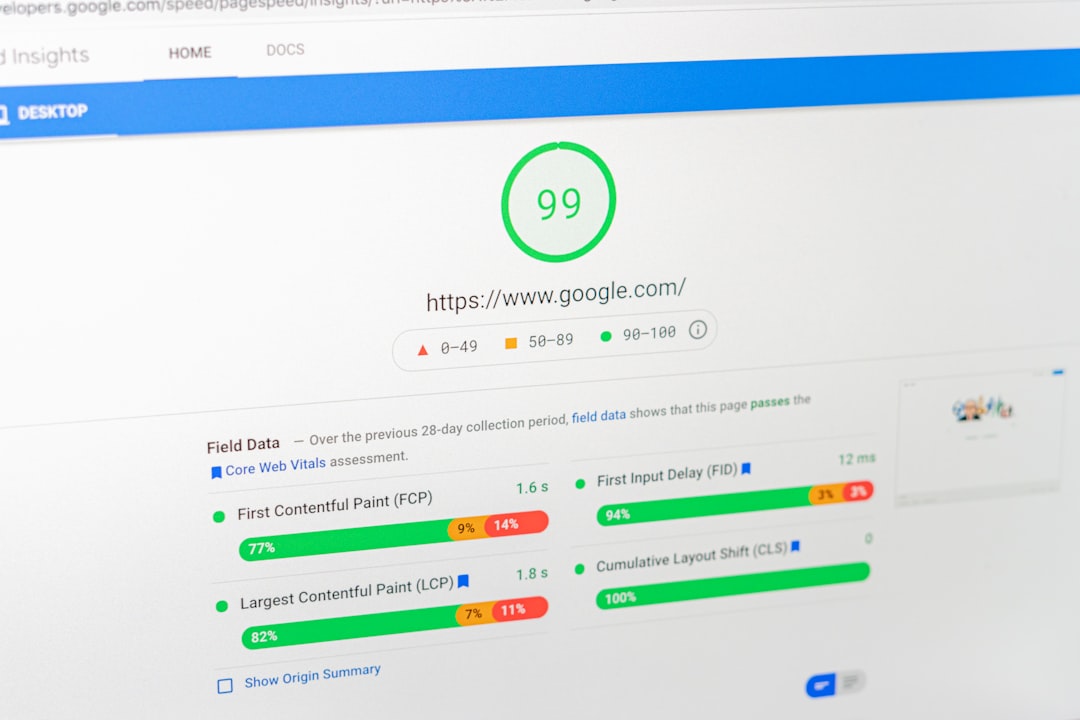
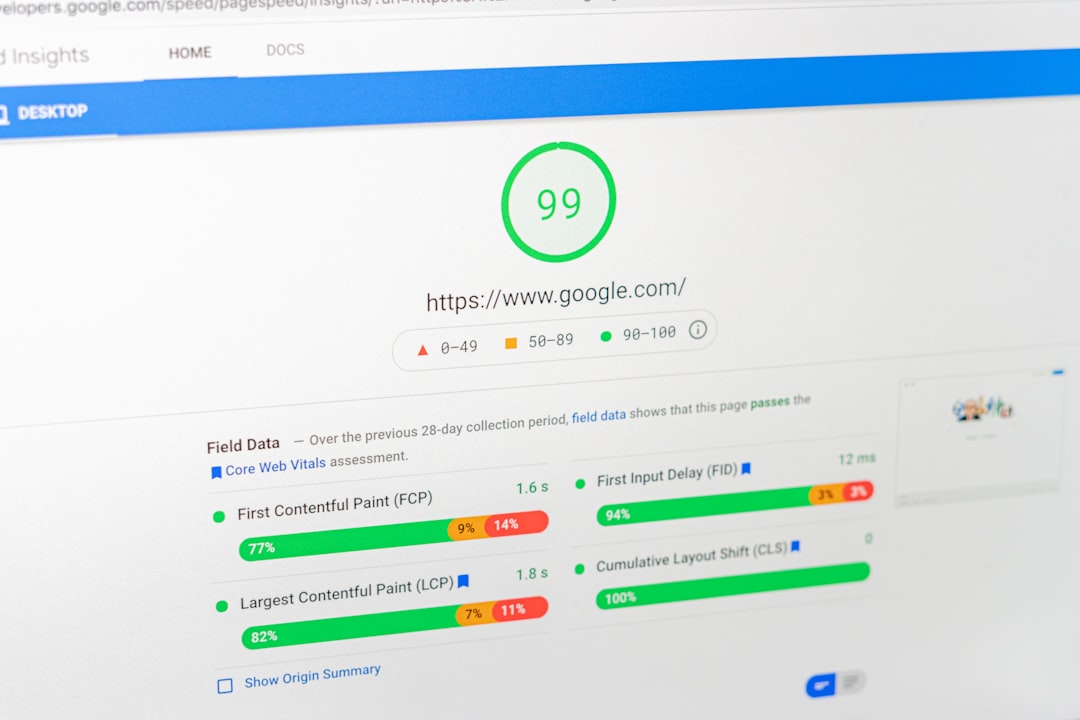
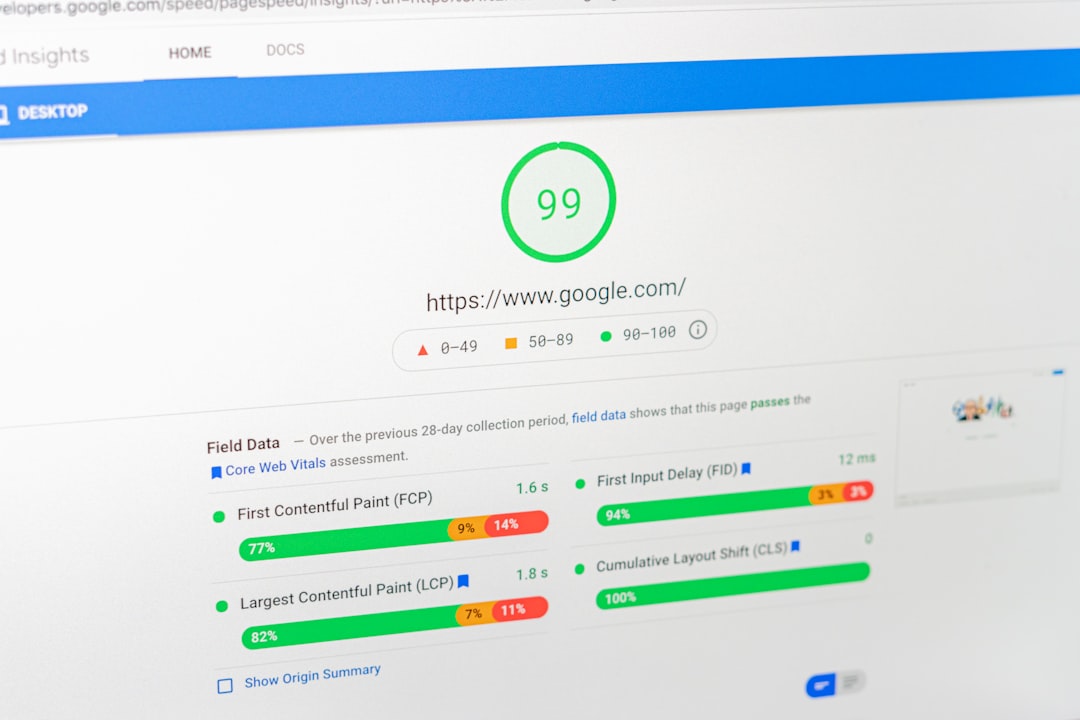
Tools such as Google PageSpeed Insights can help identify areas that need attention.
Do not focus only on achieving a perfect score. Consider how the website performs for actual visitors.
14. Check Mobile Experience
If a page works well on desktop but poorly on mobile, it may create usability problems.
Check:
- Font size
- Buttons
- Navigation
- Forms
- Images
- Pop-ups
- Page layout
- Loading speed
Test important pages on different screen sizes.
A responsive theme is helpful, but individual pages can still have mobile usability issues.
15. Review Old Content
Sometimes a ranking problem can be addressed by improving existing content.
Review older articles for:
- Outdated information
- Broken links
- Weak introductions
- Missing sections
- Poor formatting
- Weak internal links
- Changes in search intent
Do not update every old article automatically. Prioritize pages that already have useful search visibility, traffic, links, or business relevance.
16. Check Website Structure
A confusing website structure can make important information difficult to discover.
A simple structure might look like:
Homepage → Services → Individual Service Pages → Supporting Content
Important pages should not be buried several levels deep without a clear reason.
Review categories, navigation, internal links, and page relationships to make sure the structure makes sense.
17. Troubleshoot Traffic Drops Carefully
If organic traffic suddenly decreases, do not immediately assume that one factor is responsible.
Check:
- Google Search Console data
- Analytics data
- Recent website changes
- Indexing issues
- Technical errors
- Content changes
- URL changes
- Seasonal patterns
- Search demand
Compare the affected period with an appropriate previous period.
Document what changed before and after the decline. This can help narrow down possible causes.
Common Troubleshooting Mistakes

Avoid these approaches:
- Changing everything at once
- Repeating keywords excessively
- Deleting pages without analysis
- Changing URLs unnecessarily
- Installing several SEO plugins
- Ignoring technical problems
- Focusing only on rankings
- Expecting instant recovery
- Making changes without documenting them
A controlled troubleshooting process is easier to analyze.
A Practical WordPress SEO Troubleshooting Process
Follow this workflow:
Step 1: Identify the exact problem.
Step 2: Review Search Console and analytics data.
Step 3: Check indexing and technical settings.
Step 4: Review keyword targeting and search intent.
Step 5: Analyze content quality.
Step 6: Check internal links and website structure.
Step 7: Review speed and mobile experience.
Step 8: Make targeted changes.
Step 9: Document the changes.
Step 10: Monitor performance over time.
This approach reduces guesswork and makes it easier to understand whether a solution is working.
When Should You Hire a WordPress SEO Consultant?
Professional help can be useful when SEO problems are persistent, technical, or difficult to diagnose.
A consultant can review the website from multiple angles and determine whether the problem is related to indexing, content, keywords, technical SEO, site structure, or performance.
This can be particularly helpful after major website redesigns, migrations, traffic drops, or large-scale content changes.
Final Thoughts
Fixing WordPress SEO problems starts with identifying the real issue rather than immediately changing everything.
Search Console data, technical checks, keyword research, content reviews, internal linking, page speed, mobile usability, and website structure can all provide important clues.
The most effective troubleshooting process is organized and evidence-based. Make one set of meaningful improvements, document the changes, and monitor what happens afterward.
SEO recovery is not always immediate, but a structured approach makes it much easier to identify problems and improve the website over time.
Frequently Asked Questions
Why is my WordPress website not ranking?
There can be many reasons, including indexing problems, weak content, poor search intent alignment, technical issues, competition, or insufficient website authority.
How can I find SEO problems on my WordPress website?
Start with Google Search Console and a website audit. Review indexing, content, technical SEO, internal links, performance, and mobile usability.
Should I delete pages that are not ranking?
Not automatically. First determine why the page is not performing and whether it can be improved, consolidated, redirected, or otherwise handled appropriately.
Can changing a URL cause ranking problems?
Yes. Changing an established URL without properly handling the old URL can cause broken links and loss of existing signals.
How long does it take to fix an SEO problem?
There is no fixed timeline. It depends on the type of problem, the changes required, how quickly search engines process those changes, and the competitiveness of the search results.