Low rankings usually come from a scattered plan, not one missing plugin. Most WordPress SEO problems are not dramatic. They come from a stack of smaller issues like blocked pages, conflicting plugins, weak internal links, and duplicate URLs. If you troubleshoot in the right order, you can usually find the real bottleneck faster.
This guide shows you how to troubleshoot WordPress SEO best practices without turning your site into a testing lab. If you need a broader baseline first, review our WordPress SEO best practices guide and our comparison of Yoast SEO vs Rank Math before changing plugin settings.
Start With What Blocks Visibility
The first job is to check whether search engines can crawl and index the pages that matter. If the wrong pages are blocked, no amount of title editing or content polishing will fix the underlying problem.
Look at your main service pages, product categories, and core blog posts first. Make sure they are published, linked from other crawlable pages, and included in your XML sitemap if they should be indexed. Google says every important page should be reachable by links from another findable page, and it recommends using crawlable anchor links with descriptive text. It also recommends that each page have a descriptive, concise title and a clear meta description.
What to check first
Open your SEO plugin settings and your WordPress reading settings. Then confirm that important pages are not marked noindex, hidden behind odd archive rules, or accidentally excluded after a redesign or migration. This is usually where the biggest mistakes hide.
Use One SEO Plugin, Not Several

One well-configured SEO plugin is enough. Running overlapping plugins often creates duplicate metadata, conflicting canonicals, and competing sitemap outputs that make troubleshooting harder instead of easier.
If you see more than one plugin controlling titles, schema, redirects, or sitemaps, simplify the setup before doing anything else. The goal is not to collect features. The goal is to reduce conflicts so you can trust what the site is actually outputting.
If you are not sure whether your current plugin configuration is helping or quietly hurting you, WordPress SEO Expert can help. We can review the setup, identify conflicts, and tell you what to keep, remove, or reconfigure first.
Troubleshoot Titles and Meta Descriptions
Your titles and meta descriptions should support clarity, not chase plugin scores. Weak titles reduce relevance and clicks. Repetitive descriptions make important pages harder to distinguish in search results.
Google recommends writing descriptive, concise titles and avoiding keyword stuffing or repetitive boilerplate in title elements. It also notes that Google may use the meta description when it better summarizes the page for searchers. That is why each important page should have its own clear purpose, title, and summary instead of a reused template across the whole site.
| Weak setup | Stronger setup |
|---|---|
| SEO Services | SEO Company | SEO Expert | WordPress SEO Services for Small Businesses |
| Blog Post | How to Troubleshoot WordPress SEO Issues |
| Same meta description on many pages | Unique summary matched to each page |
Fix Duplicate URLs Before Publishing More
Duplicate URL issues often keep decent pages from performing as well as they should. If search engines see several similar versions of the same content, they may split signals or choose the wrong page to show.
Check for common WordPress duplication sources such as tag archives, attachment pages, parameter URLs, trailing slash inconsistencies, and WooCommerce filter pages. Pick the preferred version, link to that version internally, and redirect outdated variants where appropriate. Fix the issues that block visibility before the issues that polish visibility.
Check Internal Linking and Site Structure

Internal linking problems can make strong pages look unimportant. When core pages are buried, orphaned, or only listed in a sitemap, search engines get weaker signals about what matters most on the site.
Review whether your main pages are linked from the navigation, relevant blog posts, category pages, and other high-authority sections of the site. Google recommends descriptive anchor text and crawlable links because they help both users and search engines understand page relationships. A simple structure usually beats a clever one.
If you are cleaning up architecture issues, our WordPress SEO best practices article gives the broader framework, while our Yoast SEO vs Rank Math guide helps if plugin settings are part of the confusion.
Review Schema Carefully
Schema can help clarify page meaning, but it does not rescue weak content or technical clutter. If the markup does not match what users can actually see, it can create more problems than benefits.
Google’s structured data guidance says markup should reflect visible page content and should not be misleading. So do not turn on every schema type your plugin offers. Use the types that match the actual page and leave the rest off.
Do Not Let Speed Checks Distract You
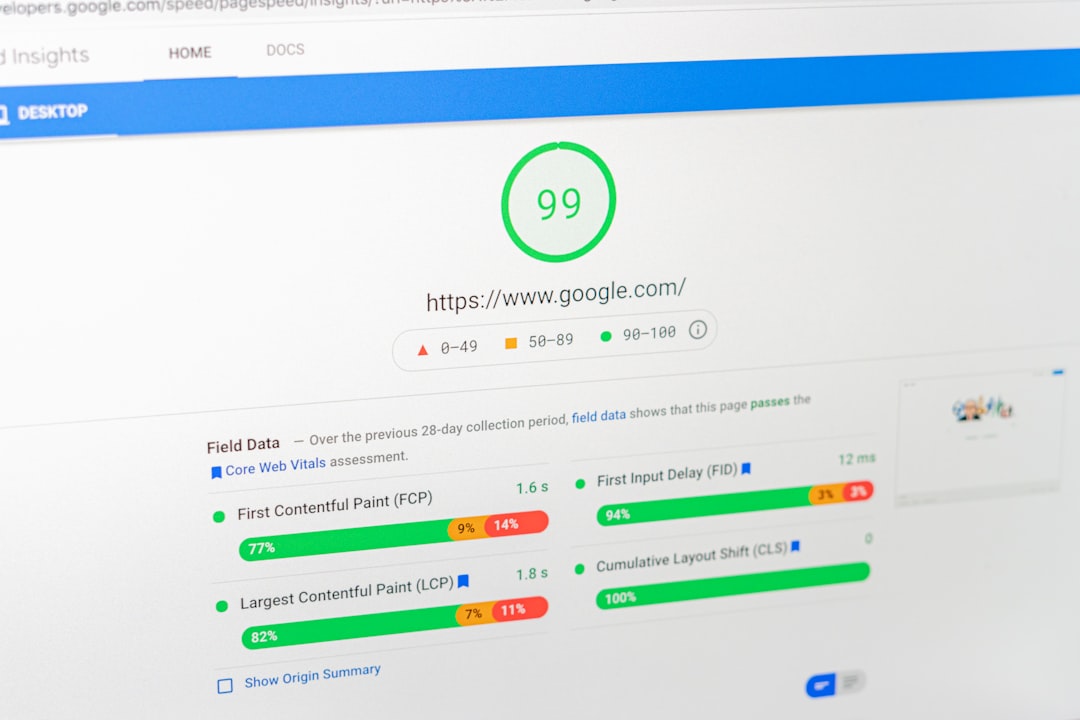
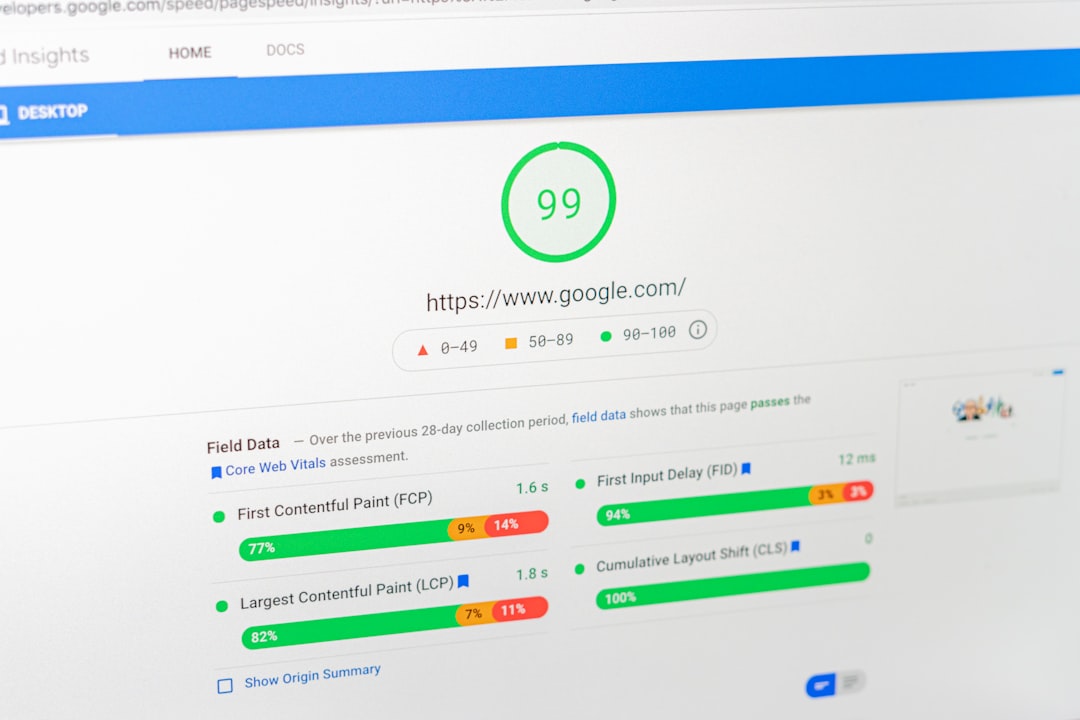
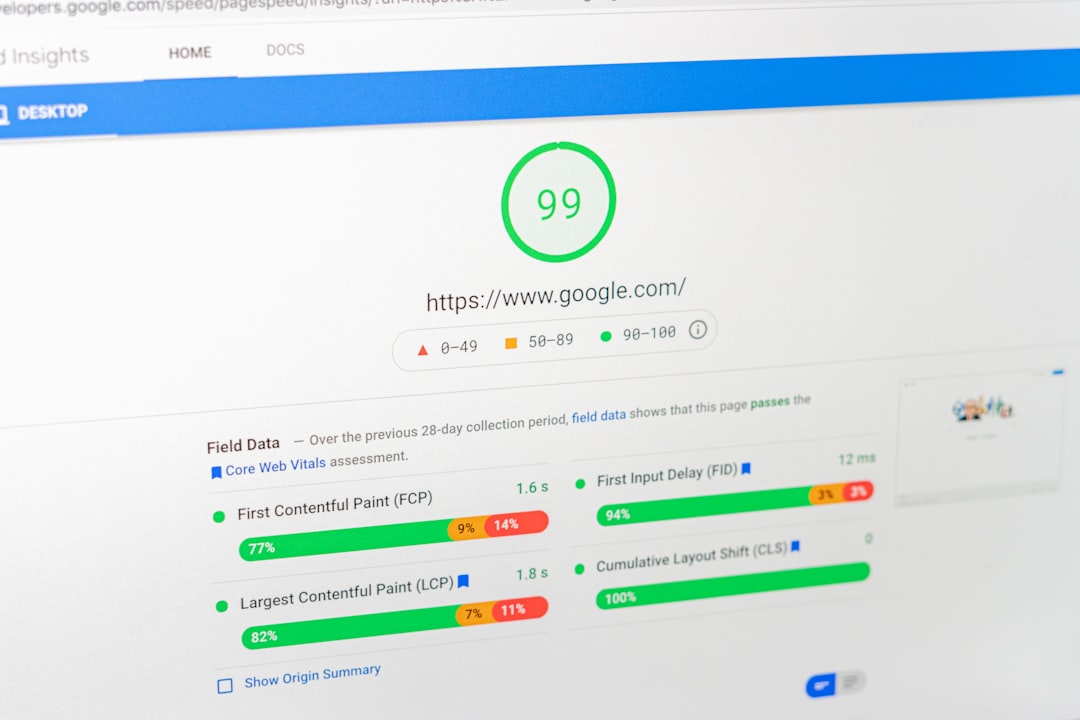
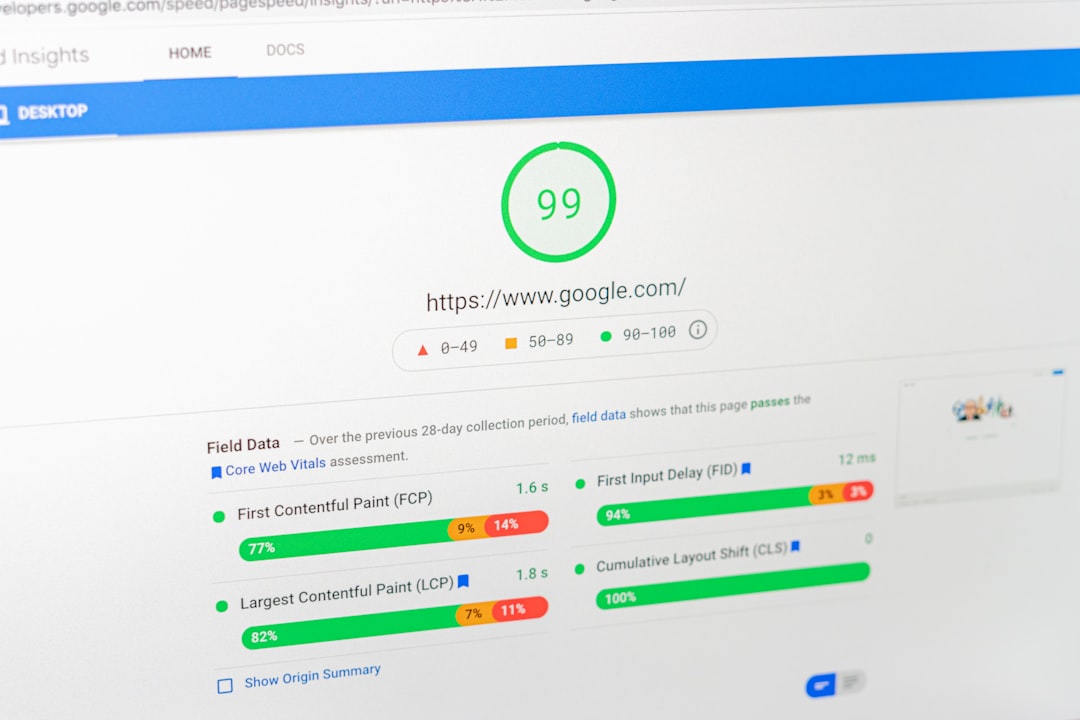
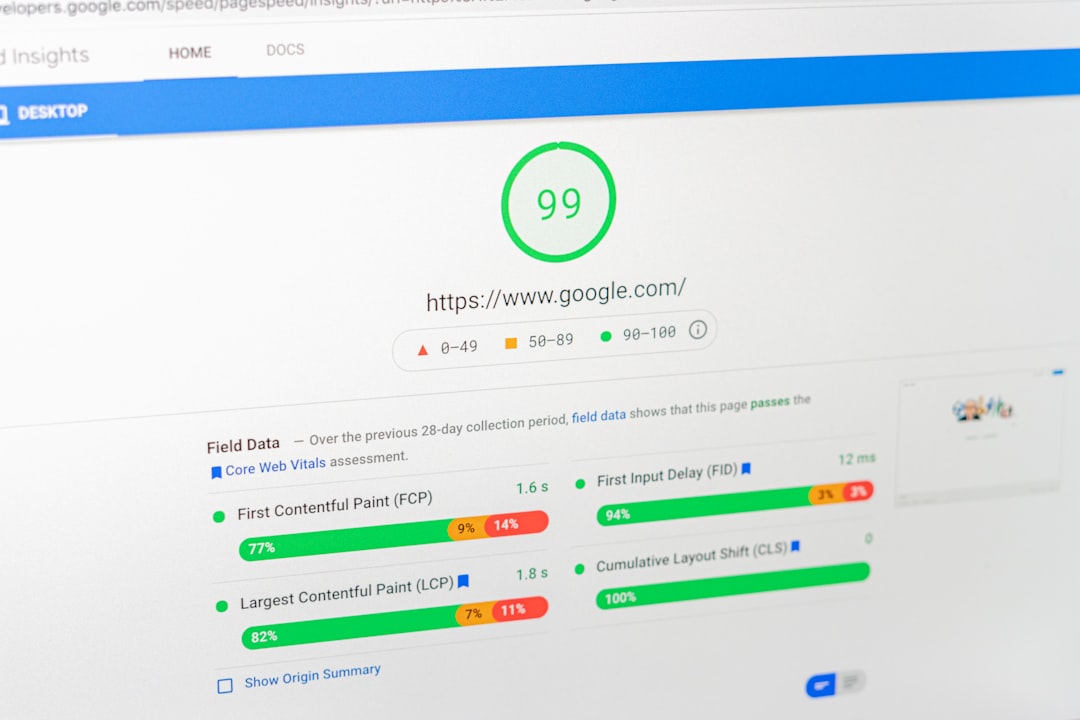
Speed matters when the site feels slow, unstable, or frustrating to use. But perfect scores are not the goal. The goal is a site that loads cleanly and is easy to use on the templates that matter most.
Test key page types separately, including the homepage, service pages, blog posts, and product pages. A slow template, a heavy hero image, or a plugin conflict usually matters more than a minor score fluctuation in a lab test. You do not need a perfect score. You need a site that works well for visitors and does not create unnecessary friction.
A Simple Troubleshooting Order
The fastest way to diagnose WordPress SEO problems is to work in sequence. This keeps you from wasting time polishing pages that still have crawl, index, or duplication issues underneath.
| Priority | What to review | Why it comes first |
|---|---|---|
| 1 | Indexing and crawl settings | Pages cannot rank if search engines cannot access them properly |
| 2 | Canonical, redirect, and duplicate URL issues | These problems split signals and confuse page selection |
| 3 | Titles, meta descriptions, and page intent | They improve clarity and click potential |
| 4 | Internal links and architecture | They strengthen discovery and page importance |
| 5 | Schema and sitemap hygiene | They support cleaner technical signals |
| 6 | Speed and usability issues | They affect real user experience and page performance |
What to Stop Doing
Stop treating plugin indicators as proof that a page is optimized. A green light in an SEO plugin does not mean the page deserves to rank. It only means the plugin approved a narrow checklist.
Also stop publishing thin variations of the same topic, stacking multiple SEO tools, and rewriting pages before confirming they are even indexable. Most site owners do not have one catastrophic problem. They have a stack of smaller issues that compound over time.
The Best Next Step
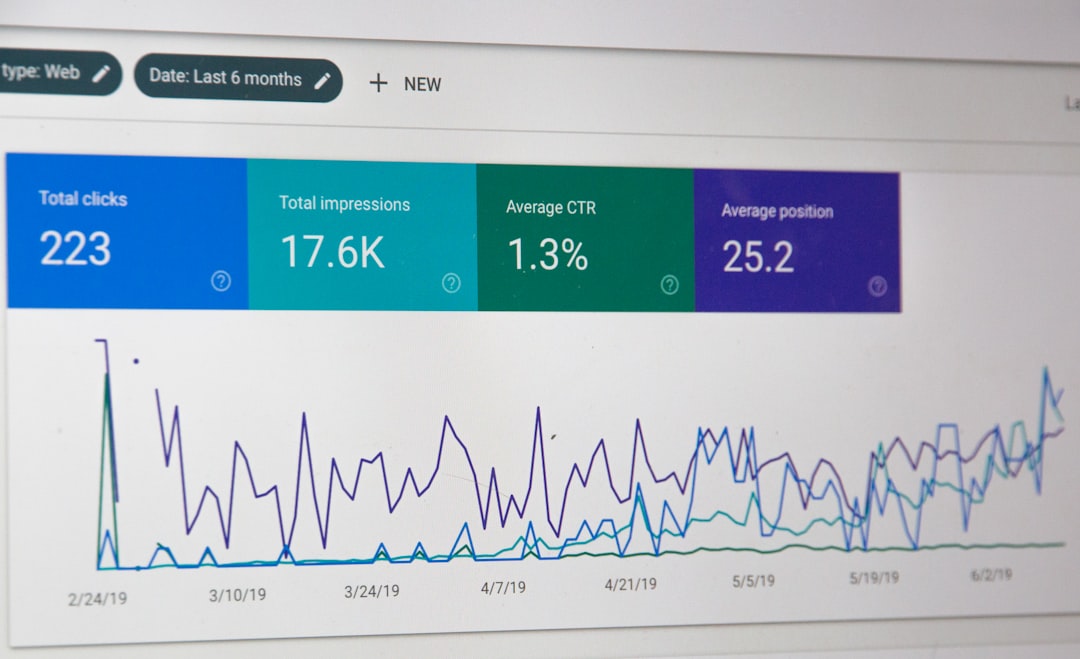
The best next move is usually a focused review of your highest-value pages. Start with the pages tied to leads, sales, and existing impressions rather than trying to rebuild the whole site at once.
If you are stuck between plugin settings, internal link cleanup, duplicate URL issues, or post-migration indexing problems, WordPress SEO Expert can help you prioritize the right fixes. Book a free SEO consultation. No pitch, no pressure. Just an honest look at what your site actually needs and whether your current setup is part of the solution or part of the problem.
Contact WordPress SEO Expert today to schedule a consultation and get a clearer plan for what to fix first on your WordPress site.