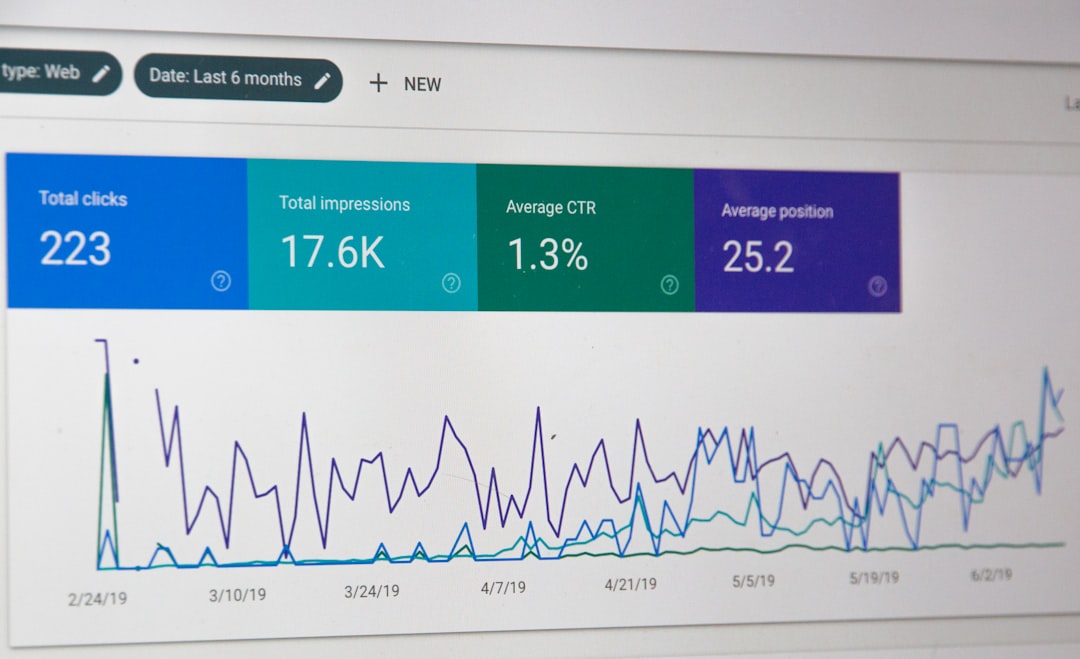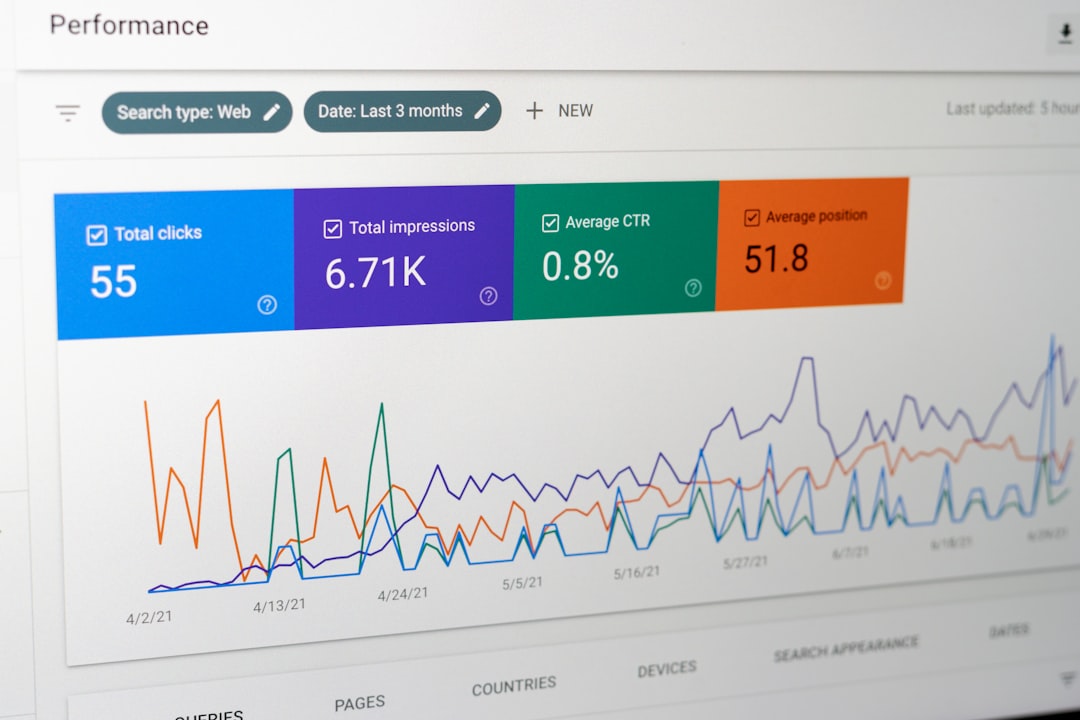

Low rankings on WordPress usually come from a scattered setup, not one missing plugin. If your site has decent pages but traffic is still flat, the problem is often in the configuration: duplicate archives, weak title templates, the wrong sitemap, or plugin settings that look fine in the dashboard but create messy signals in the source code.
This guide walks through a clean SEO configuration for WordPress in the order that matters most. We will cover the core settings, what to change inside your SEO plugin, and where site owners waste time chasing green lights instead of fixing the issues that actually affect crawlability, indexing, and click-through rate.
Start with the settings that can block rankings
The first configuration pass should focus on whether search engines can crawl the right version of the site. Before you touch titles, schema, or content templates, make sure the site is indexable, the URL structure is clean, and only one preferred version of each page exists.
| Area | What to configure | Why it matters |
|---|---|---|
| Search visibility | In Settings and Reading, make sure the search engine visibility box is unchecked before launch. | A blocked site will not rank no matter how good the content is. |
| Site URL version | Choose either www or non-www and redirect the other version server-side. | This prevents duplicate versions of the same pages. |
| HTTPS | Force all traffic to the secure version of the site. | It keeps canonical signals consistent and avoids mixed URL issues. |
| Permalinks | Use the Post name structure unless there is a strong legacy reason not to. | Readable URLs are easier to manage, share, and audit. |
| Robots and indexing | Check the rendered page source for unwanted noindex directives. | Plugin screens can miss conflicts created by themes or other plugins. |
If you are setting up a brand new build, our WordPress SEO checklist for new websites covers the launch-specific traps that cause indexing problems in the first week.
Use one SEO plugin and configure it fully
The best WordPress SEO setup is usually one plugin, configured carefully, with as few overlaps as possible. Running multiple SEO plugins creates conflicting canonicals, duplicate schema, and competing sitemap outputs. Clean configuration beats plugin stacking every time.
Whether you use Yoast, Rank Math, or another established plugin, the important part is consistency. Set global defaults once, then verify how those settings render on real pages. There is no single best plugin for every site, but there is almost always a best setup: one plugin, one sitemap, one canonical source, and one clear set of indexing rules.
Core plugin settings to review first
These settings shape how every page is presented to search engines. If they are sloppy, the problem scales across the whole site. If they are clean, your ongoing SEO work gets much easier.
| Setting | Recommended approach | Common mistake |
|---|---|---|
| Homepage title | Write it manually based on the service or business offer. | Letting WordPress pull a vague site name and tagline. |
| Title templates | Use a concise pattern for posts and pages, then spot-check output. | Stuffing multiple keyword variations into every title. |
| Meta descriptions | Write custom descriptions for key commercial pages and top traffic pages. | Leaving important pages blank or reusing boilerplate copy. |
| Canonical URLs | Use the plugin default unless a page truly duplicates another page. | Overriding canonicals without a clear duplicate-content reason. |
| Archive indexing | Noindex low-value archives such as date archives and many tag archives. | Leaving every archive indexable by default. |
| Open Graph defaults | Set a fallback social image and confirm it looks correct when shared. | Letting platforms pull random images from the page. |
Google recommends writing title elements that are descriptive and concise and warns against keyword stuffing and repetitive boilerplate titles. That matters in WordPress because title templates can scale bad habits across hundreds of URLs if you do not review them early. Google’s title link documentation is the standard worth following here.
Configure titles and descriptions for real click-through benefit
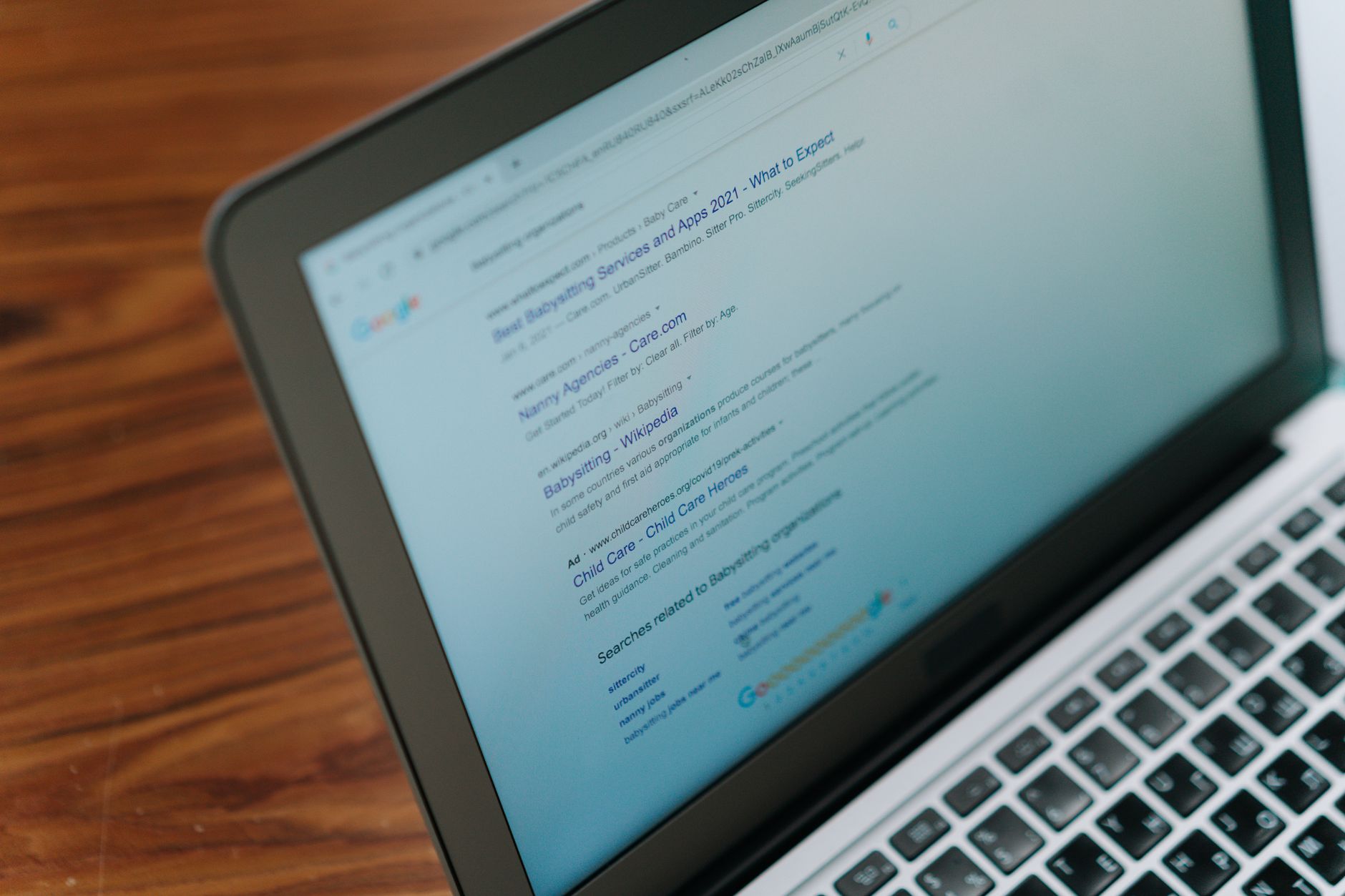
Good configuration should improve how pages appear in search, not just make plugin scores look cleaner. Titles and descriptions need to help users decide to click. That means clear page intent, not repetitive keyword blocks or generic brand-first templates.
Weak title: SEO Services | SEO Company | SEO Expert
Stronger title: WordPress SEO Services for Small Businesses
Weak meta description: We offer many SEO services for websites and businesses.
Stronger meta description: WordPress SEO services for small businesses. See what we fix first, how we improve rankings, and where traffic usually gets stuck.
Google’s SEO starter guidance also emphasizes unique, descriptive titles and meta descriptions because they help searchers understand why a page is relevant. Google’s SEO starter guide is useful if you want to compare your current templates against official best practices.
Set up sitemaps without creating conflicts

Your sitemap setup should make discovery easier, not noisier. The goal is one authoritative XML sitemap that includes indexable content and excludes thin or noindexed sections. If you are using an SEO plugin, check whether WordPress core sitemap output is still active and whether both are visible.
WordPress introduced built-in XML sitemaps in version 5.5, with the default sitemap available at the standard core path. If your SEO plugin already manages sitemaps, verify which sitemap you want search engines to use and avoid leaving duplicate sitemap systems active by accident. WordPress 5.5 documentation and Learn WordPress sitemap guidance both confirm that core sitemap behavior.
For most business sites, your sitemap should include pages, posts, and any taxonomies that bring real search value. It should usually exclude tag archives that exist only for internal organization, utility pages, thin media attachment pages, and any archive you have intentionally noindexed.
Fix archive pages before they dilute your site
Many WordPress sites do not have one catastrophic SEO issue. They have a stack of low-value archive pages that slowly dilute internal linking, crawl focus, and topical clarity. Tags, author archives, date archives, and search result pages often create more noise than value unless they are curated deliberately.
A practical default for many small business sites is to keep main service pages, location pages, core category pages, and strong articles indexable, while noindexing date archives, internal search results, and thin tag archives. Multi-author publishers and large editorial sites may need a different setup, but small brochure sites usually benefit from tighter indexing rules.
If traffic dropped after a redesign or structure change, archive handling and crawl confusion are worth checking alongside redirects, canonicals, and noindex tags. Our guide on improving WordPress site speed for SEO also pairs well with this because technical drag often compounds indexing problems rather than replacing them.
Do not ignore image and performance defaults
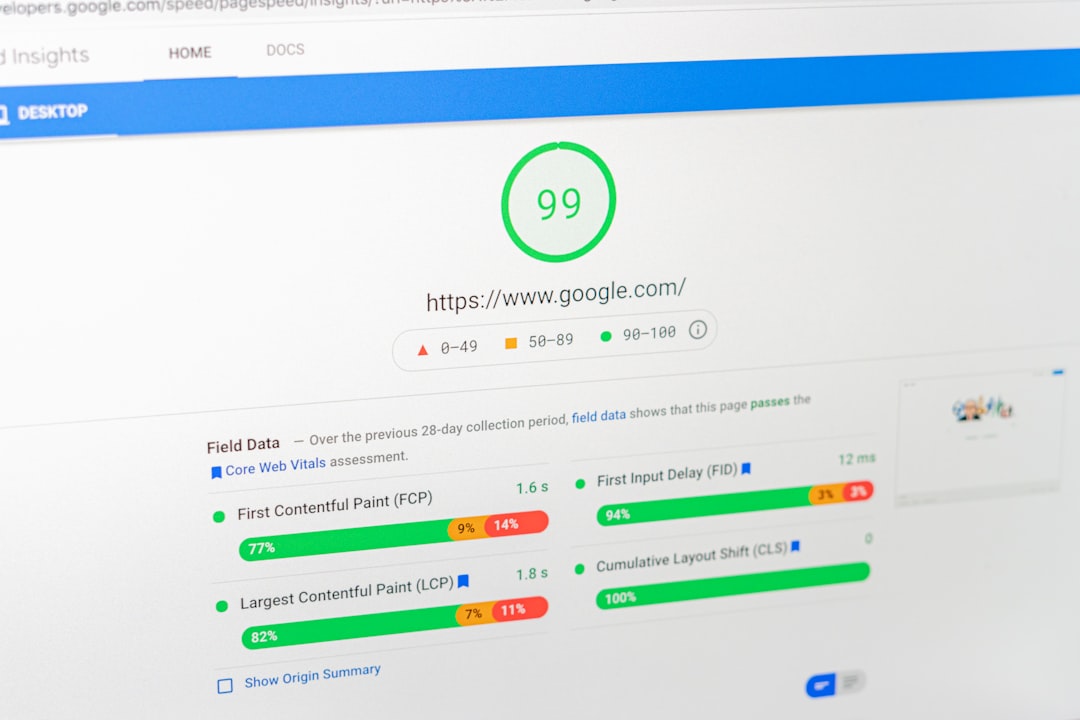
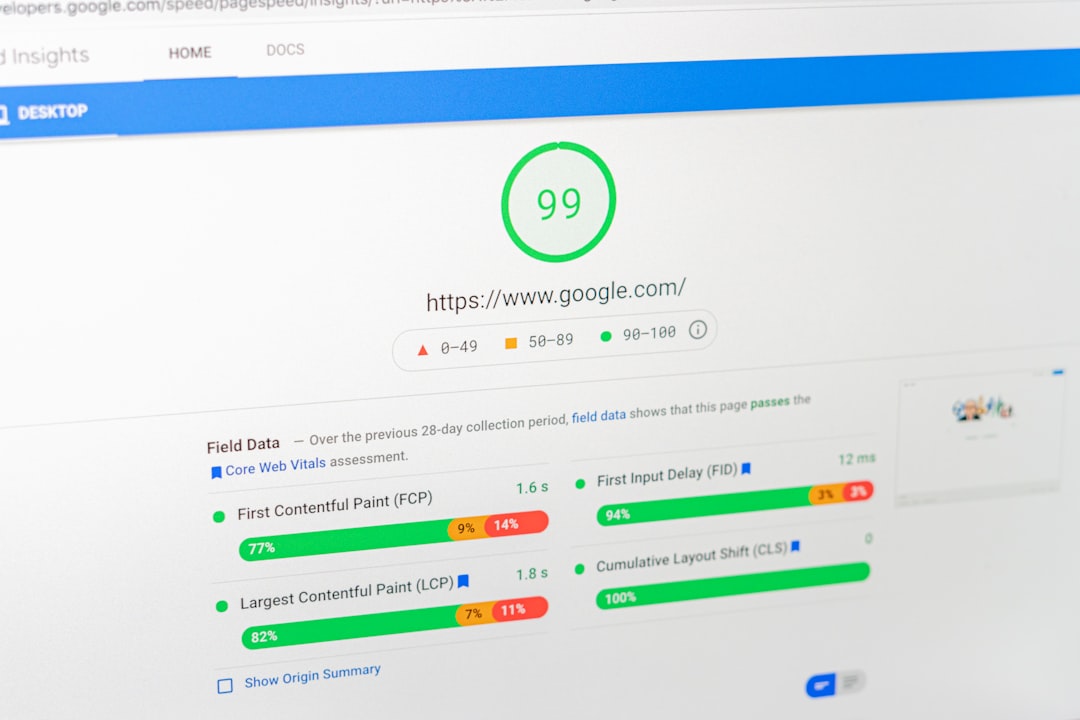
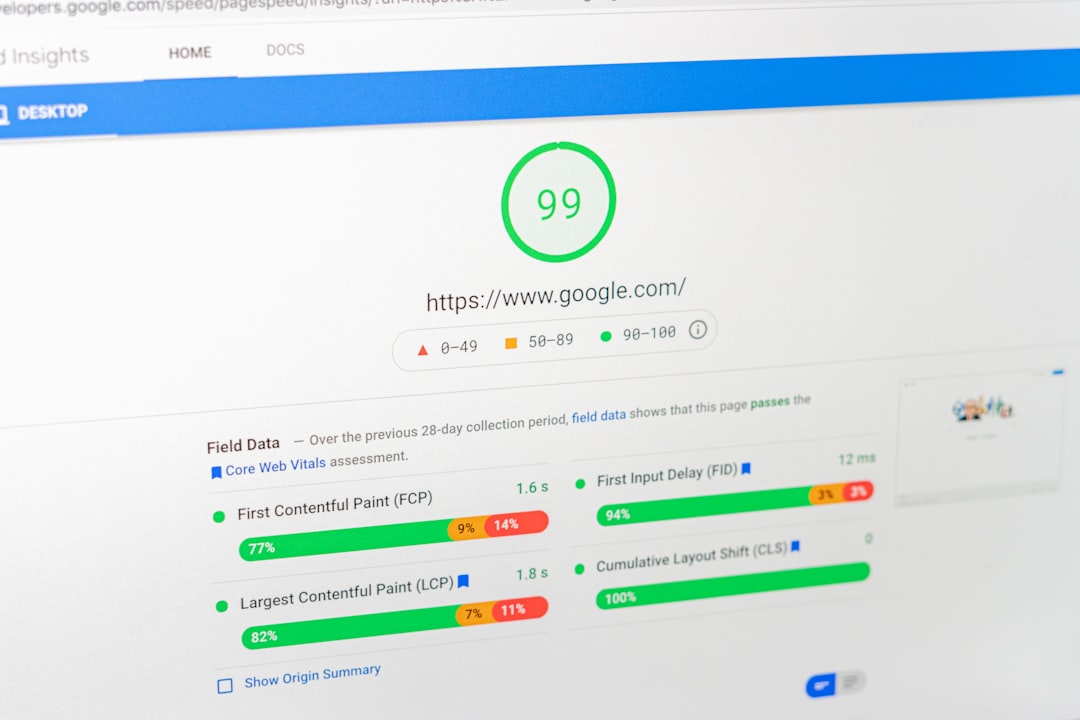
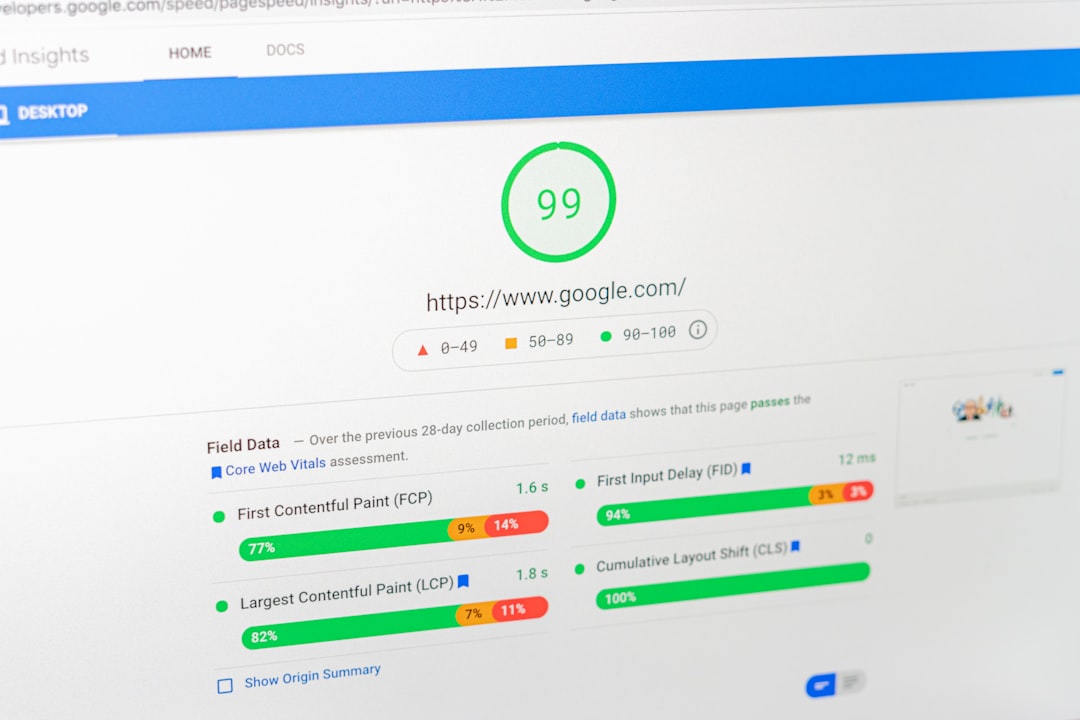
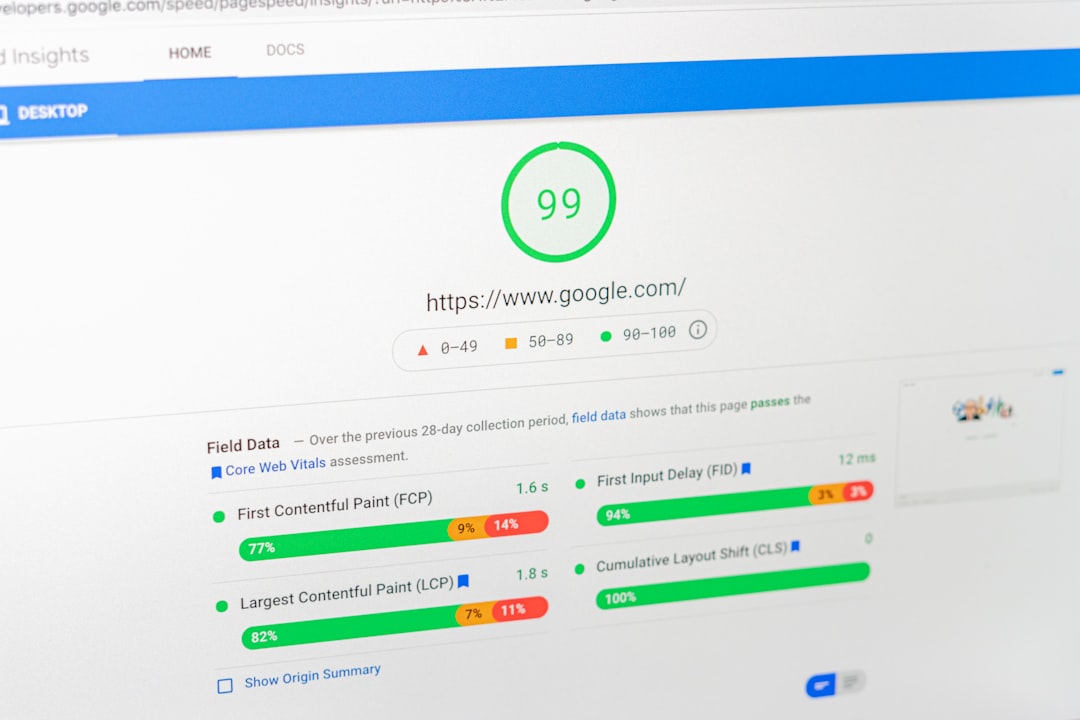
SEO configuration is not only metadata. WordPress performance defaults affect crawling, user experience, and page quality signals. You do not need a perfect lab score, but you do need sane image handling, caching, and script loading so the site is not fighting itself.
WordPress has supported native lazy loading for images since version 5.5, which means many sites already have a baseline loading improvement for block editor images. That said, lazy loading alone will not fix oversized hero images, poor hosting, or plugin-heavy themes. WordPress core’s lazy-loading announcement explains how that behavior works.
If your pages are slow, do not start by installing three optimization plugins. Start with image compression, caching, script cleanup, and host-level bottlenecks. WordPress SEO Expert can help if you want a second set of eyes before changing settings across a live site.
A practical WordPress SEO configuration checklist
If you only want the short version, work through this list in order. This sequence prevents you from polishing low-impact settings before the technical foundation is stable.
| Priority | What to do | What success looks like |
|---|---|---|
| 1 | Confirm the site is indexable and not blocked by visibility or robots settings. | Important pages can be crawled and do not output unwanted noindex tags. |
| 2 | Choose one canonical site version and force HTTPS. | Only one preferred URL version resolves for each page. |
| 3 | Use one SEO plugin and remove overlapping SEO features elsewhere. | One source controls titles, canonicals, schema, and sitemap output. |
| 4 | Write homepage and key service page titles manually. | Search snippets are clearer and less templated. |
| 5 | Review archive indexing rules. | Low-value archives no longer compete with core pages. |
| 6 | Verify sitemap inclusion and exclusions. | The sitemap contains the pages you actually want indexed. |
| 7 | Improve image and caching defaults. | The site loads reasonably well on mobile and avoids obvious bloat. |
When configuration is enough and when it is not
A clean WordPress SEO configuration removes technical friction, but it does not replace content quality, internal linking, or authority. If the setup is broken, fix it first. If the setup is already clean, the next gains usually come from better page targeting, stronger information architecture, and clearer search intent alignment.
This is where many site owners get stuck. They keep adjusting plugin settings because those changes feel easy, while the harder issues live in thin service pages, weak category structure, or scattered keyword targeting. Once the foundation is configured properly, stop tweaking knobs and move to the pages and sections that actually drive leads.
Need help checking your setup?
If you have worked through these settings and rankings are still stuck, WordPress SEO Expert can help identify what is actually holding the site back. We look at crawlability, indexing, templates, internal linking, and technical conflicts so you know what to fix first instead of guessing.
Request a free WordPress SEO audit or book a free SEO consultation with WordPress SEO Expert. A second set of eyes is often the fastest way to separate a real technical problem from a settings rabbit hole.