
When a WordPress website suddenly loses traffic, important pages stop appearing in search results, or rankings fail to improve, the problem may not always be obvious. SEO troubleshooting is about finding the actual cause instead of making random changes.
A systematic approach helps you identify technical, content, indexing, and performance problems and fix them in the right order.
Start by Identifying the Change
Before changing anything, determine what actually went wrong.
Ask:
- When did the problem start?
- Did organic traffic decline suddenly or gradually?
- Which pages were affected?
- Did rankings change across the whole website?
- Was WordPress, a theme, or a plugin recently updated?
- Were URLs or website content changed?
A sudden change after a website update can provide an important clue.
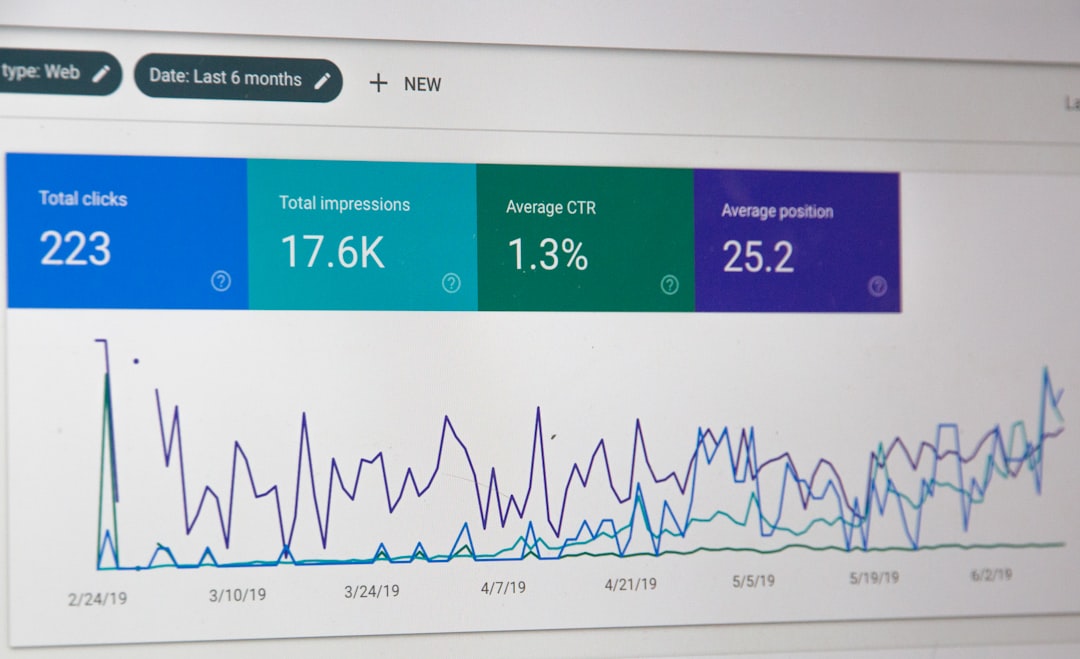
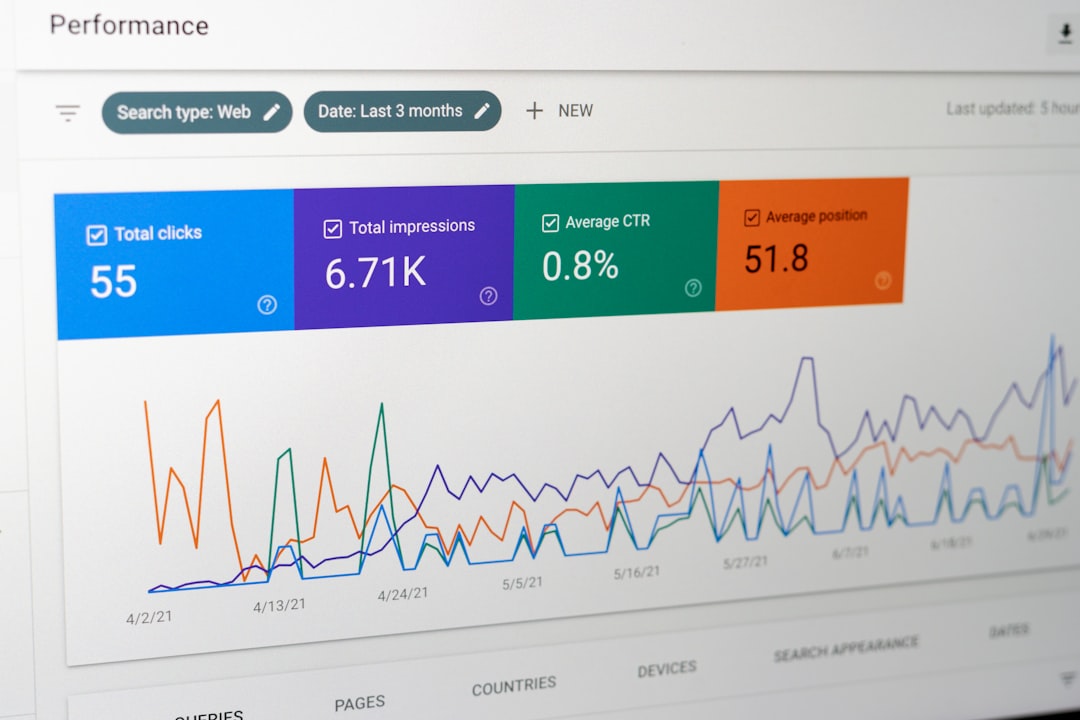
Check Google Search Console
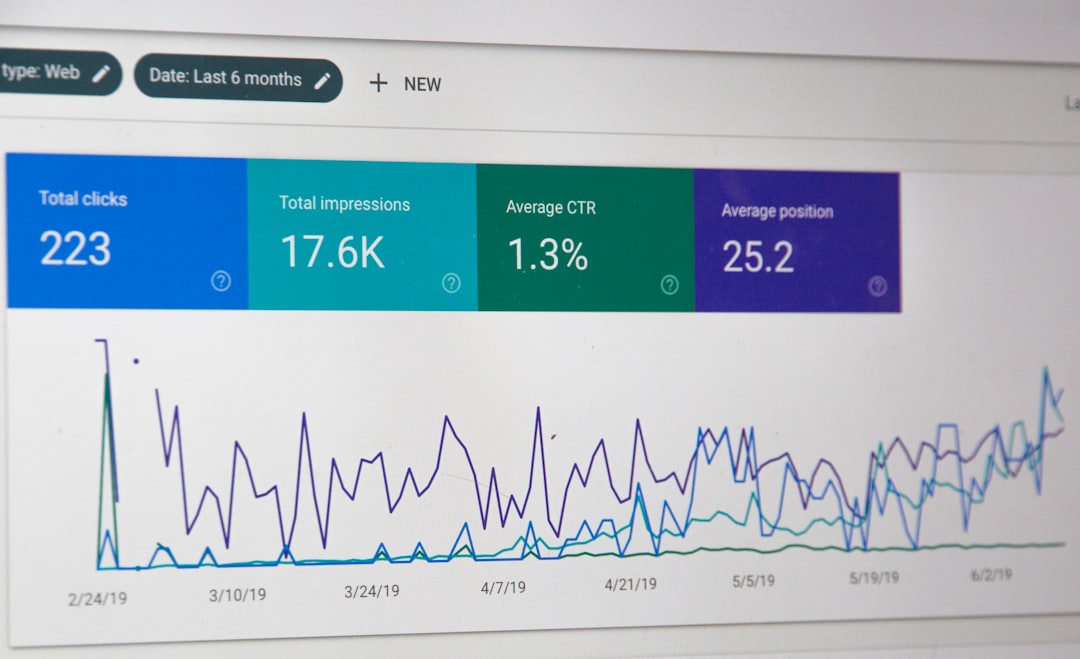
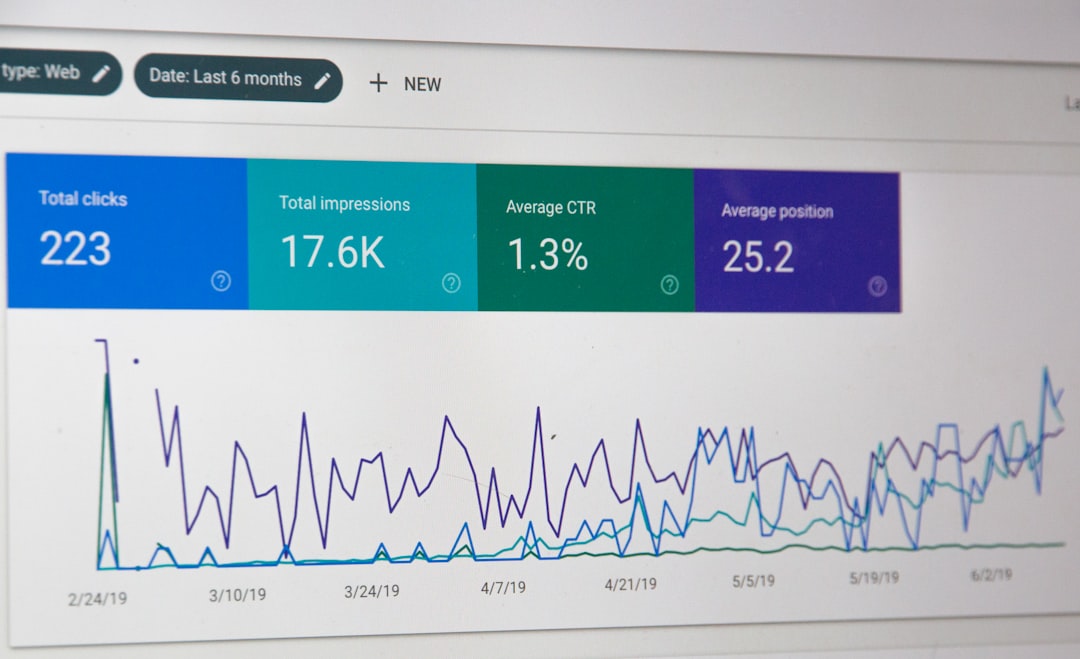
Google Search Console should be one of the first places to investigate.
Review:
- Performance data
- Indexing reports
- Search queries
- Page indexing
- Sitemap status
- Security or manual action notifications
Compare recent performance with an earlier period to determine whether the decline is widespread or limited to specific pages.
Check Whether Important Pages Are Indexed
A page cannot receive organic search visibility if it is not available for indexing.
Look for accidental noindex settings, incorrect canonical tags, or other technical changes that may affect important URLs.
WordPress websites can also develop indexing problems after migrations, redesigns, or plugin configuration changes.
Review Robots and Sitemap Settings

Check whether important pages are being blocked unintentionally.
Also review the XML sitemap and make sure it is accessible and contains the appropriate URLs.
A sitemap does not guarantee indexing, but a properly configured sitemap can help search engines discover important pages.
Check for Broken Links and Redirects
Website changes can create broken URLs.
Review internal links and important redirects after deleting, renaming, or moving pages.
If an old page has been permanently replaced by another relevant page, use an appropriate redirect rather than sending visitors to an irrelevant destination.
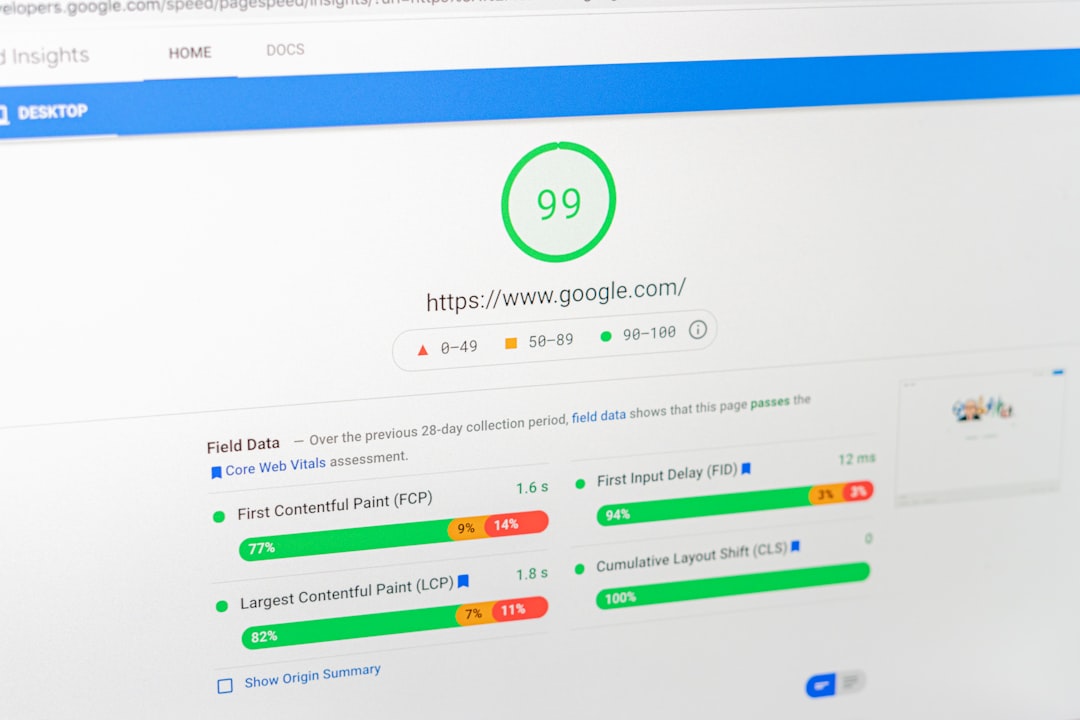
Investigate Website Speed
A significant performance problem can affect the user experience.
Check for:
- Oversized images
- Excessive plugins
- Heavy scripts
- Poor hosting
- Caching problems
- Unnecessary third-party resources
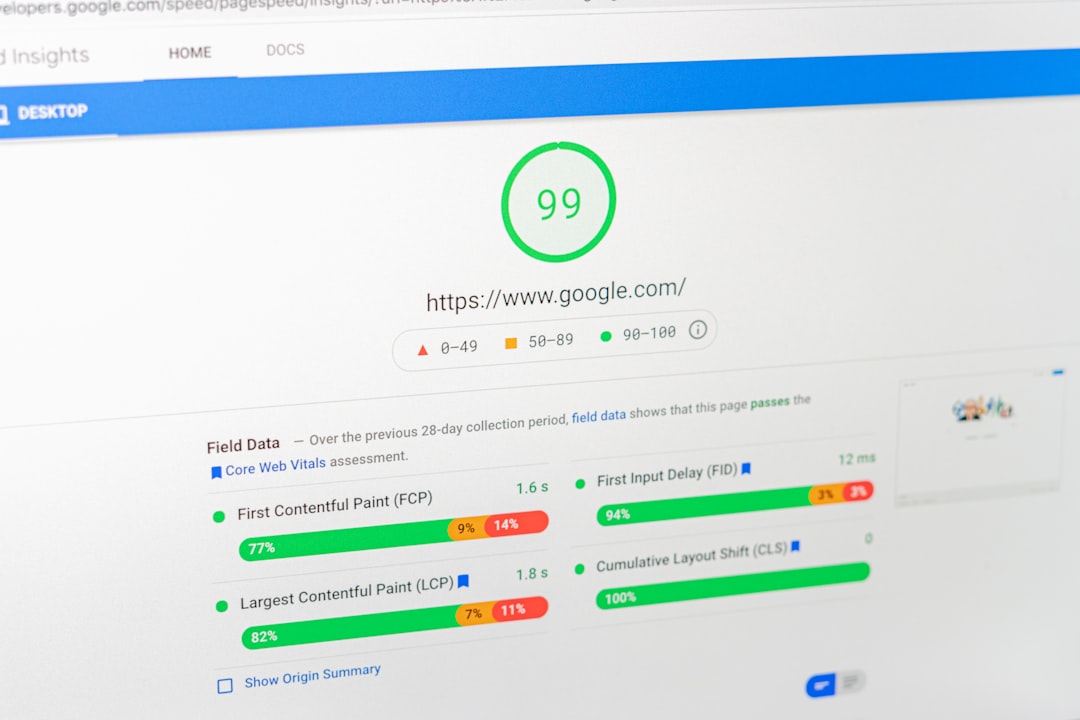
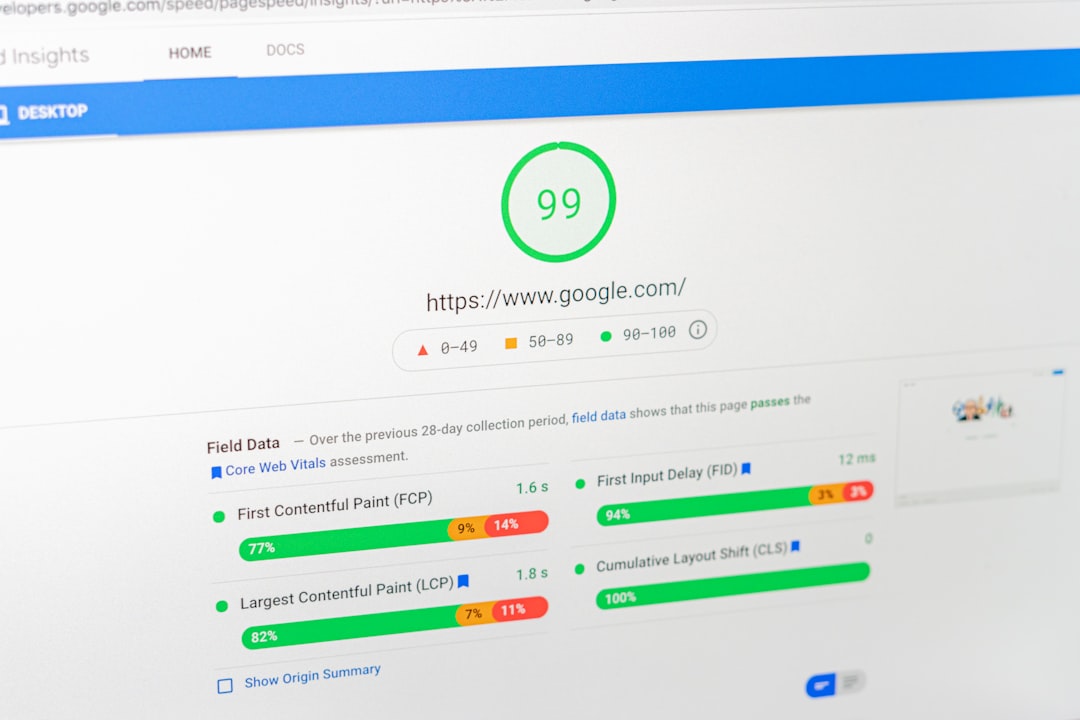
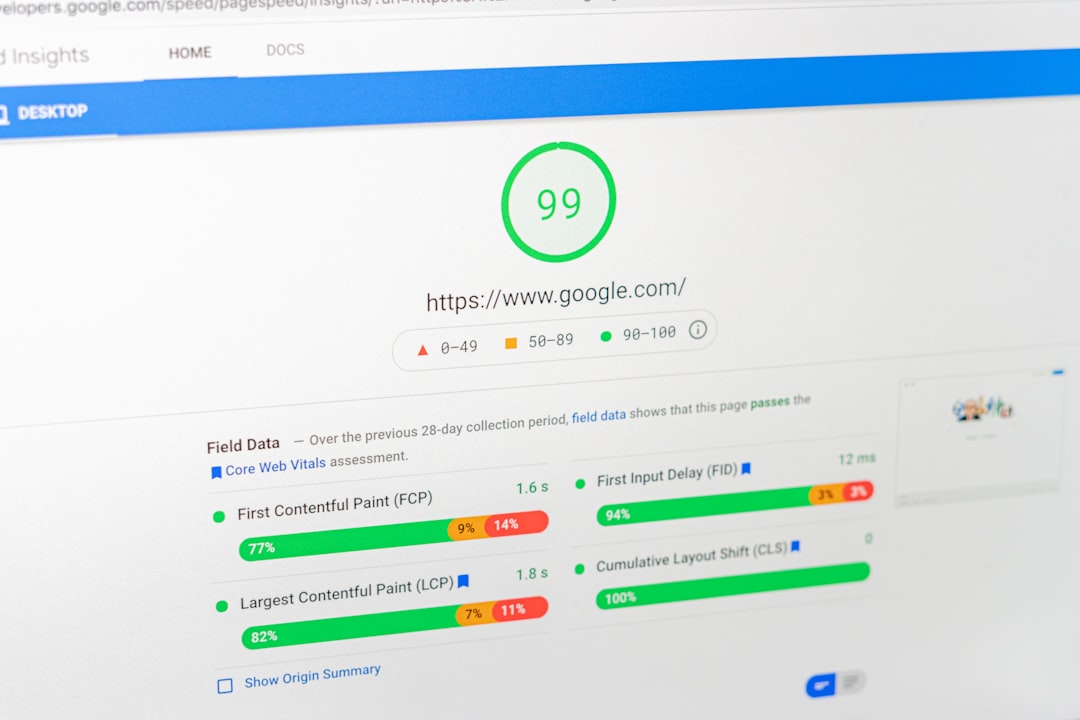
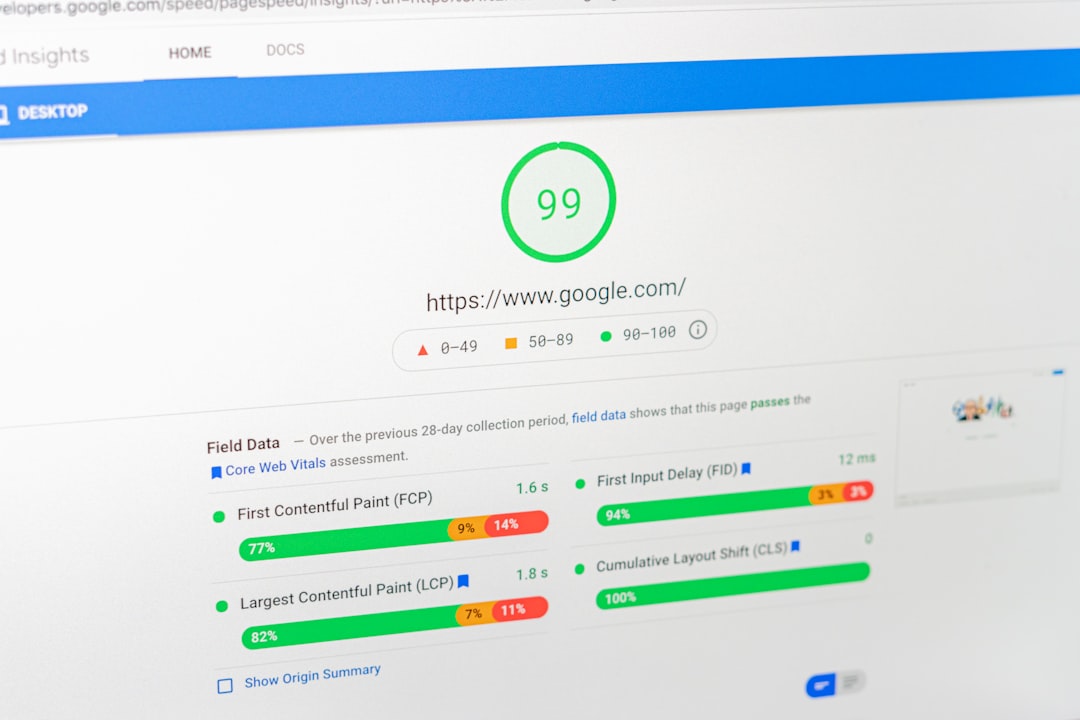
Use performance testing tools to identify the actual bottleneck instead of assuming that one plugin or setting is responsible.
Review Recent Content Changes
If rankings declined after updating an article or service page, compare the previous and current versions.
Look for changes to:
- Page title
- Headings
- Main content
- Internal links
- URLs
- Search intent
- Important information
Sometimes an update unintentionally removes information that previously made a page useful.
Check Mobile Usability
Open affected pages on a phone.
Look for broken layouts, unreadable text, difficult navigation, oversized images, and buttons that are difficult to use.
A page should provide a consistent experience across devices.
Investigate Duplicate Pages
WordPress can create multiple versions of similar content through categories, tags, archives, parameters, or product filters.
Review whether search engines are encountering unnecessary duplicate URLs.
Where appropriate, use canonicalization, redirects, or indexing controls to clarify which pages should be prioritized.
Do Not Make Too Many Changes at Once
One of the biggest troubleshooting mistakes is changing everything simultaneously.
If you change the title, content, URL, internal links, technical settings, and backlinks at the same time, it becomes difficult to know which change affected performance.
Prioritize the most likely problem and measure the result before moving to the next issue.
When Professional Troubleshooting Is Needed
Some problems require deeper technical knowledge, especially after migrations, major redesigns, security incidents, or large traffic losses.
A WordPress SEO expert can review the website systematically and identify technical and content-related causes.
Effective troubleshooting starts with evidence. Instead of guessing what Google wants, examine the website, search data, recent changes, and technical configuration to determine what actually needs attention.